Getting started
Set your language, theme, and density
Make Flow easier to read without changing anyone else's work.
Choose the interface language and spacing that suit you. Flow supports English and Spanish; changing the interface does not translate titles, comments, or other content your team has written.
Settings use the full available content width. Summary cards appear side by side on wide screens and in one column on smaller screens; lists and tables use the full width.
Change your language — 1 minute
Before you start: sign in with your own account. These are personal preferences, so you do not need workspace administration rights.
Open Profile and preferences from your account menu and stay on Profile.
Choose Edit profile. In Language, choose English or Spanish. You can also select your Timezone for personal date/time presentation and notification scheduling.
Choose Save profile. Wait for the saved confirmation; the interface switches to the selected language. In Spanish the equivalent controls are Editar el perfil, Idioma, and Guardar perfil.
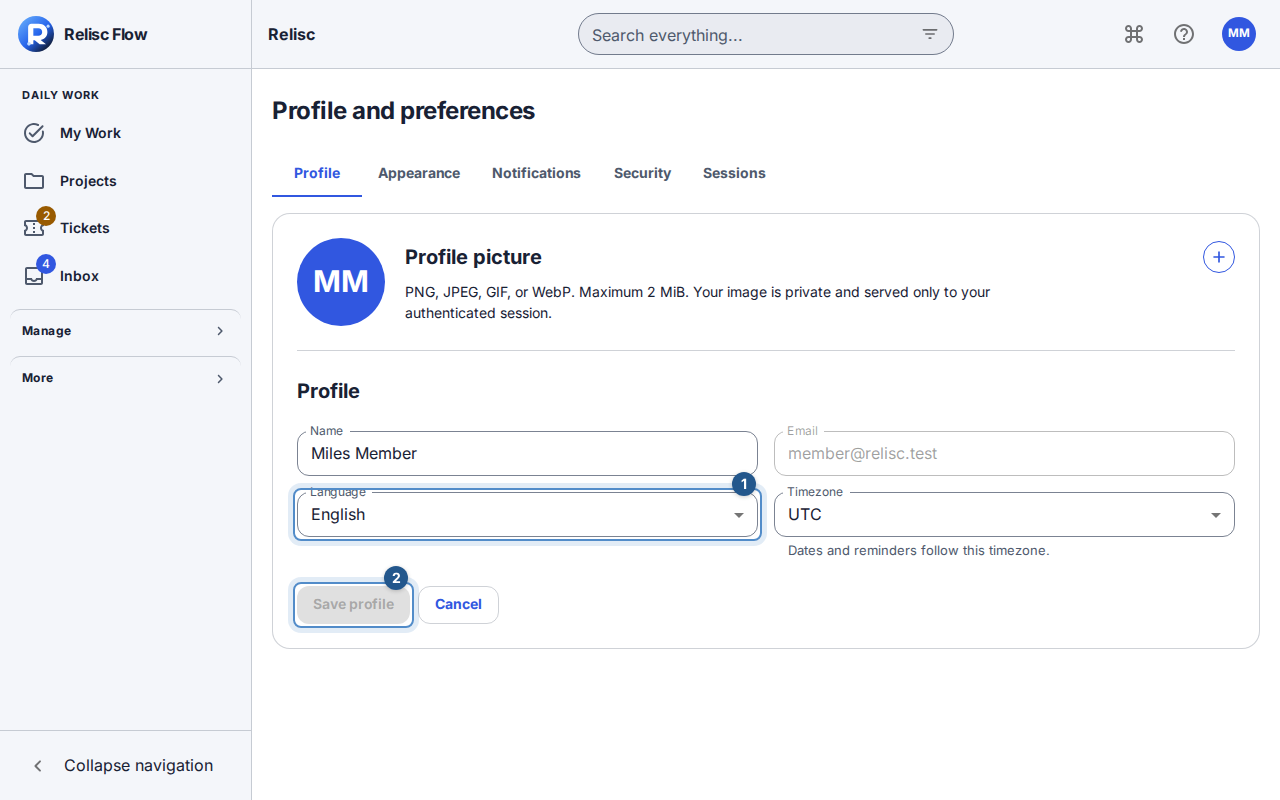
Edit profile exposes the Language and Timezone fields beside Save profile.
Change appearance — 1 minute
Open Appearance, then Edit in the appearance card.
Under Theme, choose System, Light, or Dark. System follows your device's current appearance; the text below tells you which theme is being used.
Under Density, choose Comfortable for more room or Compact for tighter work lists. The change takes effect immediately.
Choose Done editing to close the controls. Unlike profile fields, appearance choices do not need Save profile.
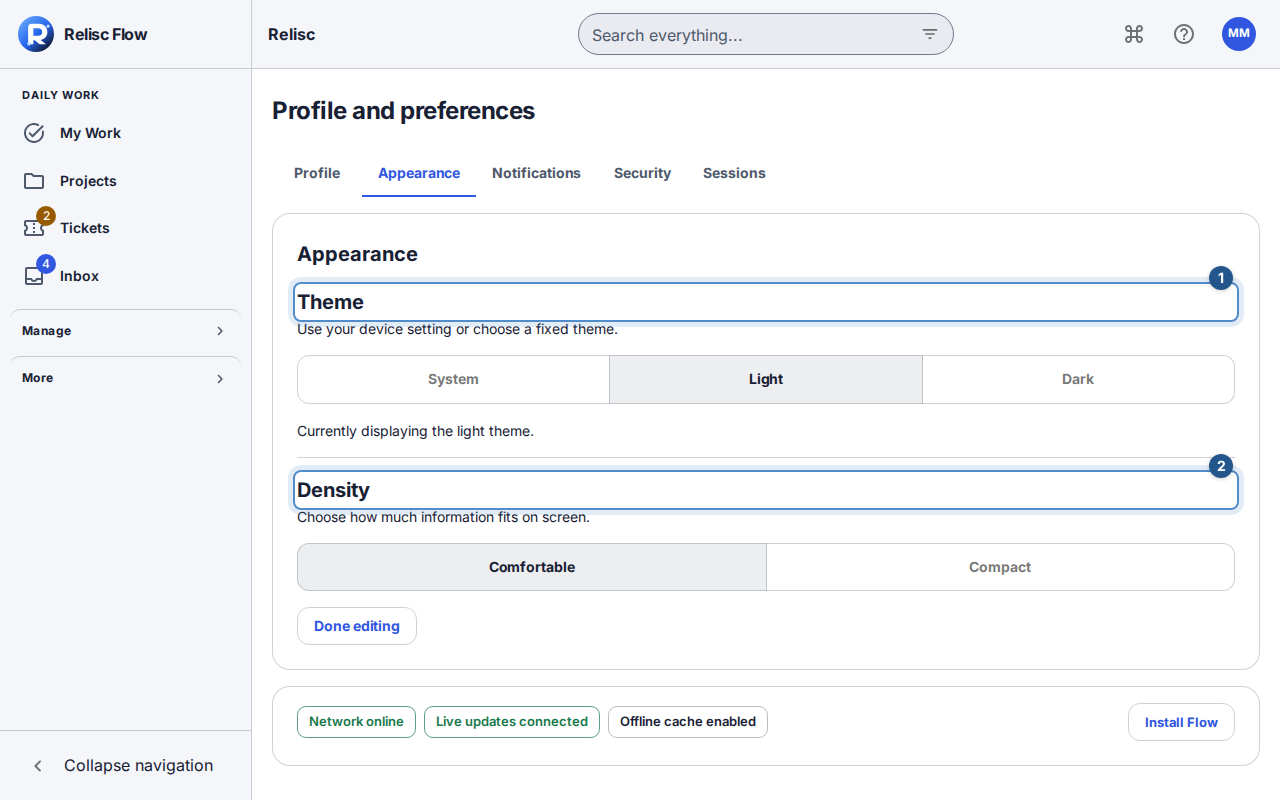
Appearance offers System, Light, and Dark themes, followed by Comfortable and Compact density.
Expected result: navigation and controls use your chosen language, and lists use the selected theme and spacing. Appearance is remembered in this browser; check it again when using a different browser or device.
If the result looks unexpected
Dates and times follow your Profile timezone everywhere. The workspace zone determines team report periods, scheduled jobs and shared Chat messages; week start remains a workspace setting. Date-only deadlines are the end of the chosen day in the workspace zone, shown as the calendar date in your zone without a time.
Until you choose a zone explicitly, signing in captures your browser zone. After a choice, a different browser zone offers a notice to switch; dismissing it is remembered in that browser.
Changing your profile zone refreshes searches and date groups with the same filters. Work may move to another date group or stop matching a date filter; unsent drafts stay open.
If Save profile is unavailable, change a value and check that your name and timezone are present. If saving fails, keep the form open, read the error, and retry when connected. Use Cancel to discard profile edits. If a system theme changes later, choose Light or Dark when you want a fixed appearance.