Getting started
Use Flow on your phone and install the app
Add the web app to your device and understand what remains available offline.
You can use Flow in your phone's browser or install its web app for a home-screen shortcut and an app window. Installation does not create a second account or grant extra permissions.
Install Flow — 2 minutes
Before you start: open your Flow address in a supported browser while online and sign in. Keep your normal MFA method available if the installed app asks you to sign in again.
Open Help and find Install Flow, or use the installation offer when it appears. The card explains what your current browser supports.
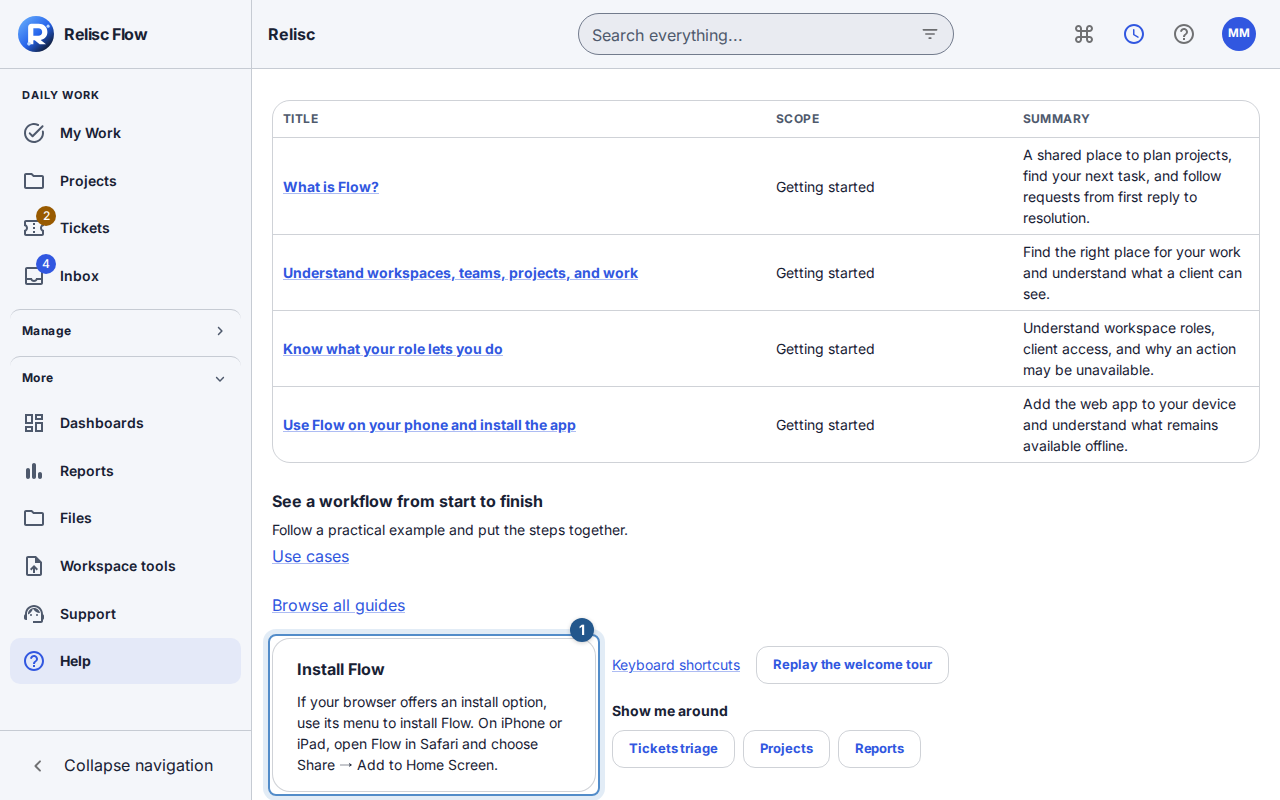
The Install Flow card gives the installation action or instructions for the current browser. In a browser that offers Flow's Install Flow button, select it and confirm the browser's installation prompt. On iPhone or iPad, use Safari's Share → Add to Home Screen → Add. If offered, leave Open as Web App enabled. On a Mac using Safari, use File → Add to Dock and confirm Add.
Open Flow from its new icon. Sign in if requested, then confirm the active workspace. Your work remains the same server-backed work you see in the browser.
On a narrow screen, open the navigation menu to switch areas. Project move and scheduling controls provide alternatives to dragging; use them when a touch gesture is awkward.
Expected result: your device has a shortcut that opens Flow, and you can reach your permitted work with the same account.
What happens without a connection?
Installation is not offline editing. If your workspace permits offline reference views, eligible internal users can consult recently loaded My Work references, recent project references, and generic inbox states for up to one hour. These views are read-only and omit titles, descriptions, comments, and files. They do not provide client content; client users and client administrators do not get offline work snapshots.
Reconnect before making changes or opening current work. Clear offline data removes the local references; it does not delete server work. Signing out or changing workspace clears the prior offline scope.
If installation or notifications are unavailable
If no install button appears, read the browser-specific instructions or use the browser's installation menu. Flow may already be installed, or the browser may not support installation. You can keep using the browser normally.
Installing does not enable notifications automatically. Open your profile's Notifications tab and follow Inbox and notification settings. On iPhone/iPad, browser push requires a supported installed home-screen app. If your session expires, reconnect and sign in.