Daily work
Track time on a task or ticket
Use a timer or record a finished interval with the correct project attribution.
Record time beside the work you performed so its history and time reports have the right context. You can have one active timer per user in each workspace.
Dates and times follow your Profile timezone everywhere. The workspace zone determines team report periods, scheduled jobs and shared Chat messages; week start remains a workspace setting. Date-only deadlines are the end of the chosen day in the workspace zone, shown as the calendar date in your zone without a time.
Time work as you do it — 2 minutes
Before you start: open an active task or ticket you can read and record time on. The item and all relevant project placements must still allow the action. Client or read-only access does not grant staff time-entry controls.
Find the Time summary in the item detail and choose the play button named Start timer for ….
If the item appears in more than one project, choose the project to attribute your time to, then choose Start timer. Do not choose a project merely because its name looks familiar: this attribution determines where the time is reported.
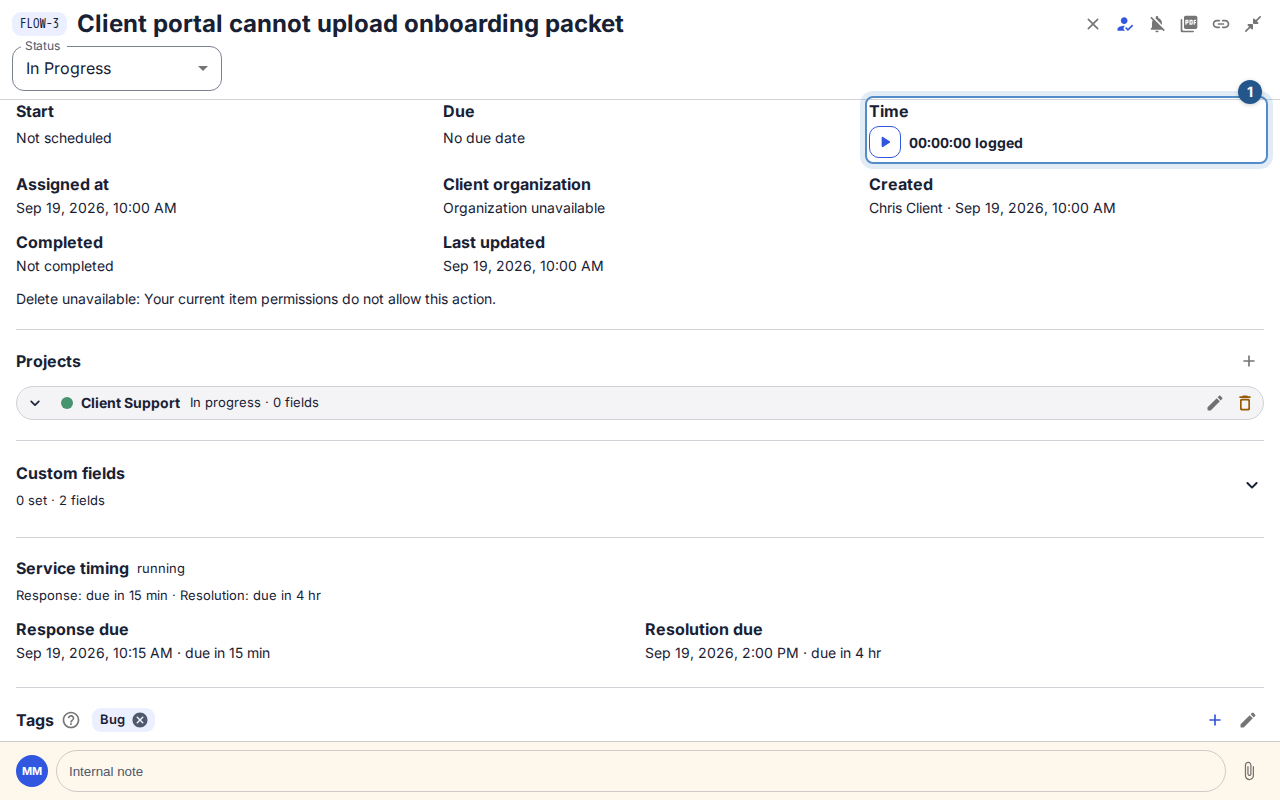
The time summary shows the timer action and logged duration for this work item. Work on the item. When finished, choose Stop timer for …. Check that the timer stops and a completed entry appears in Time Tracking.
If Flow says a timer is running elsewhere, stop that existing timer before starting another. A second tab does not give you a second timer.
Expected result: one interval is recorded against your account, the item, and the chosen project attribution.
Record time after the fact — 2 minutes
In Time Tracking, choose Add manual time.
Enter Started at and Ended at using your Profile timezone shown in the panel. The end must be later than the start; check the dates as well as the clock times for overnight work.
Choose a project attribution if required and optionally add a short Time note (optional). Choose Save manual entry.
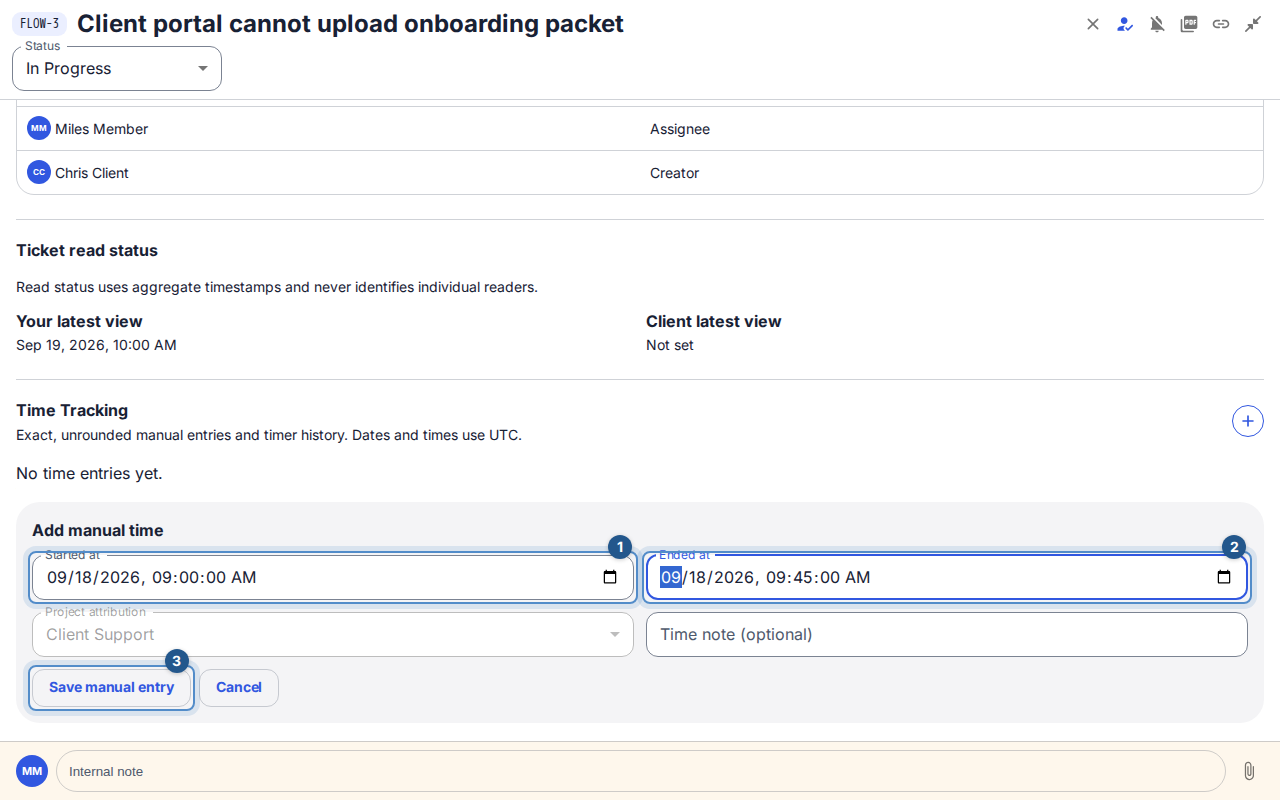
The manual-time form shows start, end, project attribution, and the explicit save action. Review the new row's person, duration, and interval. Use Edit time entry for a correction when the row offers it, or its delete control and confirmation for an entry recorded in error.
Correct a problem without double-counting
If an acknowledgement is lost, check the active timer and time history before entering the same interval again. Reload on a conflict and review the latest row before retrying an edit. A displayed total may cover only loaded history when more entries remain; load more before using it as a full-history total.
You can normally edit your own entries only when their controls permit it. A named internal-only ticket role may record its own time without permission to publish a client reply; time access does not imply reply access. If work becomes archived or access is removed, use the available stop/recovery control for your running timer and ask a manager about further edits.