Daily work
Choose your next task in My Work
Focus your assigned work and organize it without changing the project plan.
Start in My Work to decide what to do next across the active workspace. Your assigned open tasks and active tickets appear here; it is not a combined queue for every workspace you belong to.
When you can edit a title, choose it to place the caret in the same title box. The details arrow stays visible: Tab reaches it, and choosing it saves the title before opening details. Enter saves in place; Esc restores the original title. A failed save keeps your draft available.
Plan your next hour — 3 minutes
Before you start: sign in as an internal workspace user. You need readable assigned work to see results; editing each item still requires its own permissions.
Open My Work. Read the open, overdue, and blocked counts before choosing a task. Wait for loading to finish; a loading error is not an empty queue.
Choose Customize. Set Focus to a useful group, such as Due today or Non-blocked, and narrow by project, team, tag, or custom field if necessary. Choose Apply settings for changed settings.
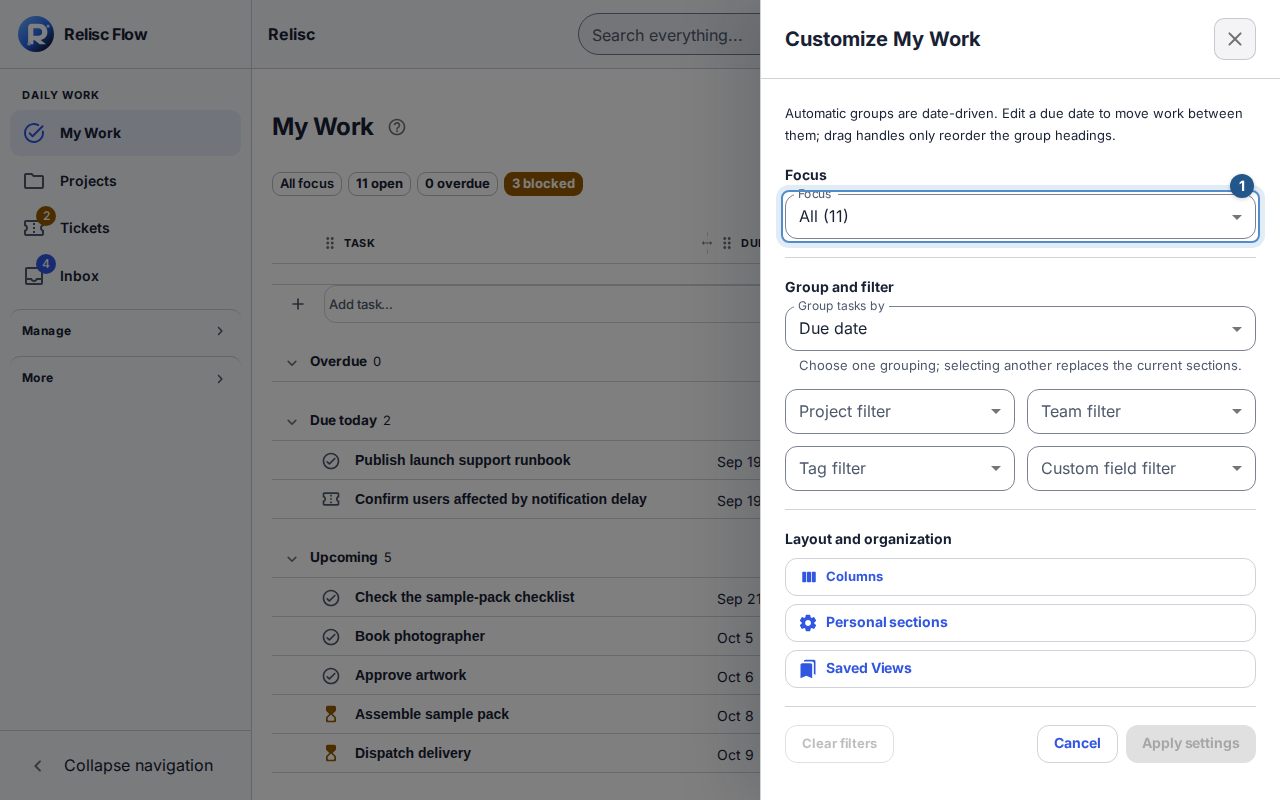
Customize My Work exposes Focus and grouping/filter choices for your assigned queue. 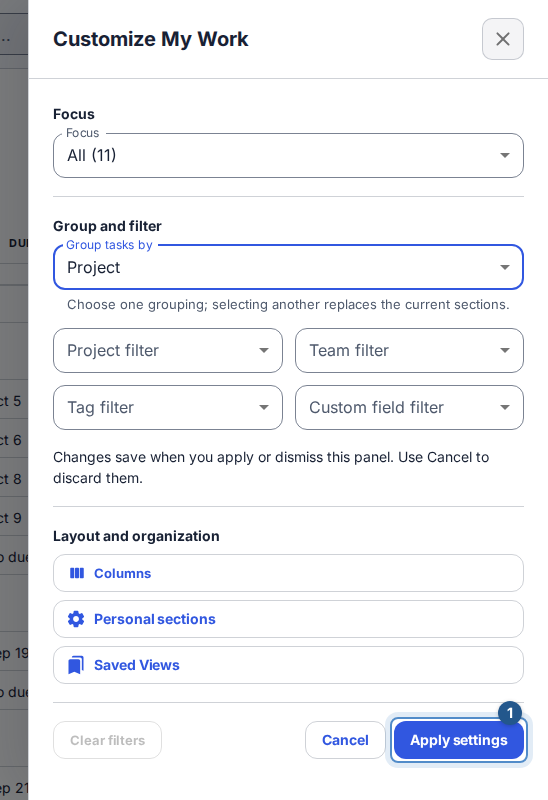
After changing grouping or filters, Apply settings saves the chosen queue configuration. Open a task from the resulting list. Check its due date and dependencies, then make your next update or start a timer. Selecting work for bulk actions is different from completing a task. Task titles take more of the available row width on desktop; any column widths you adjusted for a saved view still apply.
To organize work your own way, open Customize, then Personal My Work sections. Enter New section name, choose Add section, and return to the queue grouped by personal sections. Use a work row's movement controls to place it in your section; dragging is optional.
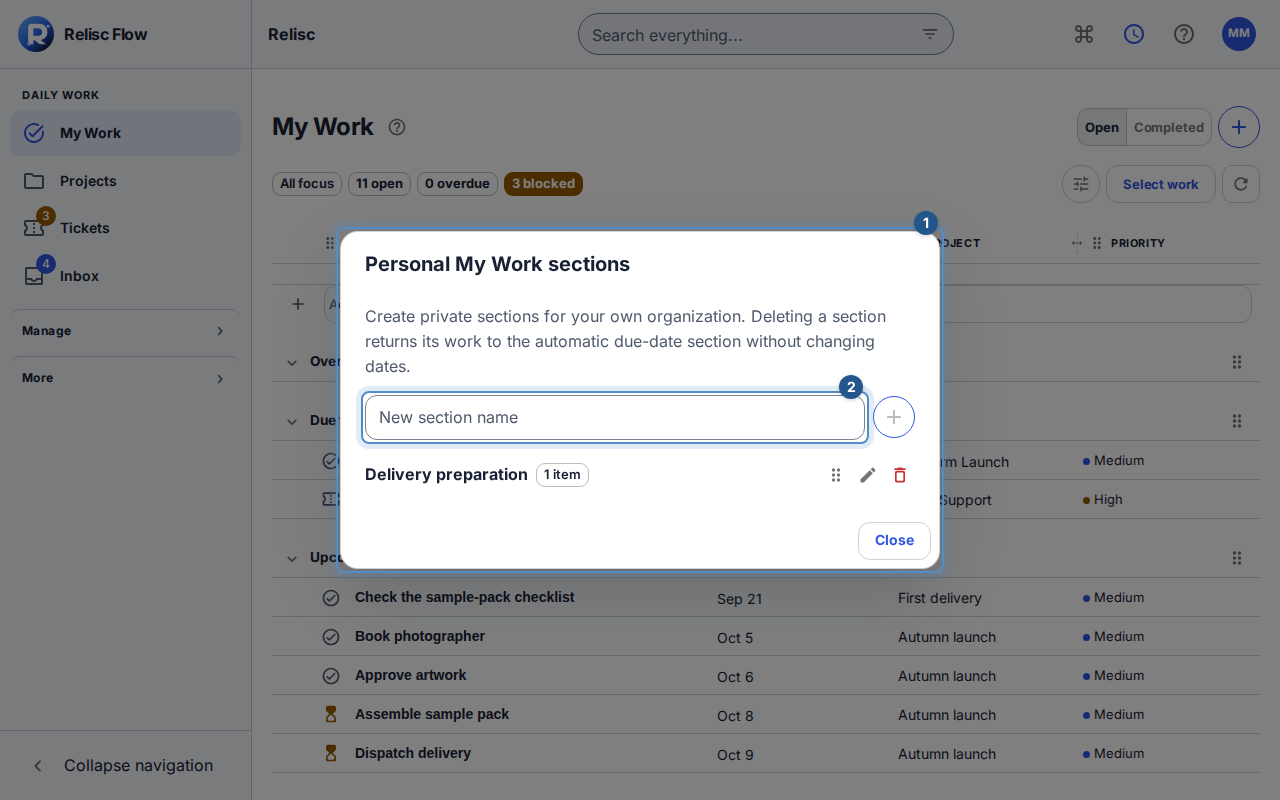
Personal sections group your queue independently of the project's sections.
Expected result: you have a short, useful queue and can identify the next unblocked item to work on.
Personal organization versus project changes
Personal sections and personal ordering do not move work between project sections. Automatic date groups follow dates: moving a group heading changes its display order, not the dates of its tasks. In Personal My Work sections, the trash icon asks you to confirm the section name and the number of open tasks loaded in this queue. Deleting it moves its work to No personal section, using the queue’s existing ordering, without deleting work or changing dates or project placements. Cancel and reopen the confirmation if your personal sections changed elsewhere.
Use Completed when looking for finished work. Use Saved Views with the bookmark icon from Customize to keep a useful queue configuration. In the saved list, the arrow applies a view and the star marks a favorite; each icon shows its action on hover or keyboard focus. Saving or starring a view never grants access to its results.
If your queue is empty or a save fails
Choose Clear all to remove active filters, check the workspace, and confirm that the work is assigned to you. If the unfiltered queue is clear, there may simply be no active assigned work. For a conflict, choose Reload latest, review the preserved draft, and use the offered retry action. If an item becomes read-only or unavailable, ask its project manager to check access rather than creating a replacement.