Projects
Choose List, Board, Calendar, Timeline, or Dashboard
Look at the same project from five angles and understand what each view changes.
The five buttons in the project header show the same underlying work. Switching views does not duplicate tasks. Choose a view for the question you need to answer; changes made through a view update the actual work.
When you can edit a title, choose it to place the caret in the same title box. The details arrow stays visible: Tab reaches it, and choosing it saves the title before opening details. Enter saves in place; Esc restores the original title. A failed save keeps your draft available.
Dates and times follow your Profile timezone everywhere. The workspace zone determines team report periods, scheduled jobs and shared Chat messages; week start remains a workspace setting. Date-only deadlines are the end of the chosen day in the workspace zone, shown as the calendar date in your zone without a time.
Tour the five views — 4 minutes
Before you start: open a project you can see. A project with a few tasks, sections, dates, and dependencies makes the differences easier to see. Read-only users can inspect views; movement and editing controls require permission for each item.
Choose List to review titles, assignees, dates, and other visible columns together. Use Customize project for grouping, sorting, filters, and column choices, then Apply settings. Group by section for the project's structure, or by a custom field you can see when that better answers your question. Open a row for full detail. On desktop, task titles take more of the available row width by default. Resize columns when you need a different balance; your saved view keeps its own widths.
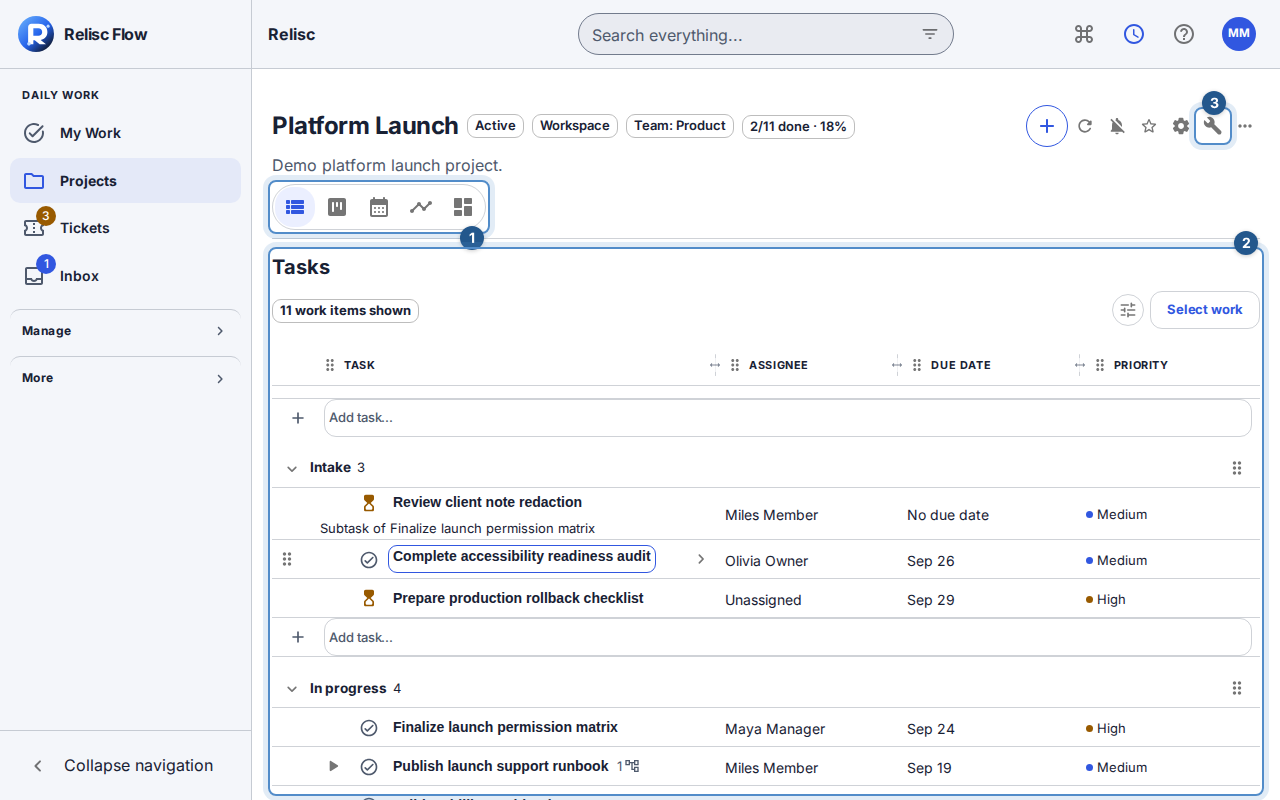
List keeps its planning columns visible while a title is edited in its box with the details arrow beside it. Choose Board to review work in columns. Open Customize project and use Board group to select section, task status, ticket state, priority, or a supported custom field, then Apply settings. Moving a card updates the value represented by the destination column; it does not always mean changing status. Use the card's move action (named for that item) and Move item when dragging is inconvenient.
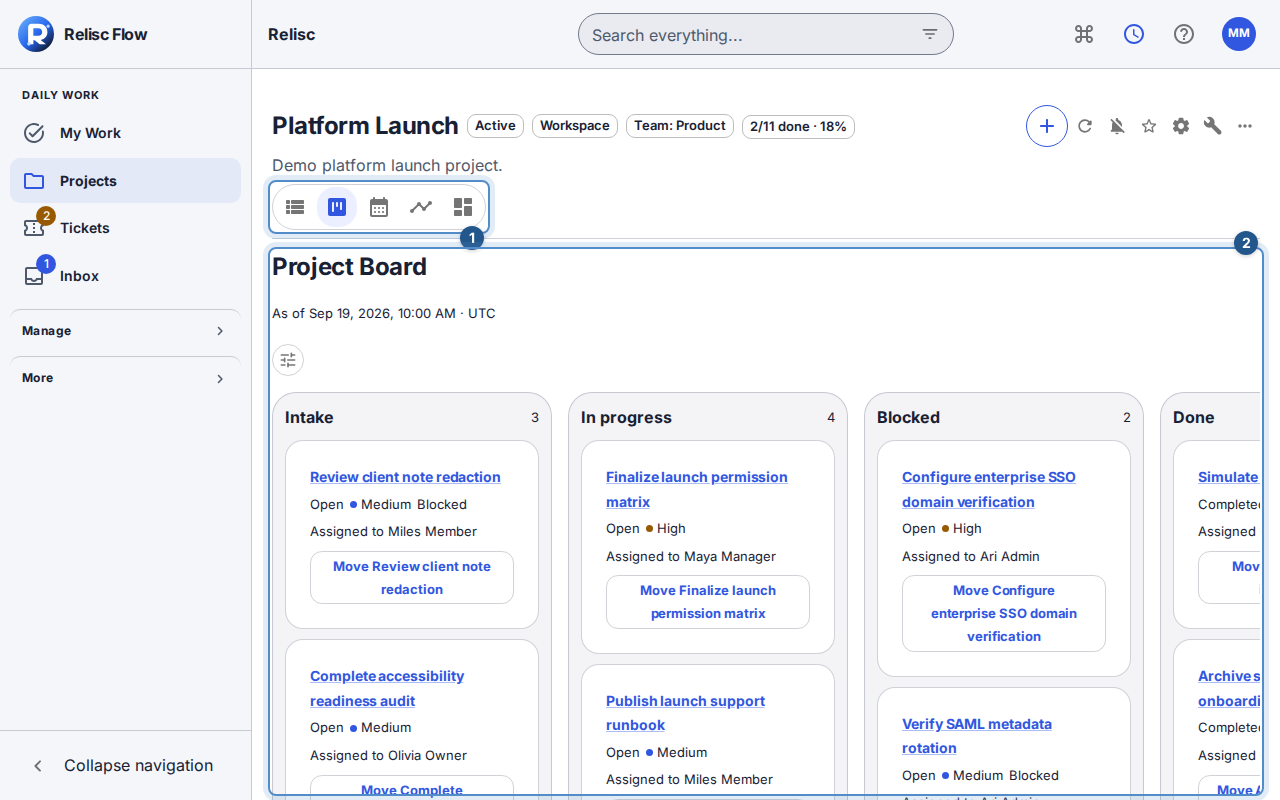
Board identifies its grouping so you know what moving a card will change. Choose Calendar to see due work by Month or Week. Navigate the displayed period and read the calendar's text legend rather than relying only on colors. Choose View no-date work for items missing a due date. To move a permitted item, use Reschedule, choose New due date, then Save due date. Existing due times display in your Profile timezone; date-only work remains all-day and is anchored to the workspace zone.
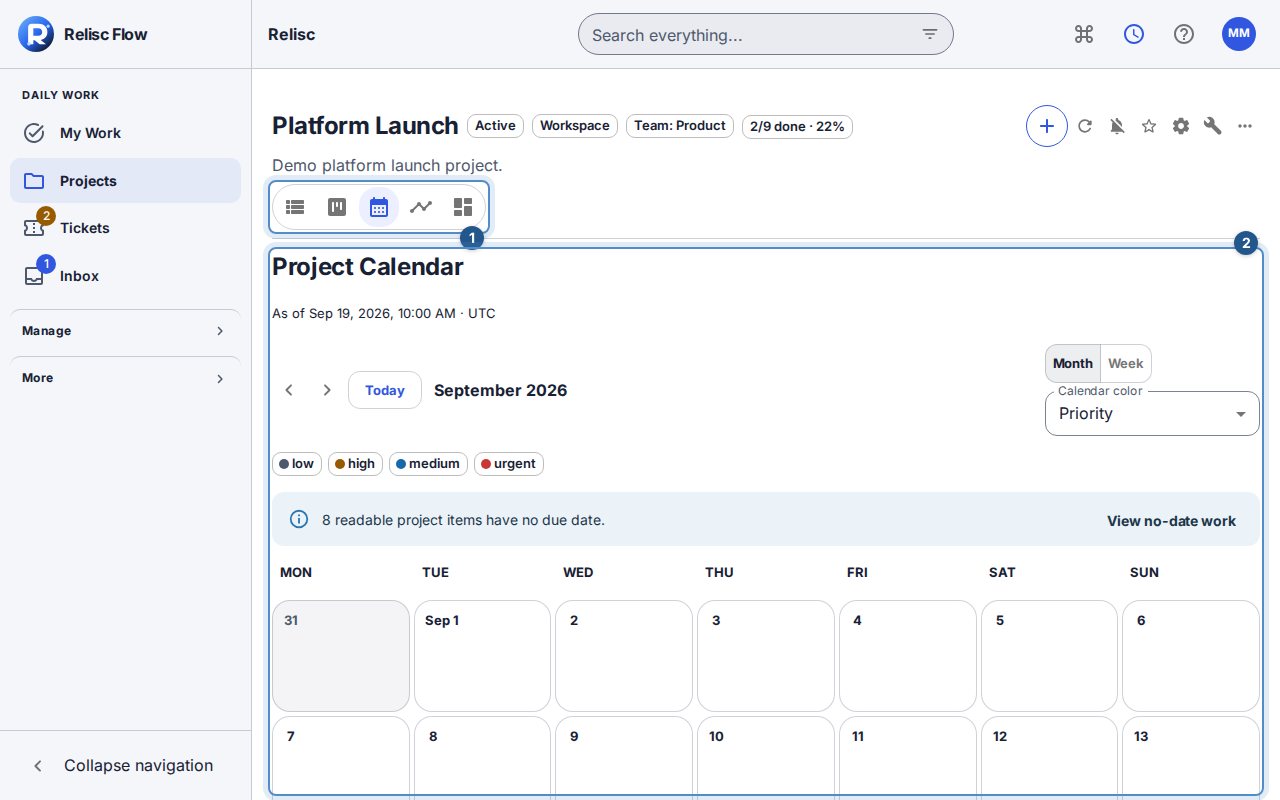
Calendar exposes month/week controls and the option to find work without a due date. Choose Timeline to inspect start-to-finish ranges and dependencies. Set the visible range, then review unscheduled work, conflicts, and critical-path indicators. Use the schedule action named for the item and Save schedule to set explicit start and due dates where permitted. An item without a complete date range appears as unscheduled rather than receiving invented dates.
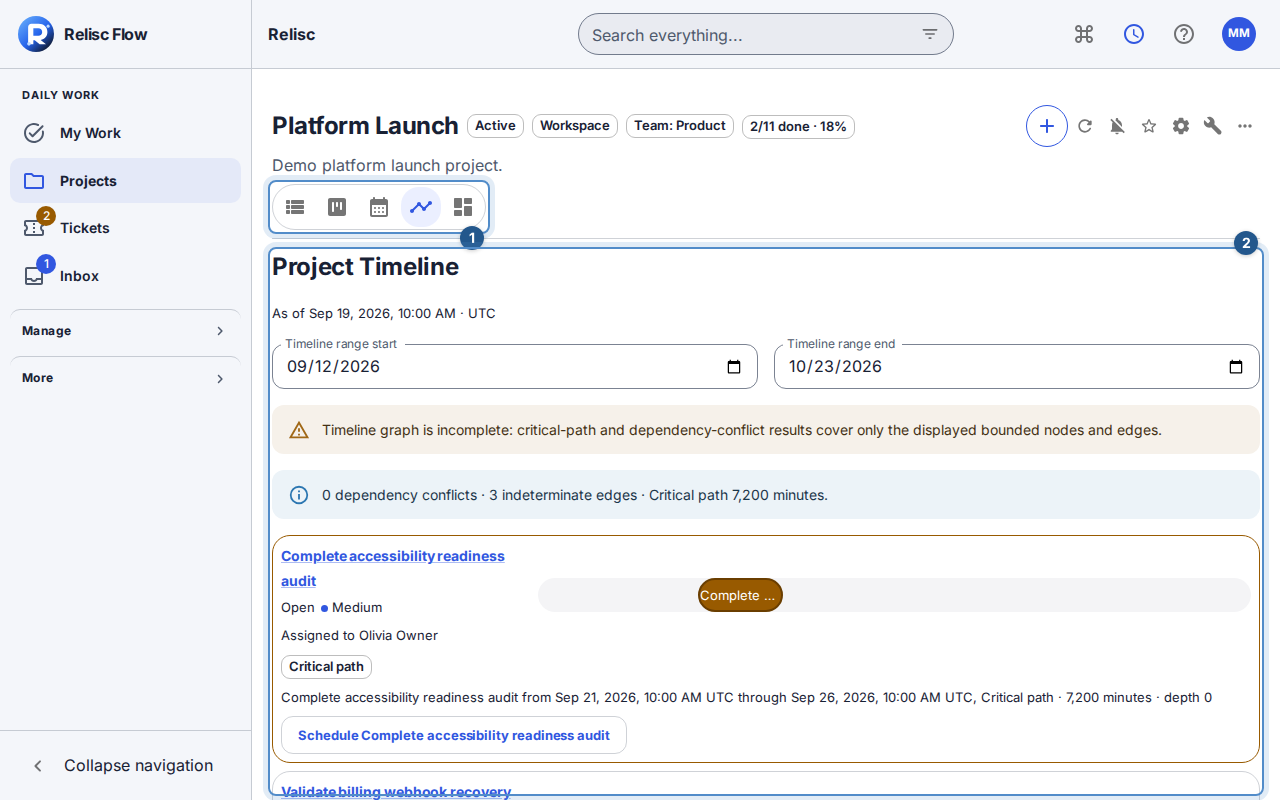
Timeline summarizes dependency conflicts and the limits of the displayed date range. 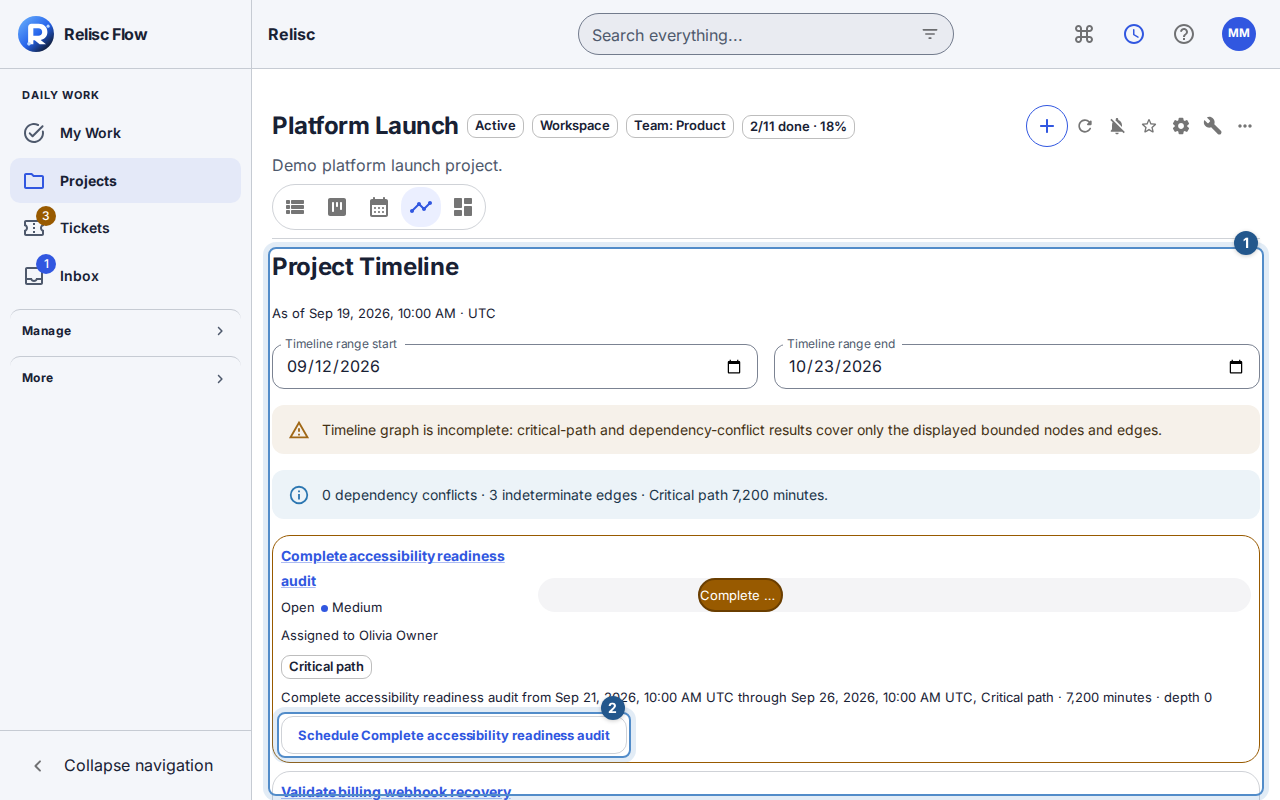
Scheduled work shows its start-to-finish range and the action for adjusting its schedule. 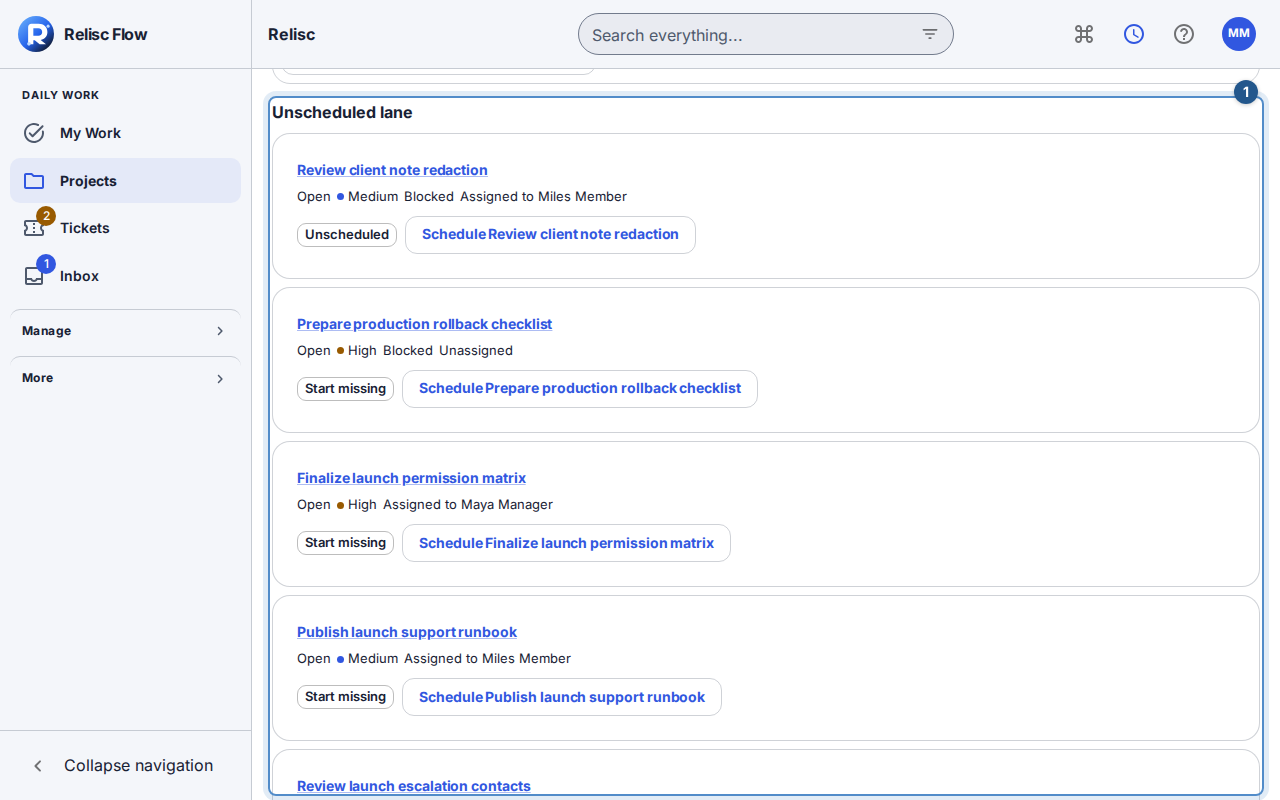
The Unscheduled lane keeps work with incomplete dates separate from scheduled ranges. Choose Dashboard for project health. Read the definition of a metric, then open its source records to see what it counts. Progress compares completed work you can see with all active work you can see; resolved or closed tickets count as completed. Workload and automation metrics depend on additional permissions.
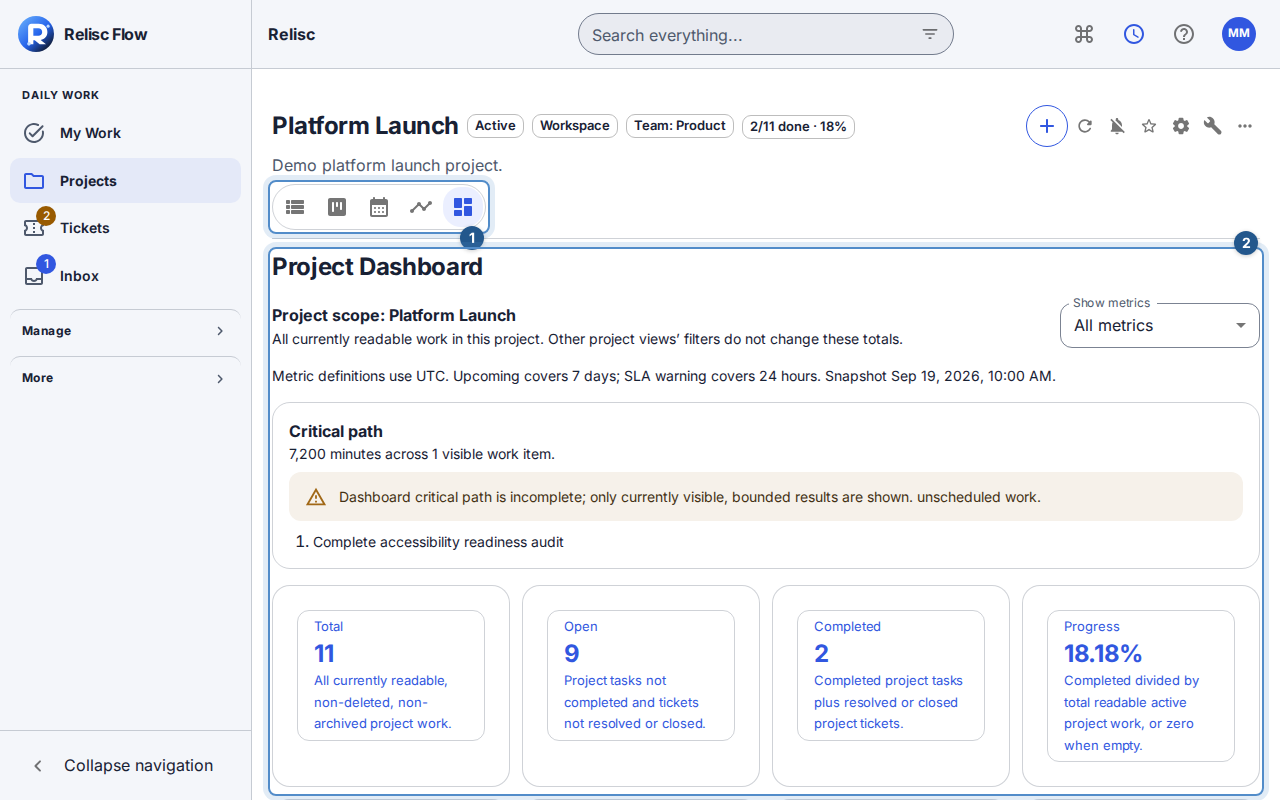
Dashboard identifies the project scope and explains the current analysis before its metrics. 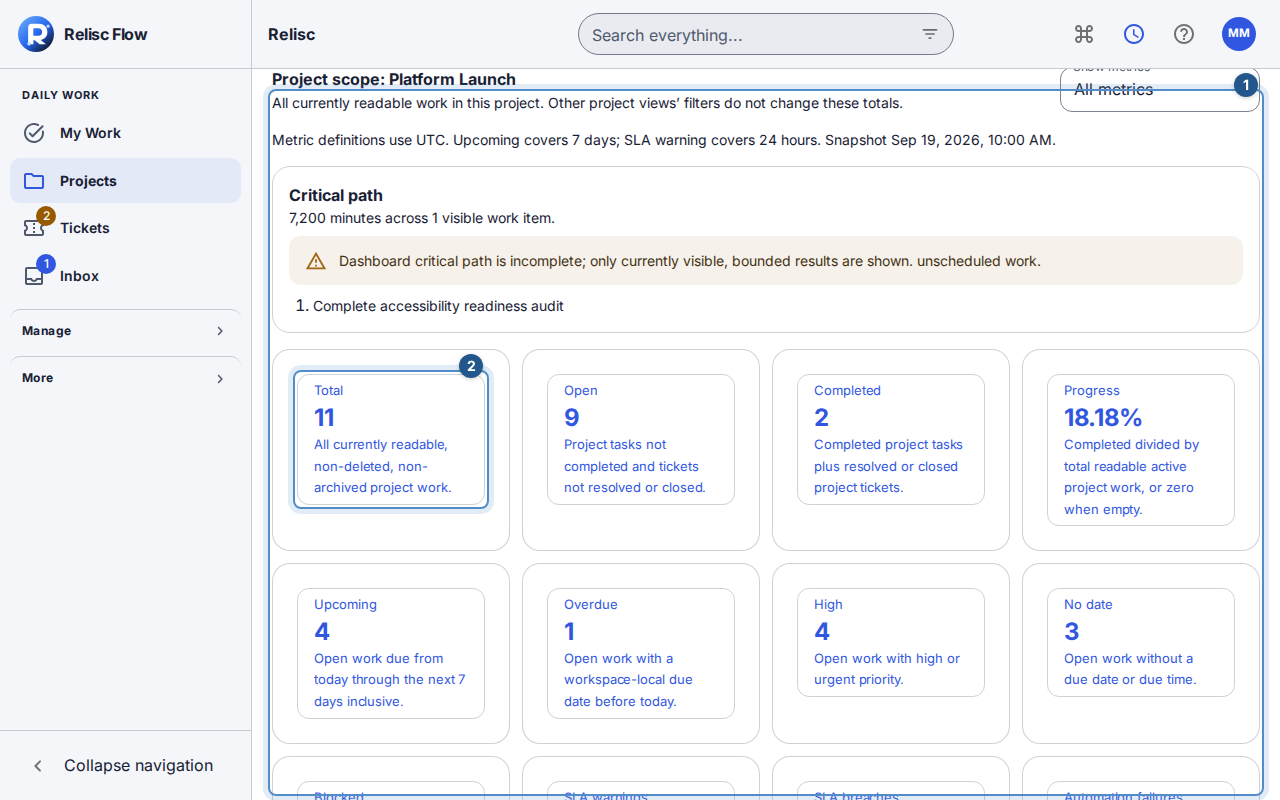
The Total metric names what it counts and opens the visible work behind the number.
Expected result: you can switch from a project's overview to the exact work that needs attention without maintaining separate copies.
Trust the scope, not just the number
Views use work you can currently see. A metric marked unavailable is not zero. An incomplete timeline is not a complete critical path. Use the continuation controls when more results exist and read the visible scope and timezone. If a saved result set expires, choose Start from current results.
Internal users can save useful project view settings; saved views retain configuration, not permission or a frozen result set. Client project views remain restricted to shared, non-internal content and do not offer staff planning changes.
Inherited subtasks follow their parent under filters; explicitly placed subtasks and subtasks whose parent is outside the project remain independent. Clearing the last filter keeps the view unfiltered. Reset settings immediately restores the default settings and clears the remembered filters.
Empty, read-only, or conflicting views
Remove filters or widen the date range before concluding there is no work. Calendar omits undated work from its grid; Timeline needs start and finish dates. Retry a loading failure instead of treating it as zero. For conflicting edits, reload the current item before retrying the retained action. Archived work and projects remain read-only, and multi-project edits can require authority over all current placements.