Reports
Save and reopen a report view
Reuse time or workload settings without freezing the underlying data or permissions.
Save a report view when you repeatedly ask the same question. A view stores report settings, not a snapshot of results. Opening it later reruns the view against data you can currently read.
Before you start
Use your own signed-in staff session. Personal views are available to internal readers with workspace access. Creating a workspace-shared view additionally requires workspace-settings management. Client and support sessions do not use these saved-report controls.
Save the current report
Open Reports → Time or Workload and prepare the report. Apply time dates before saving; a date draft is not the applied report.
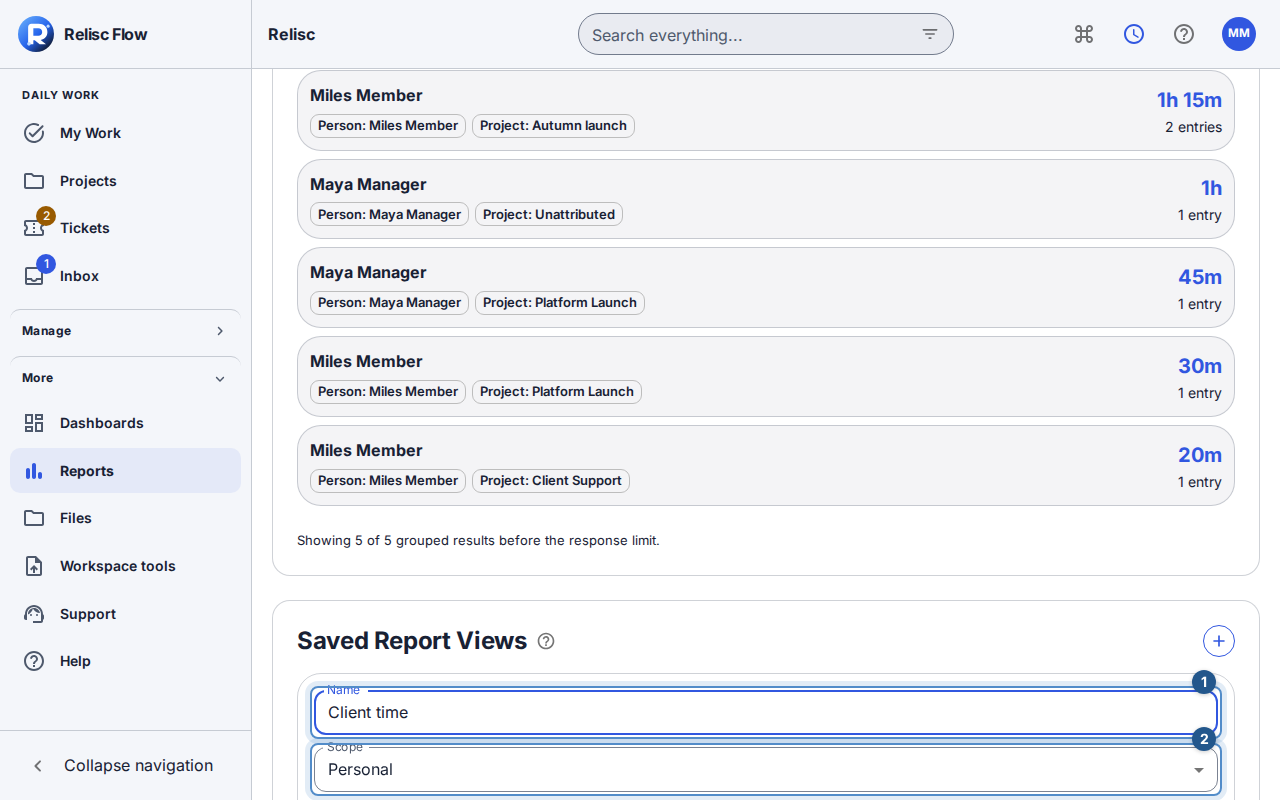
Find Saved Report Views and select Create report view. Enter a name that describes the question, such as “Weekly workload by assignee.”
Choose Personal, or Workspace shared when offered and appropriate. A shared view makes the configuration available; it does not share its underlying projects, tickets, or time entries.
Create the view and confirm that it appears in the saved list. Time views retain applied dates, grouping, sort, and columns; workload views retain window, scope, sort, and columns.
Reuse and organize
Select the arrow on the saved view's row (Apply tooltip). Check the report type and restored settings; use browser Back and Forward to move between report states.
Star the view if you use it often. Stars are personal, sort your favorites first, and make starred views easier to reach from navigation.
Use the copy, pencil, or trash icons to clone, rename, or delete when permitted. Each icon names its action on hover or keyboard focus; confirm deletion in the dialog. Clone a shared view to make a personal copy before tailoring it for yourself.
An absolute date range stays the saved dates; reopening it is not a promise to advance to the next calendar week. Review and apply the period you actually need.
If applying a view fails
Wait for the saved list to load and retry any reported load failure. A removed project, deleted view, or changed permission can make a saved target unavailable. Return to the underlying report, choose accessible filters, and save a new view if needed. If an edit conflicts, reload and review the current view instead of overwriting another person's update.