Reports
Use Reports to find work that needs attention
Choose what to include, read the numbers, and open the work behind them.
Start in Reports when you want to turn a summary into a next action: inspect overdue work, check active tickets, or find an approaching SLA target.
Before you start
Choose the correct workspace. Reports show only work you can access; colleagues with different project or client access may see different totals. Client users use their portal rather than this staff Reports area.
Read the overview
Open Reports → Overview and wait for the analytics to load. Loading or an error is not a zero count.
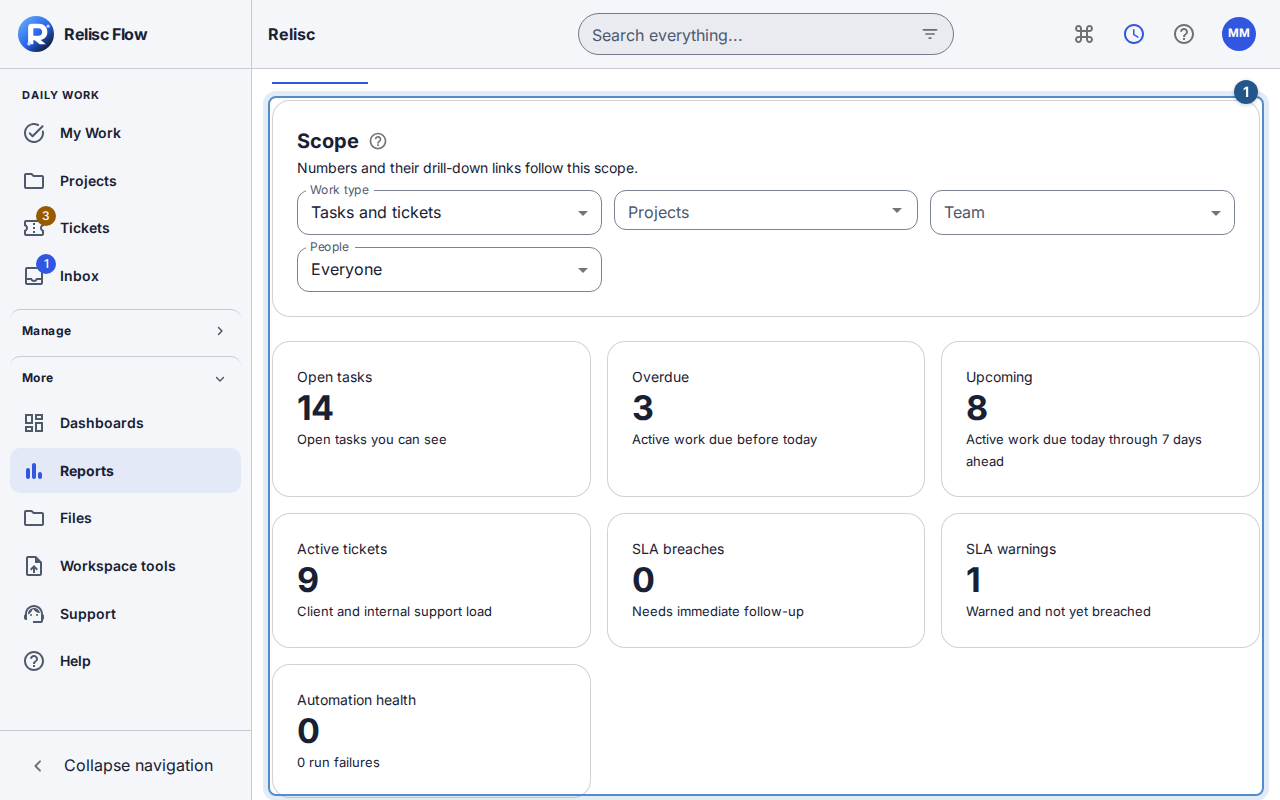
Set the available work-type, project, team, client, and people filters. Use the filters that answer your question; check them before comparing totals with a colleague.
Review open/overdue/upcoming work, active tickets, and SLA warning or breach metrics. The charts break work down by priority, ticket state, and other available categories.
Select a number or chart to open the corresponding work. The link keeps your filters; check them before widening the results.
Return to Reports and choose Workload for assignee/date distribution or Time for logged duration. Export and legal-hold tabs appear only when you have their separate permissions.
Interpret operational metrics carefully
Automation-run health appears only with automation-management permission, and webhook-delivery health only with webhook-management permission. Their absence does not mean there have been no failures. An SLA warning concerns an outstanding target approaching its deadline; a completed first response does not become outstanding again after a client reply.
If numbers look wrong
Wait for filters to finish updating, then compare the workspace, filters, dates, and access. Use Retry if a request failed. Clear filters if no work matches. Losing project access or changing roles can reduce a report; a saved link cannot restore old permissions. Open an item before treating a difference as missing data.
Continue with workload or time reports.