Reports
Review workload by assignee
Compare due-date buckets and open the exact work counted in each cell.
Use Workload to spot overdue or unassigned work before allocating more. It counts work items by assignee and due-date bucket; it is not a capacity-hours or effort estimate.
Dates and times follow your Profile timezone everywhere. The workspace zone determines team report periods, scheduled jobs and shared Chat messages; week start remains a workspace setting. Date-only deadlines are the end of the chosen day in the workspace zone, shown as the calendar date in your zone without a time.
Before you start
You need staff access to Reports and readable work. The report includes only your current authorized scope. Report periods use the workspace zone shown in the window label; individual dates follow your Profile timezone.
Compare and investigate
Open Reports → Workload. Set the work type, projects, team, or client scope. This report already groups by assignee, so Overview's people filters are not applied here.
Choose a Window of 7, 14, or 30 days. Read the date explanation below the table for the exact due and completion boundaries.
Use Columns to keep the measures you need. Select a column heading to sort, and select it again to reverse direction. Unassigned work remains separately identifiable.
Select a nonzero cell to open precisely that row and measure in Search. A total-row link opens the matching work grouped by assignee. Zero is a count, not a link to hidden work.
Review the actual items before changing assignments or dates. If this is a useful weekly view, save it.
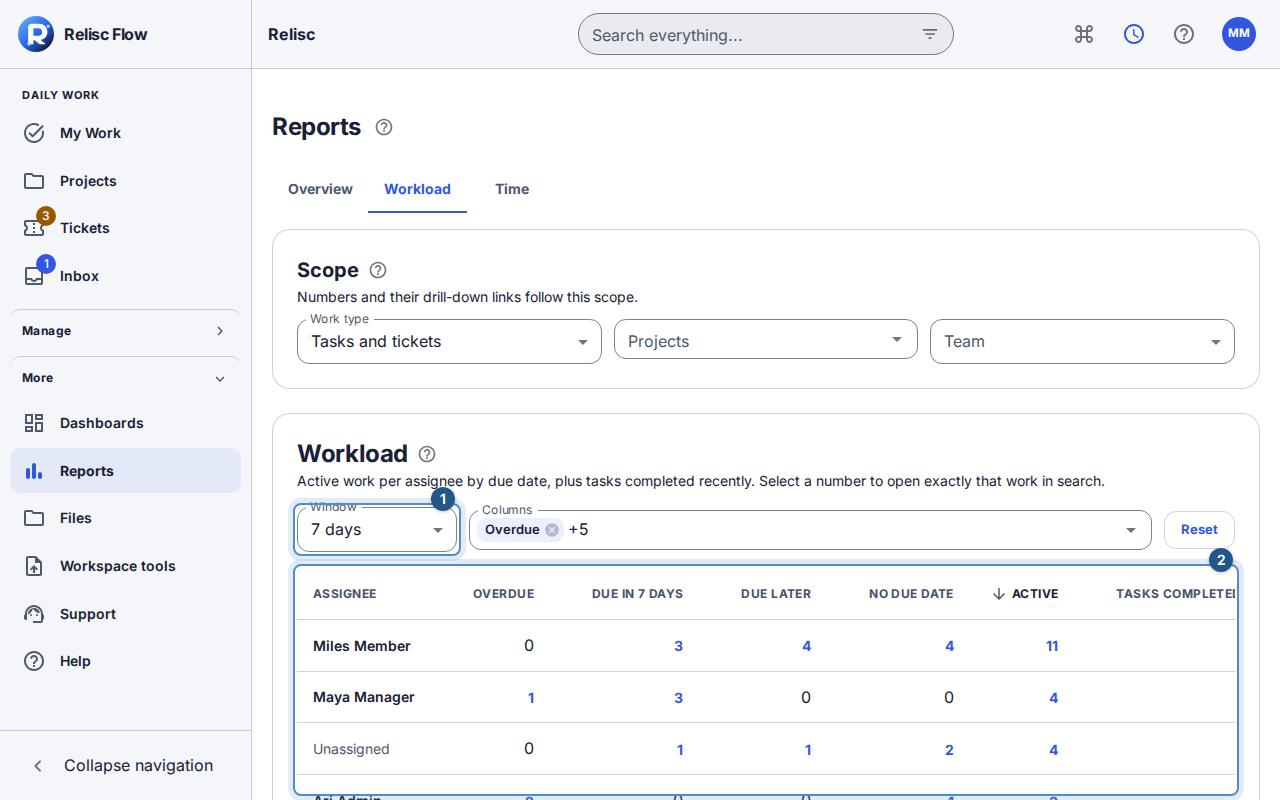
Read the columns correctly
- Overdue: active work due before today.
- Due in … days: active work due from today through the displayed window end.
- Due later and No due date: the remaining active date buckets.
- Active: the sum of those four buckets, covering open tasks and unresolved tickets.
- Completed tasks, last … days: tasks completed in the look-back period. It does not count resolved tickets; ticket resolution is represented by ticket state.
Do not add Active to the four buckets: that would count the same work twice. Completed tasks are a separate historical measure.
Recover an empty or failed report
Wait for loading or updating to finish. If there are no matches, use Reset to restore the default scope, seven-day window, columns, and ordering. On a query error, retry rather than treating old values as current. If a linked item disappears after access changes, ask your administrator to review access; the report link cannot override it.