Reports
Report logged time for a period
Apply inclusive dates and group recorded time by person, project, client, work, or date.
Use a time report to summarize recorded duration instead of counting tasks. For example, combine person and project for a team review, or client and date for a client-period summary.
Before you start
You need readable work and access to the staff Reports area. Check that the relevant time entries have been saved; the report is not a forecast of planned effort. Current permissions limit which entries and related work you can see.
Build the report
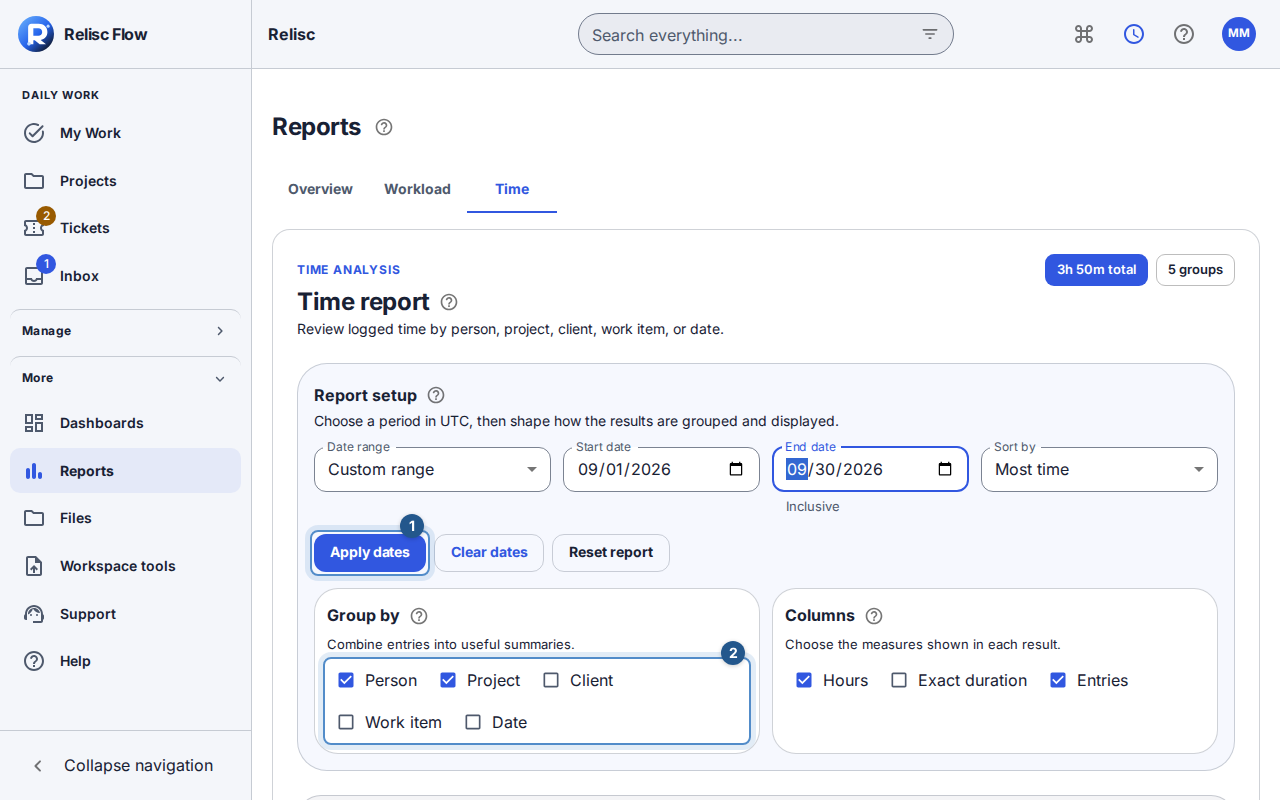
Open Reports → Time. Read the workspace timezone in the setup guidance.
Choose Date range, such as This week or Custom range. For custom dates, enter Start date and End date, then select Apply dates. Editing the fields alone does not apply them. The end date is inclusive; entering the same day twice includes that day.
In Group by, choose one or more of person, project, client, work item, and date. Person and project are the starting groups. Keep at least one selected.
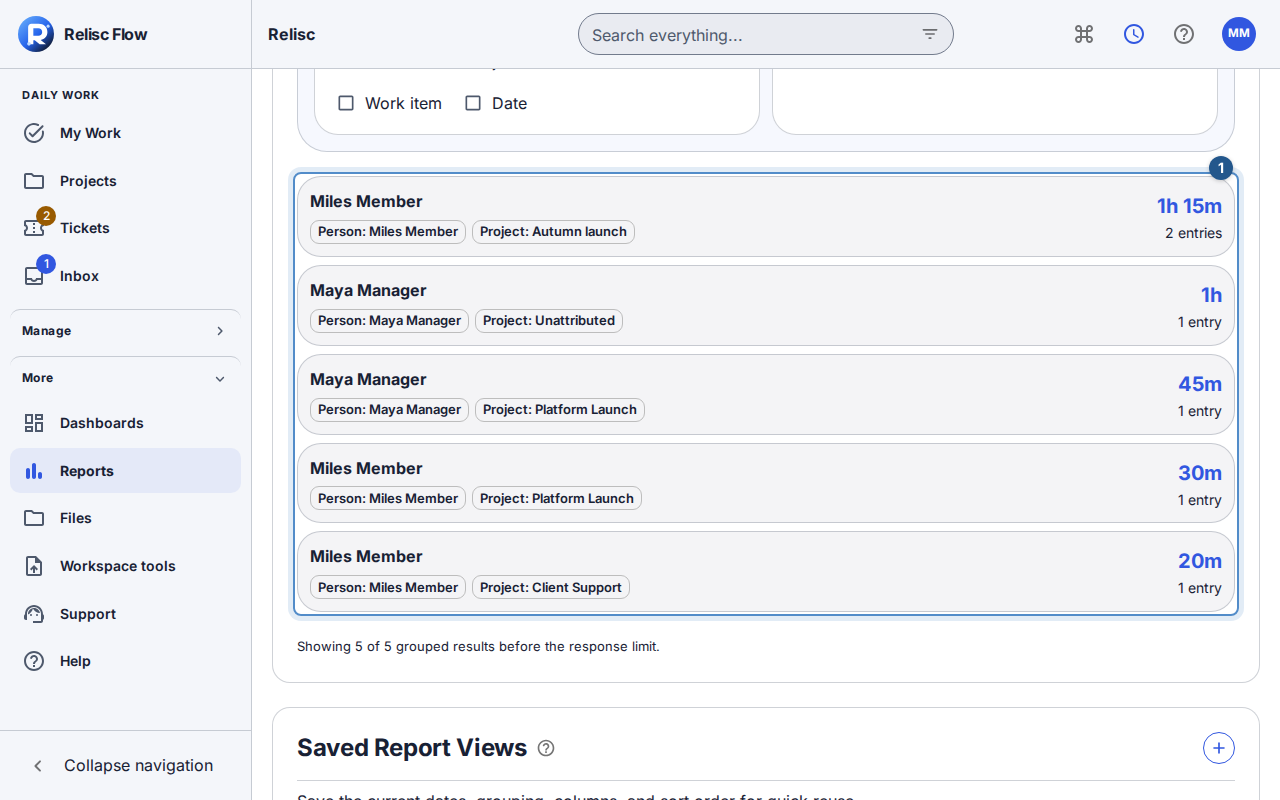
Choose the measure Columns and Sort by. Read total hours, group counts, and each row's dimensions. If more rows are available, use the control to show all returned groups.
Check the applied date range and grouping before saving a view. Week presets follow the workspace week-start setting.
Understand limits and shared links
A link with exact timestamp bounds keeps those bounds and shows an explanation. Choose and apply a date range if you want to replace them with calendar-day boundaries. An unattributed or no-client group is not automatically an error: inspect how the time was recorded and related to work.
If the report warns that it reached the 200-group safety limit, narrow the period or grouping before using the results for reconciliation. Expanding the visible list does not fetch unlimited groups.
If you cannot find entries
Check the dates, workspace, grouping, and current work access. Use Clear dates or Reset report to remove accidental restrictions. Retry a failed query and wait for updating to finish before reading totals. To correct a time entry, open its work item's time history with edit permission; changing report columns does not edit recorded time.