Tickets and clients
Submit and follow a request in your client portal
Find your requests, reply to your team, and check shared projects.
Your client portal gives you a focused place to request help and follow the response. You see your own requests by default and projects explicitly shared with you. A Client Admin can also manage the tickets and people of the organizations they administer.
If you support clients, use this walkthrough to understand their side of the process. Follow the steps with an invited client account; staff membership does not turn your account into a client identity. Client users have their own client-only Help Center in the portal.
Before you start
Accept your invitation, sign in, and choose the correct workspace. You need an active client organization membership. If more than one organization is available, choose the one this request belongs to.
Submit a request
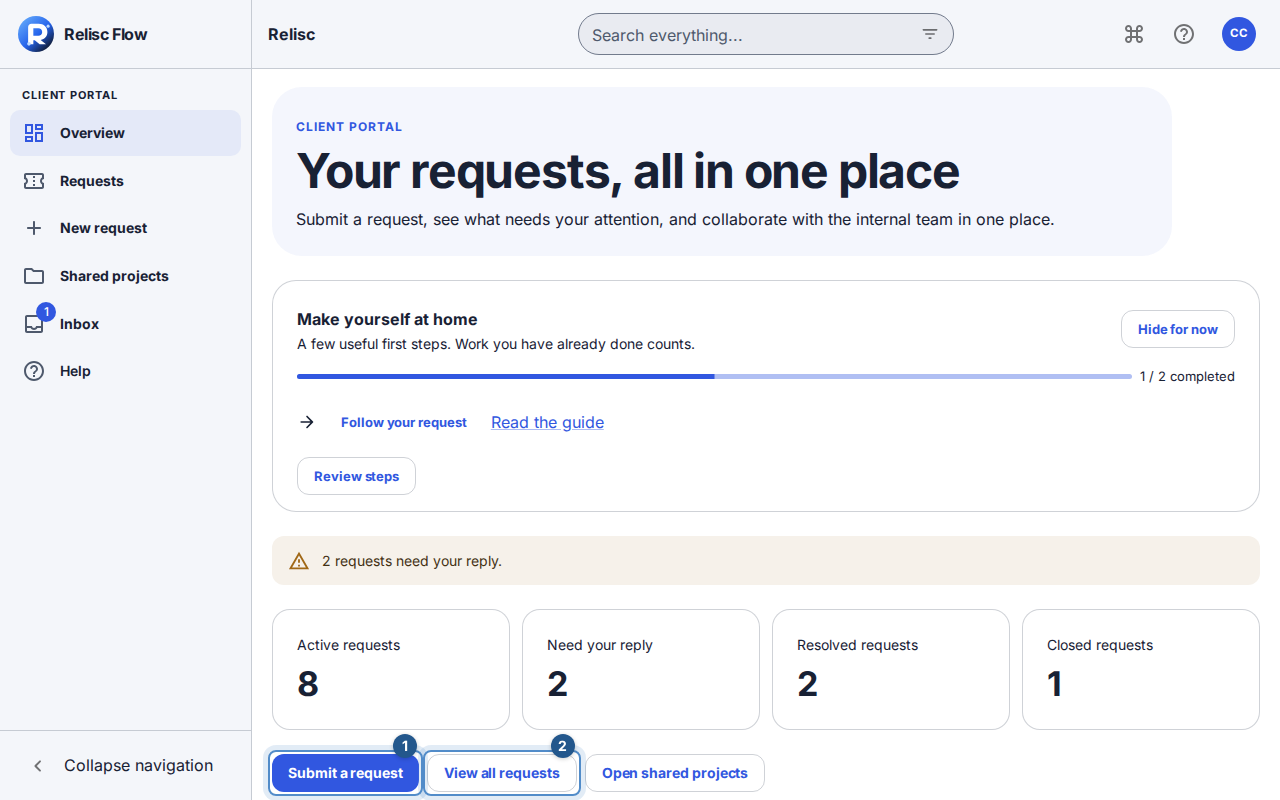
On Overview, select Submit a request to open the New request catalog. Choose a request type for the intended organization; its guided form opens directly.
Complete the form's required fields and submit it. If no type fits, choose Other request to open Create ticket. Check the organization, enter a clear title, and add an optional description, priority and supporting files. When offered, Project (optional) lists shared projects accepting your organization's tickets; leaving it blank keeps the request unplaced. Select Create ticket. Both paths require sign-in.
Wait for confirmation or for the request to open in the expanded detail panel. The reply composer stays at the bottom of the window. Restore the side panel to see Requests behind it, then close it to return to the list. Requests created inside a shared project return to that project. Note its key and status; a completed submission creates a ticket, whereas an unfinished draft does not.
Follow the response
Overview shows the six most recent requests. Select View all requests to include older, resolved and closed requests. The ordinary Requests destination starts with active requests; an older request may simply be outside that filter.
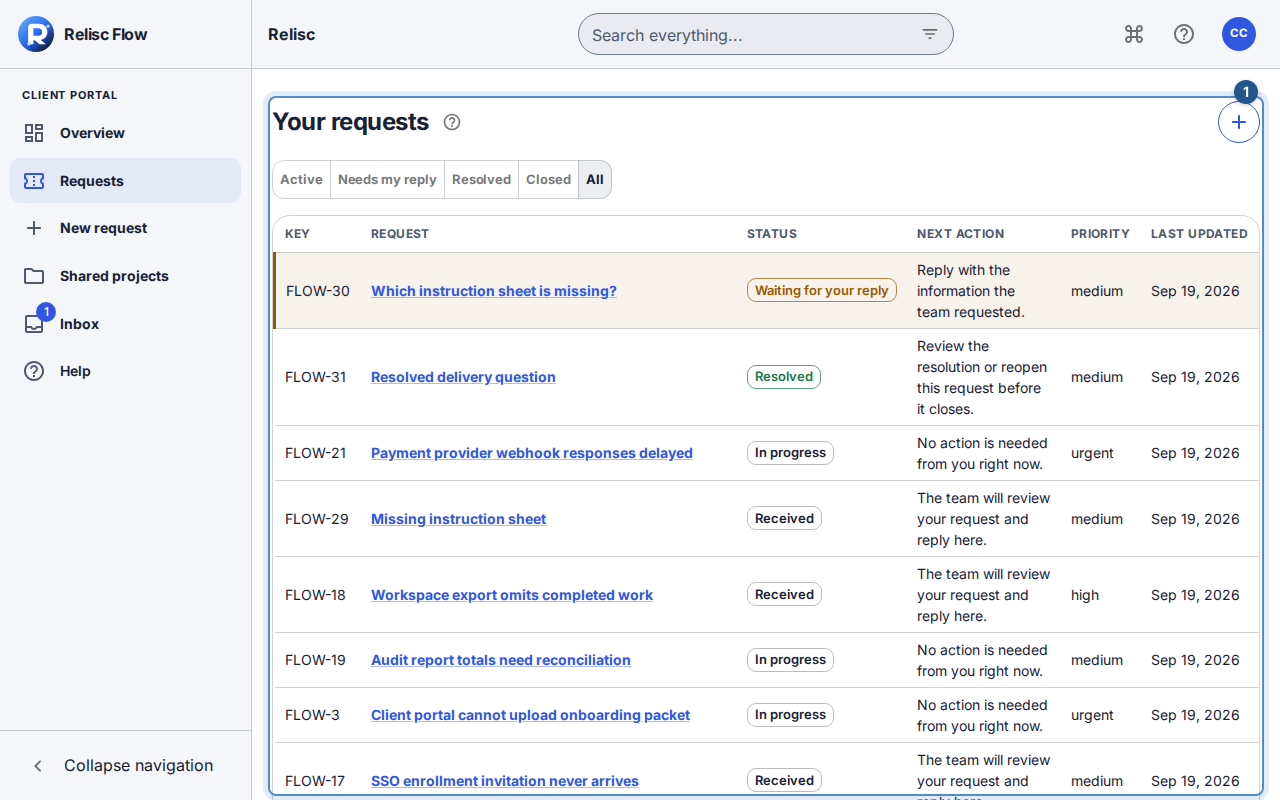
Select a request title to open it. The full-width table shows the key, title, status, next action, priority and last updated date; requests needing your reply are highlighted. On phones, the same fields appear in cards. Read the conversation, reply and attach permitted files, waiting for upload and scanning to finish. You cannot see the team's internal notes.
If the request is resolved but the solution did not work, use the available reopen action before it closes. A closed request needs a new request. Use Shared projects to visit work the team has explicitly shared with your organization.
If a request or action is missing
Wait for loading, clear the request-state filter, and confirm your workspace and organization. A link cannot restore revoked membership or sharing. Ask your Client Admin or the team that invited you to review access; being a Client Admin in one organization does not grant access to another. After a failed submission, check the list before creating a duplicate. Use the portal for replies today: inbound email is not yet activated.