Tickets and clients
Create a client organization and invite its people
Keep each client's requests and people in the correct organization.
A client organization groups an external company's people and tickets inside your workspace. It is not another workspace, and adding someone to it does not expose your internal notes or private projects.
Before you start
You need current people/client-management permissions and authority to establish or expand a client audience. An Admin-based named role can be more restricted than the built-in Admin. Have the organization's name, allowed email domains, and the intended invitation role ready.
Add the organization and people
Open Clients from the side menu (or Manage clients in Manage workspace). The table shows domains, default project, people, open requests, SLA and status. Use search to find a client or New client (+) to add one.
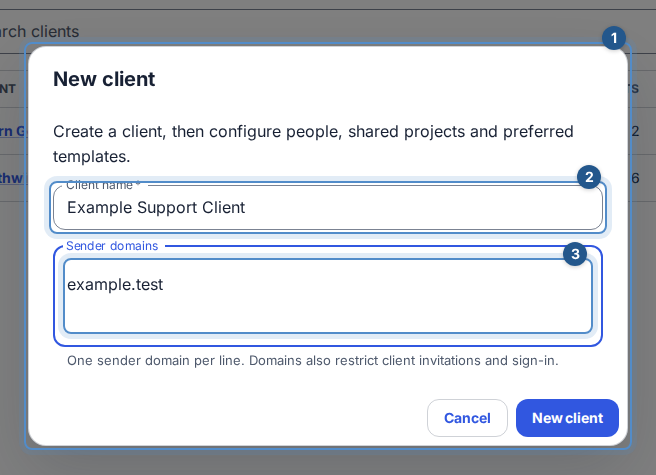
Enter Client name and Sender domains, then create the client. Domains also restrict eligible invitations and sign-in; they never invite everyone in a domain.
In the client's Overview, review its details, then choose Edit client details (pencil) to change its name, domains, default project and default SLA policy. Save applies the entire draft together; Cancel discards it. A failed save keeps your entered values for correction. The default project is a suggested destination; selecting it does not share the project.
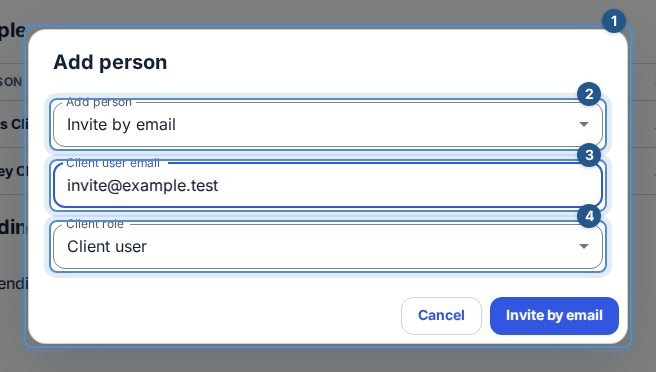
Open People and choose Add person (+). Use Invite by email for a new person, choosing Client user or Client admin. Use Add existing person for an eligible client user already in the workspace. Review the separate pending-invitation table; queued delivery is not accepted membership.
Review the client's work and defaults
- Projects lists explicit shares and the default project. With sharing permission, add a project, change Can create tickets, or remove a share after confirming.
- Requests shows this client's open tickets and their SLA state, 50 at a time; Continue List results loads more. Open filtered queue opens the ticket queue with the client selected.
- Departments organizes people in named departments, with optional descriptions. A person can
belong to several departments or none. Use the department's people controls to save membership changes. This affects department request types, without granting work or project access.
- Forms lists the client's request types and their organization/department audience. Form
managers configure and publish audiences; destination projects must still be shared and permit ticket creation for the exact organization. The person submitting still chooses their organization.
- Templates lets you mark optional preferred task templates. Save the selection to put these first for this client in Flow's create dialog and Gmail. All other available templates remain available.
SLA policies, project tools and request-form routing include links back to the client. Overview also keeps recent client activity and the archive action together. The activity table shows Title, What happened, When (including the year), and Open. Consecutive events for the same work appear together, with its key below the title. Organization changes appear alongside work; open a row to read its complete history.
Tickets say Request created; shared tasks say Task created. Subtask creation stays in the work's history instead of generating separate creation rows in this table. Activity includes only work the current viewer can open. Removing access also hides its existing activity; an organization label alone does not grant access.
Check what the client can see
A Client User sees their own tickets by default, plus explicitly shared project content. A Client Admin administers only the organizations where they hold that authority, not every organization in the workspace. Sharing a project and allowing ticket creation are separate configuration decisions; organization membership alone does not share a private project.
Correct an access problem
Check the selected organization and domain policy first. For a pending invitation, inspect its status before resending; revoke an unwanted invitation instead of leaving it usable. Removing an organization membership removes that access, but does not grant access elsewhere or erase historical tickets. Review the confirmation before archiving an organization or removing a person's access. If your current role no longer offers these actions, ask an Owner to review your permissions.
See the client portal for the experience you are enabling.
Staff with ticket creation access can choose New request on the client’s page to open the request catalog with that organization selected.