Automation and integrations
Configure a webhook and inspect delivery
Separate subscription setup, delivery attempts, and deliberate redelivery.
Use an outbound webhook to send a supported Flow event to another system. Use the delivery log to distinguish a queued request from an HTTP response and a completed delivery.
Webhook lists use compact rows showing the destination, status and signing-secret dates. Choose + to add a webhook in a dialog. The key icon opens the signing-secret rotation confirmation; the new secret is shown there once. Phones display the same information in labeled cards.
Before you start
You need webhook-management permission and a receiver that can verify Flow's HMAC signatures. Have an allowed HTTPS destination ready; the workspace's outbound-call policy can restrict hosts, timeouts, and limits. A subscription does not grant access to otherwise hidden source content.
Set up and inspect
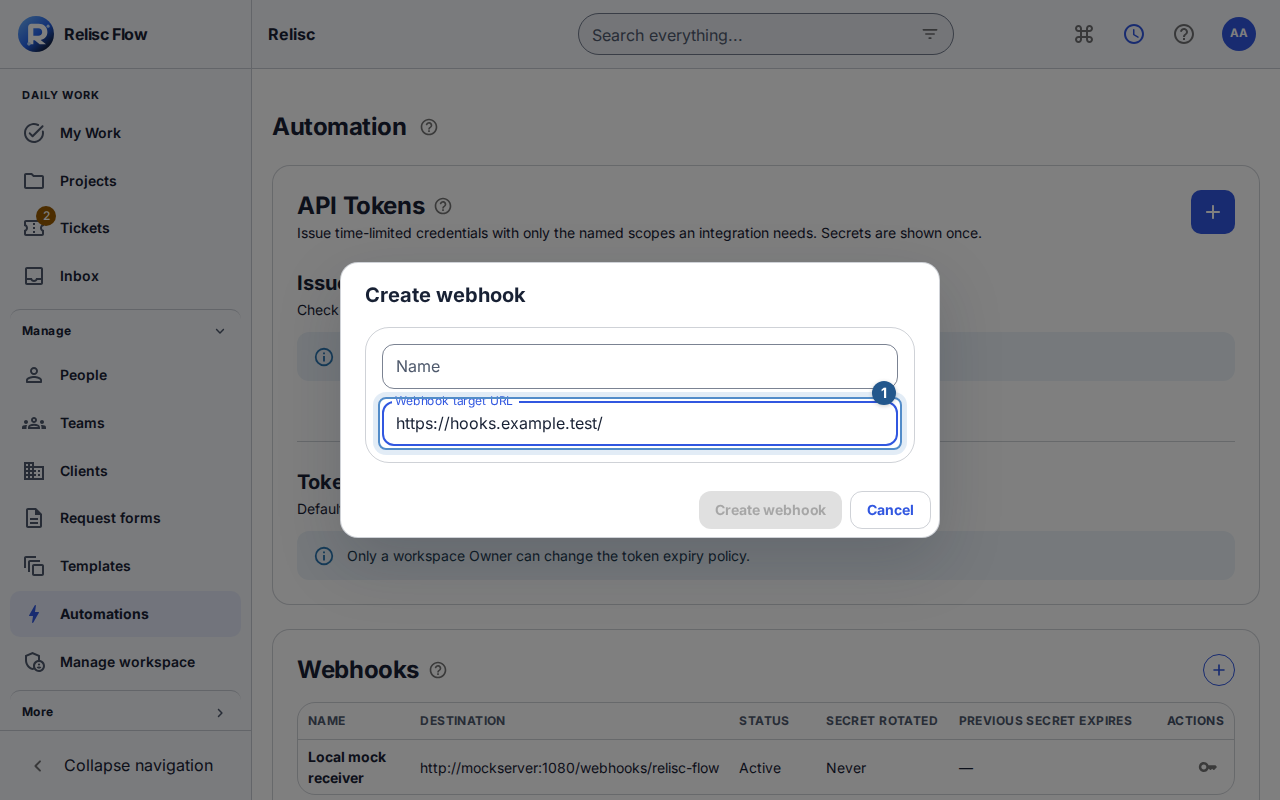
Open Automations → Webhooks and choose Create webhook. Enter a name and Webhook target URL, then create it.
Coordinate signature verification with the receiver. If you need a new signing secret, use the subscription's rotation action, read its confirmation, and select Confirm rotation. Store the newly disclosed secret before leaving; ordinary lists do not show it again. The displayed previous-secret validity window lets the receiver transition.
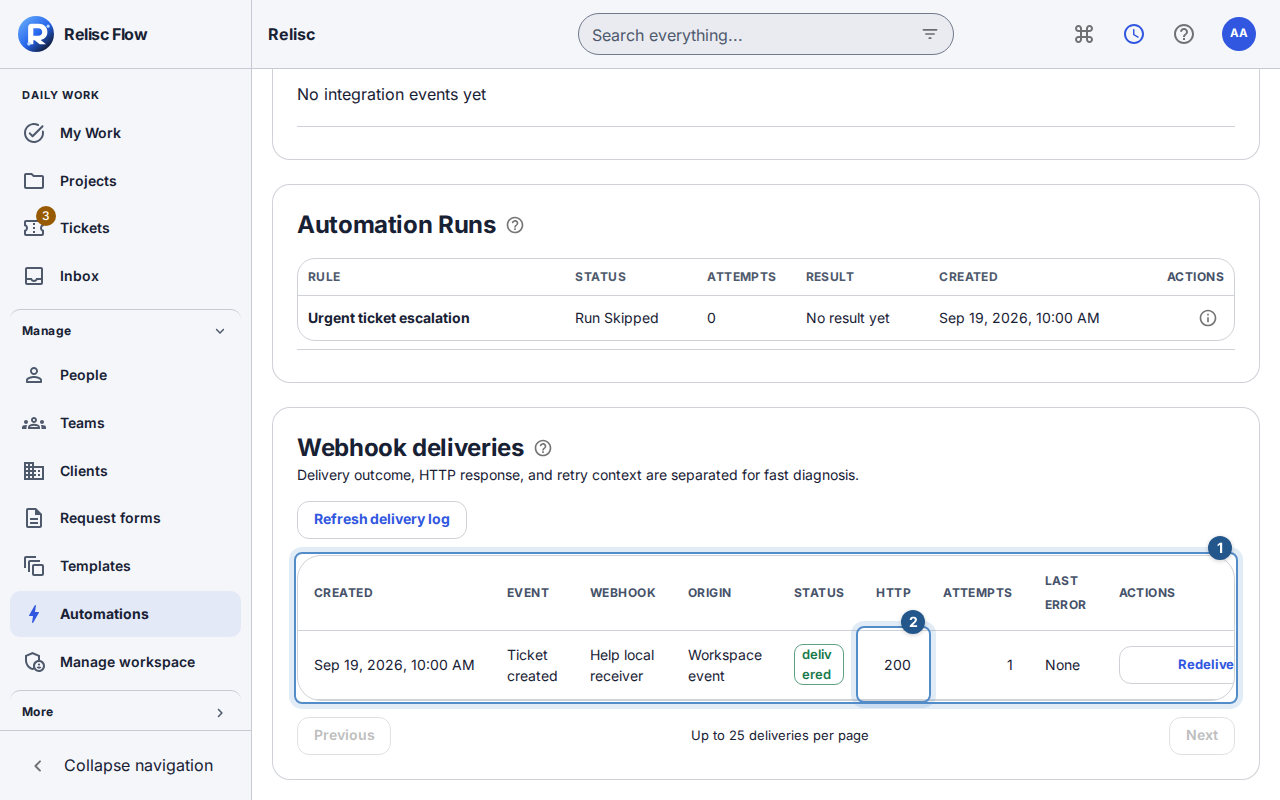
Trigger a test event in work you can access, then find it in Webhook deliveries. Use Refresh delivery log and the previous/next controls to find the relevant row.
Read status, origin, HTTP status, attempts, and last error separately. Pending means work remains; a blank HTTP result means no response was recorded, not success. Logs show safe errors, not receiver response bodies.
Retry deliberately
Automatic delivery uses backoff, with a default 24-hour retry window and disabling after repeated failures (10 failed attempts by default). Fix the receiver or policy issue before asking for another delivery.
For an eligible nonpending row on an active subscription, choose Redeliver. Flow creates a new metered delivery linked to the original; it does not erase history. If acknowledgement was lost, choose Retry redelivery request for the same intent so you do not create another delivery accidentally. A disabled subscription or unavailable source cannot be redelivered; refresh and review the current state first.
Inbound webhooks
Inbound Webhooks → Create inbound webhook creates a receive endpoint and a one-time signing secret for another system to call Flow. This is a separate direction from an outbound subscription. It does not activate an email mailbox, Slack installation, or GitHub App. Share only the necessary endpoint/secret with the authorized sender and keep it out of tickets and screenshots.