Automation and integrations
Create an automation rule
Connect a supported event to a condition and an authorized action.
Use a rule for repeatable work such as notifying managers about urgent tickets or assigning a new request. The rule listens for an event; it does not periodically search for everything that already matches.
Saved scopes show the work title with its key underneath. An unavailable target is labeled without exposing its identifier. Run rows show a readable outcome and creation date; use the information icon for complete run diagnostics.
Before you start
You need automation-management permission and authority over the resources each action will affect. Call webhook additionally requires webhook-management permission. Decide the scope and expected result before creating the rule; choose a small test project when trying a new rule.
Build a rule
Open Automations → Automation Rules and select + Create automation to open the dialog. The cursor starts in Name; enter a descriptive name.
Choose a Template, such as Urgent ticket escalation, or configure the rule directly. Review every prefilled value rather than treating a template as a completed setup.
Set Scope to workspace, project, or work item. Choose the project or searchable work item by name for a narrower scope; no ID is needed. A scoped rule ignores events outside that scope.
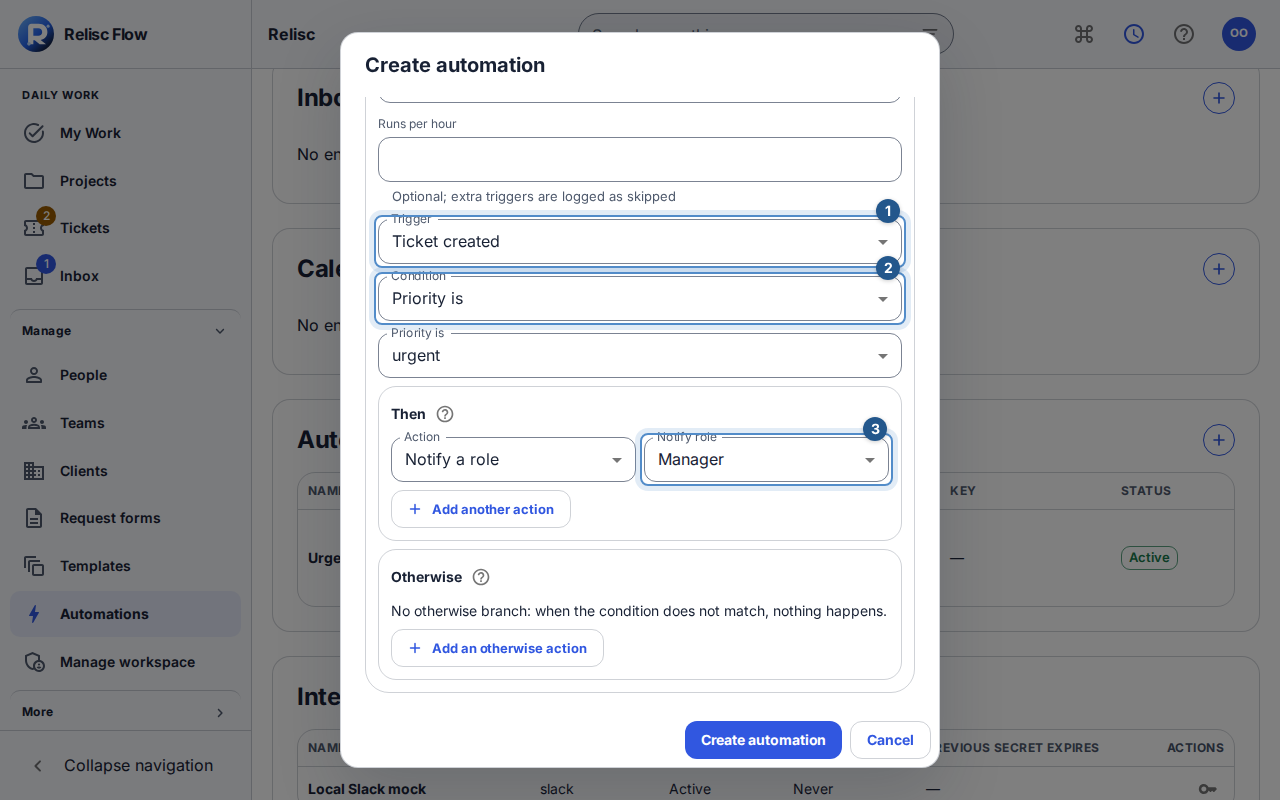
Choose Trigger, Condition, and the condition's value. For example, use a ticket-created trigger and urgent priority. No condition lets every matching event in scope proceed.
In Then, choose Action and its target, such as Notify a role and Manager. Use Add another action only when you need another explicit effect. Select Create automation or press Enter in a single-line field to save; Escape cancels.
Follow an event through the rule
From an event to an authorized automation result
- Supported event→Within rule scope?
- Within rule scope?No →Ignore
- Within rule scope?Yes →Condition matches?
- Condition matches?Yes →Then actions
- Condition matches?No →Otherwise actions or no action
- Then actions→Check current authority and limits
- Otherwise actions or no action→Check current authority and limits
- Check current authority and limits→Recorded run outcome
The event starts evaluation; the condition chooses whether an action applies. An otherwise branch is optional. The diagram summarizes the decisions, not a promise that every branch performs a write. Authorization and limits remain effective during execution.
Saved rules appear as compact rows with name, behavior, scope, and status. On phones, each row becomes a labeled card.
Check the result
Create a new matching event in your test scope, then inspect Automation Runs and the affected work. A saved rule is not proof that it ran. If a selector is empty, load or create an authorized target first. If a run fails, inspect the safe error and current permissions before using run recovery and limits.
The run history shows 50 entries at a time; Continue List results loads more.