Automation and integrations
Add an otherwise branch and bound your rule
Choose what happens when a condition does not match and understand skipped or failed runs.
Add an otherwise branch when a matching event needs different treatment depending on its condition. For example, route an urgent request to one action and a non-urgent request to another. Without an otherwise branch, a condition mismatch performs no action.
Before you start
You need automation-management permission and current authority for actions on both sides. An action hidden behind a condition or beyond the depth limit does not avoid permission checks. Read rule creation if you have not chosen the trigger and scope yet.
Configure both outcomes
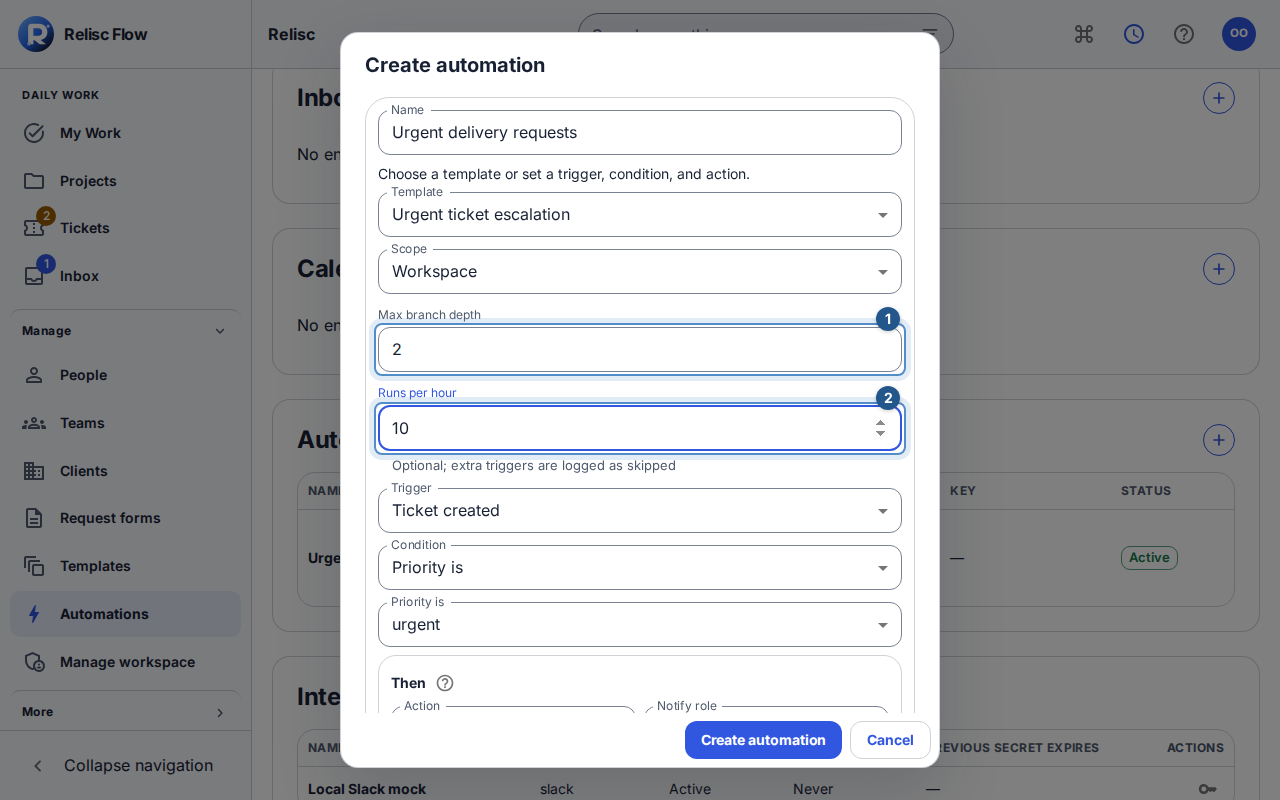
Open Automations → Automation Rules and select + Create automation to open the dialog. Enter the name, scope, trigger, and a real condition.
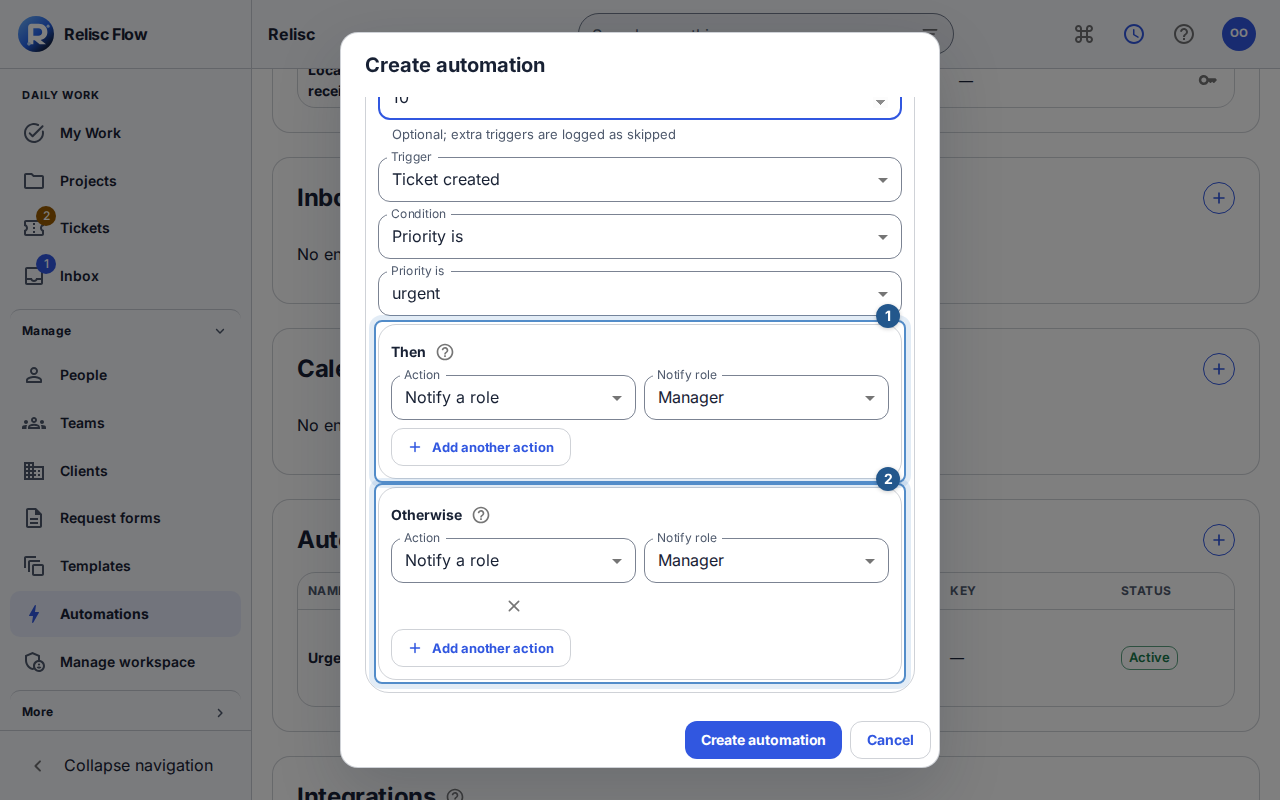
In Then, configure the matching actions. Use Add another action to add another effect, and review each target.
In Otherwise, choose Add an otherwise action and configure the alternative. If you switch the condition to No condition, the builder removes the otherwise actions; review before saving.
Set Max branch depth to at least 2 for an otherwise branch. The allowed range is 1–10. This bounds nested branch execution; it is not the number of tickets you want to process.
Optionally set Runs per hour to a whole number from 1 to 10,000. Extra triggers are recorded as skipped rather than held for a later hour. This per-rule cap is separate from the workspace's usage allowance.
Create the rule, then test one matching and one nonmatching event inside its scope. Inspect Automation Runs and each resulting work item.
Recover a failed run
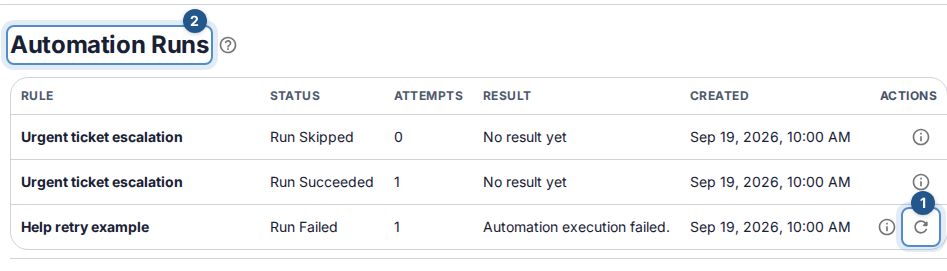
A queued or running entry is still in progress. A skipped entry may reflect scope, conditions, or a configured limit; it is not proof of a system failure. Each row shows the rule, status, attempts, and result. For a failed entry, read its error, repair the unavailable target or authority problem, and select the Retry failed run icon when appropriate; its tooltip names the action.
Retry creates a fresh queued run using the original context and preserves the failed run for history. It is available for failed runs with a still-active rule, not arbitrary successful or skipped runs. Current permissions are checked again, including token scope/revocation where applicable. Confirm the new outcome and affected work instead of repeatedly requesting retries.