Daily work
Attach a file and find the right version
Add files to work, wait for scanning, and recover an earlier version without losing history.
Attach a file where its readers will need it. The work item, comment audience, file permissions, and scan result all affect who can open it. A public attachment is not an anonymous internet download.
Attach a file — 2 minutes
Before you start: open the task or ticket, prepare an allowed file, and check that you have upload permission. Read-only users can only use the file controls available to them.
In Attachments (n), choose the + icon (Add attachment). Check Attachment target so the file goes on the work item or the intended existing comment, and review its visibility.
Choose Choose local file. You can select multiple files; the upload queue shows progress and errors separately for each one. The drop zone appears while you drag files over the panel. Dropping opens the upload dialog; check the target and visibility, then confirm upload.
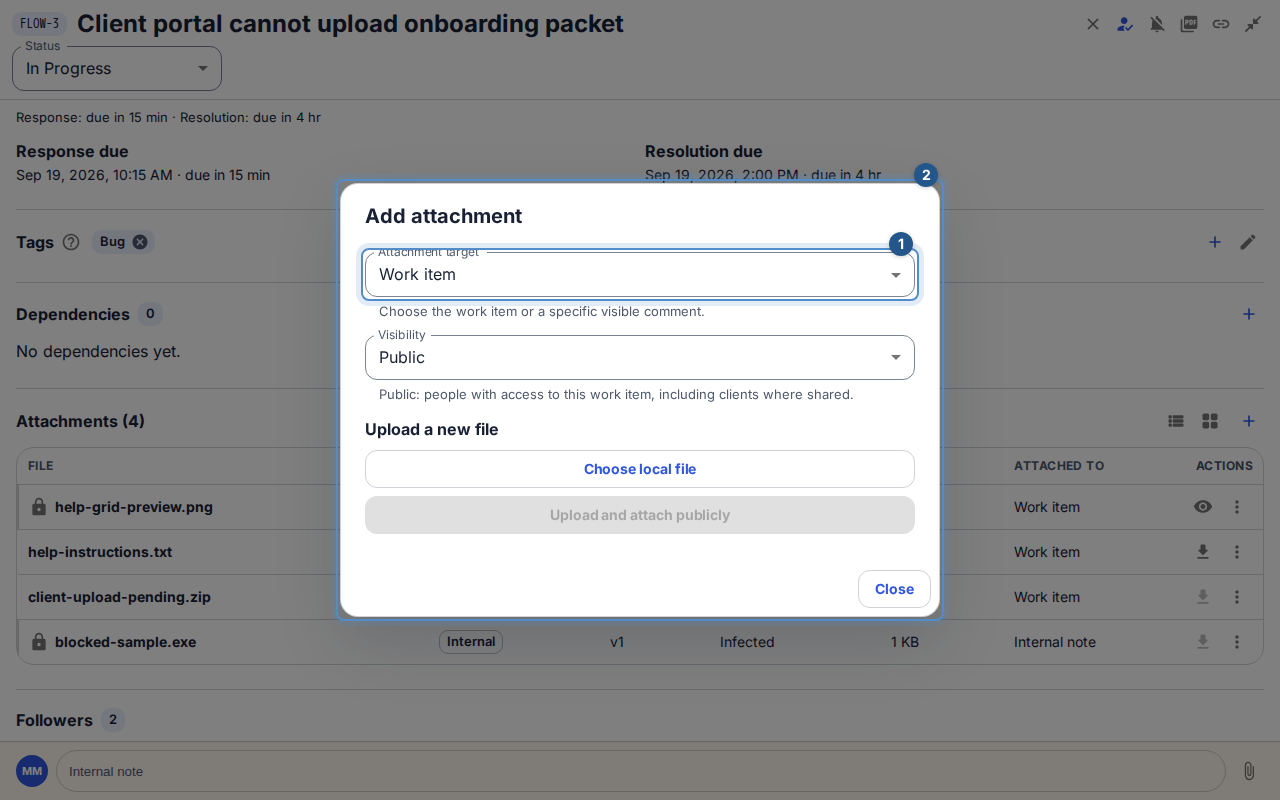
The attachment dialog identifies the destination and local-file chooser before upload. Choose Upload and attach for the selected audience, then wait for scanning. A pending or failed scan is not a successful attachment download. Once a direct upload is accepted and clean, check that it appears in Attachments.
Use the file's preview or download control when available. For an unsent comment, use its paperclip instead; those files remain private drafts until you publish the comment with its audience-specific send action.
Expected result: the file is attached to the intended context and clean, authorized versions can be downloaded. Each upload creates a new file; attaching a workspace file to another task is available through integrations and the CLI.
Use the header icons to switch between rows and cards. Rows show each file’s visibility, version, scan result, size and target once. Cards show a grid with larger file previews, the filename, and one caption for visibility, version, scan result and size; files without a preview have a type icon. Both views show View (or Download) on the row, with the remaining permitted actions under More actions.
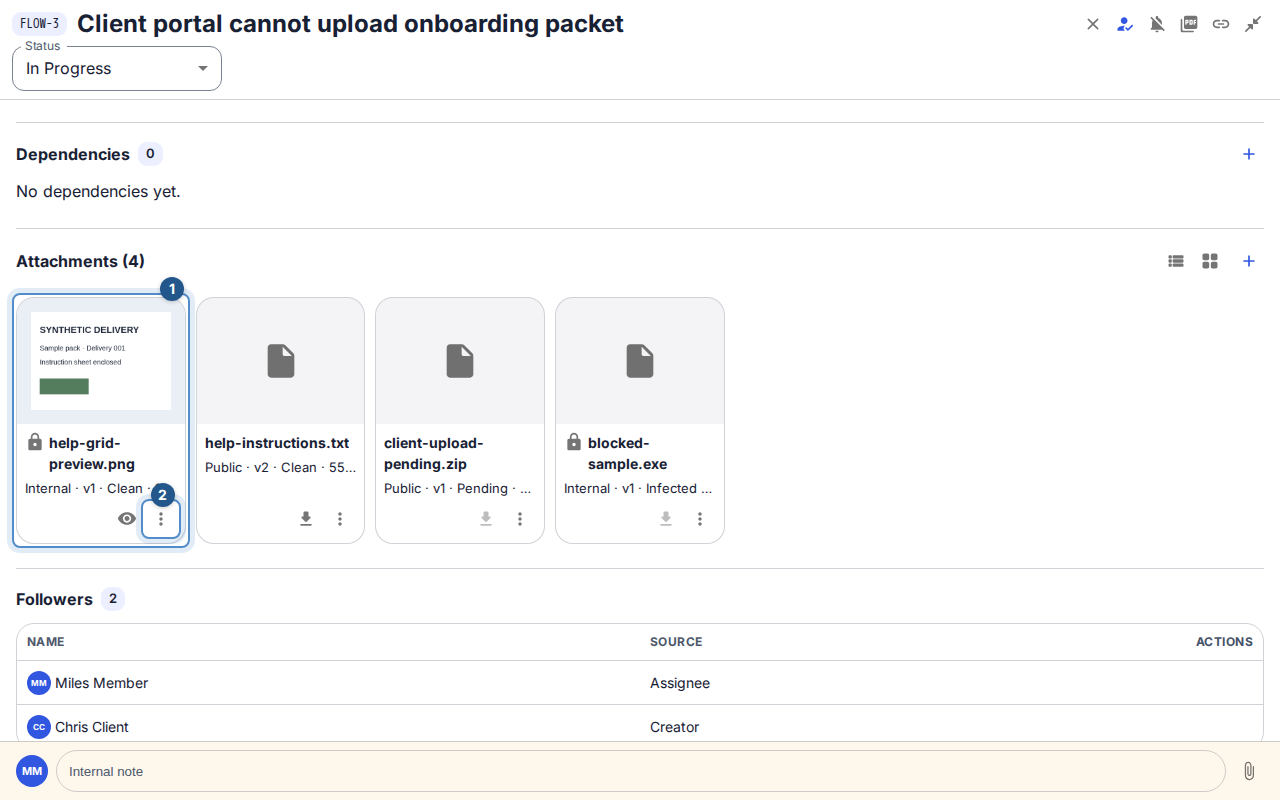
Flow remembers your choice in this browser for both tasks and tickets. A browser without a saved choice starts with rows on desktop and cards on phones. Rows also adapt to a narrow screen with labeled file entries.
Remove an attachment — 1 minute
On the file's entry in Attachments, open More actions and choose Remove attachment …. Beside a published comment's attachment, choose the trash icon. It appears when you have permission to remove that link.
Review Remove … from this task? and the consequence. If nothing else uses the file, The file and its version history will be deleted. If another attachment or an inline reference uses it, The file stays attached in N other places. Only this link is removed in that case.
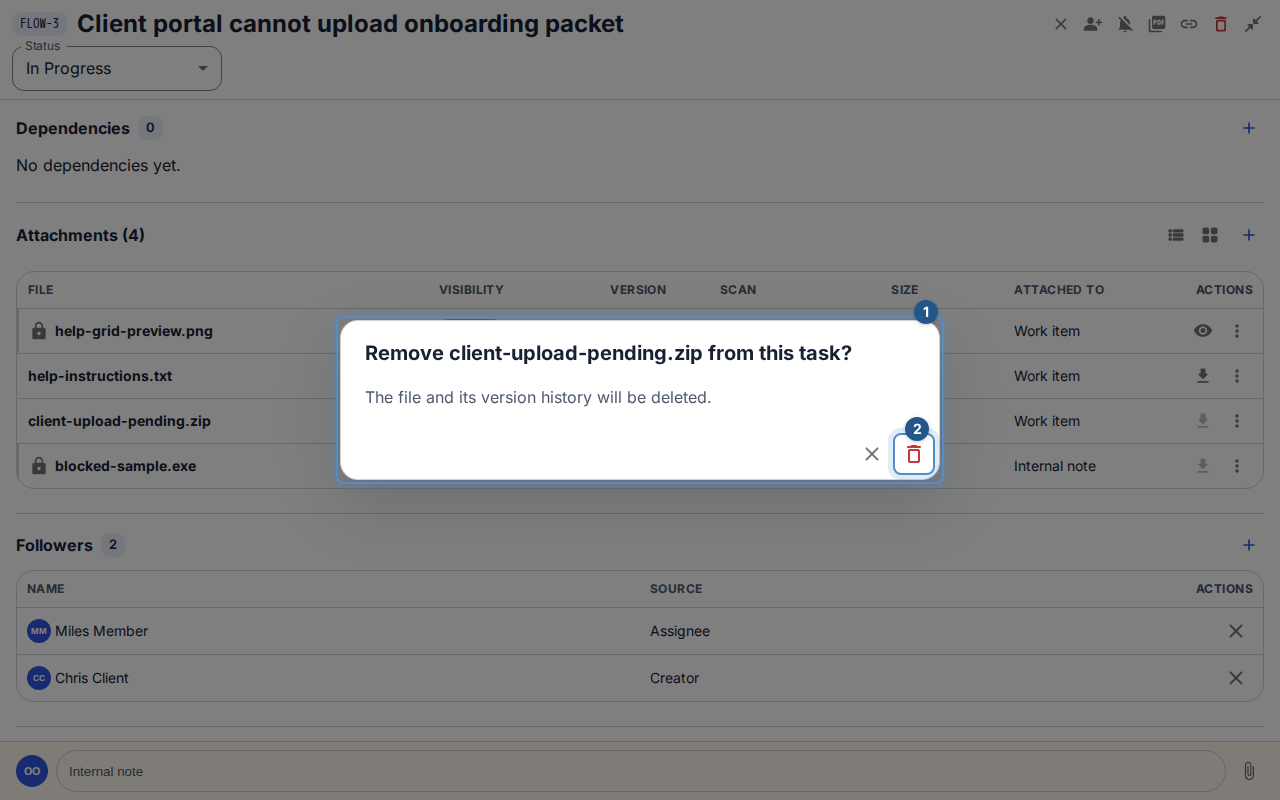
The removal confirmation states whether the file is retained elsewhere or deleted with its history. Choose Confirm attachment removal. The list, count and inline references refresh; other comment attachments remain available. If file deletion fails after the link is removed, the dialog reports the error. Use Retry file deletion to retry that cleanup without removing the link again.
Replace or restore — 2 minutes
In Attachments, open the file’s More actions menu and choose Upload new version of …. Review the warning: replacement changes that file everywhere it is attached, and its classification cannot change. Choose Choose replacement version, select the local file, then confirm Upload new version of …. History is retained.
Open File version history by choosing Version history for … under More actions. Compare version number, filename, size, and scan state before choosing Download version ….
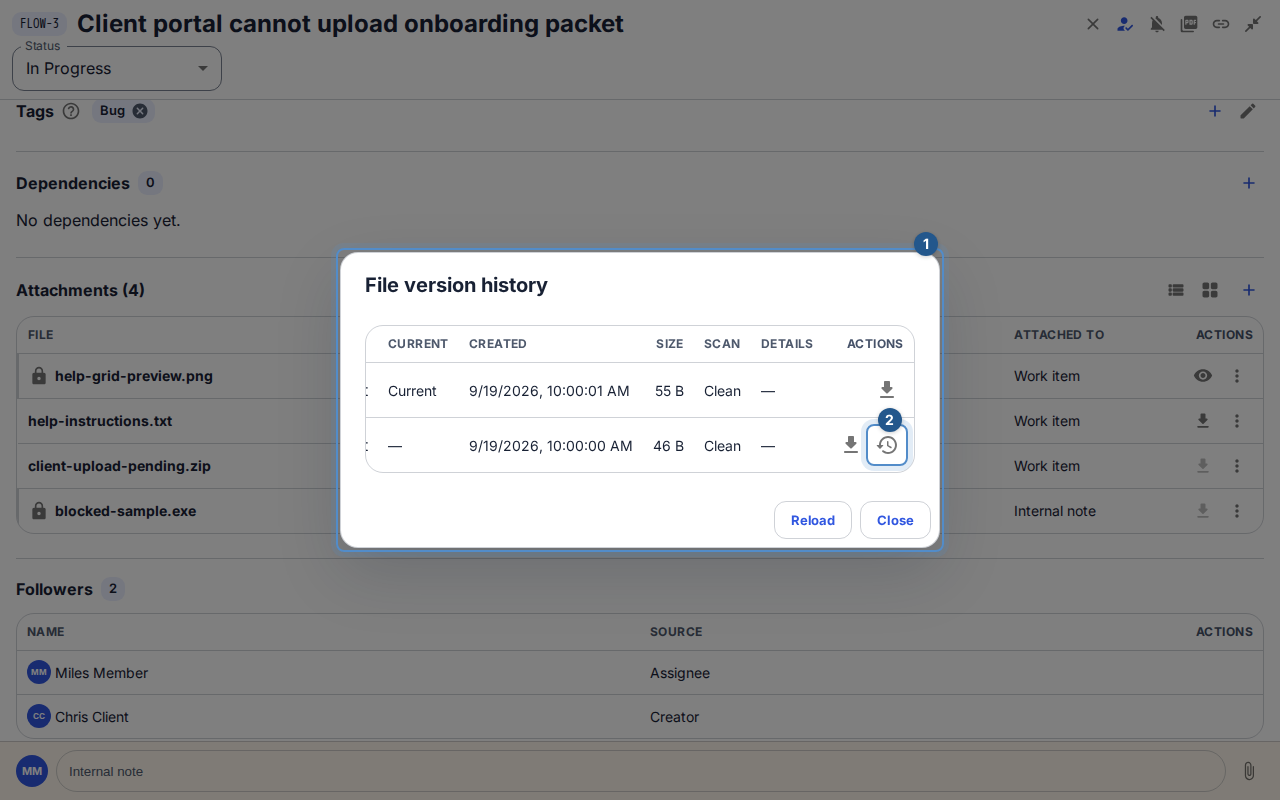
File version history distinguishes the current version and the permitted download and restore actions. If you have restore authority, choose Restore version …, review the source and proposed new version, and choose Confirm version restore. Restoration creates a new version and scans it again; it does not overwrite the historical version.
If a file is unavailable
Use the queue's retry or remove action for the affected upload. A quarantined version cannot be downloaded or restored; provide a safe replacement. Older unverified versions may offer Scan historical version … to an authorized uploader. Wait for verification instead of assuming an old filename means the bytes are safe.
If another person replaced the file during your restore, reload history and review the current version before retrying. Internal attachments remain hidden from clients and other readers without internal-content access, even when they can open the parent ticket.