Daily work
Find work and save a useful search
Combine text and filters, then reopen the same search without rebuilding it.
Use Search everything... in the top bar when you know a phrase, work key, or condition but not where the work lives. On a phone, tap the search icon first. Results belong to the active workspace and reflect your current access. File names can be searchable; the contents of uploaded files are not searched.
Search accepts a work item's key (for example FLOW-54), exact UUID or internal Flow link. An exact match offers Open FLOW-54 first. The key appears with its project in result captions; use the optional Key column in work lists or click the detail-header key to copy it.
When you can edit a title, choose it to place the caret in the same title box. The details arrow stays visible: Tab reaches it, and choosing it saves the title before opening details. Enter saves in place; Esc restores the original title. A failed save keeps your draft available.
Build a useful result set — 2 minutes
Before you start: select the right workspace. This saved-search walkthrough is for internal users; client search stays within client access and does not offer saved searches.
Type at least two characters in Search everything... for instant matches, recent searches and type choices; press Enter without selecting a suggestion, or choose View all search results, to see the full list. If you move to a quick result with an arrow key, Enter opens that result. You can also search using filters without any text.
Choose Advanced filters inside the same search box. Set Contains the words, Resource types, Subtasks, location, status, assignee and due date. Use the grouped Add filter menu for more conditions, such as custom fields or dependencies.
Choose Search to apply the filters and open the results. Editing the panel alone does not update results. For task/ticket-only results, use the view options to set grouping, sort order and visible columns.
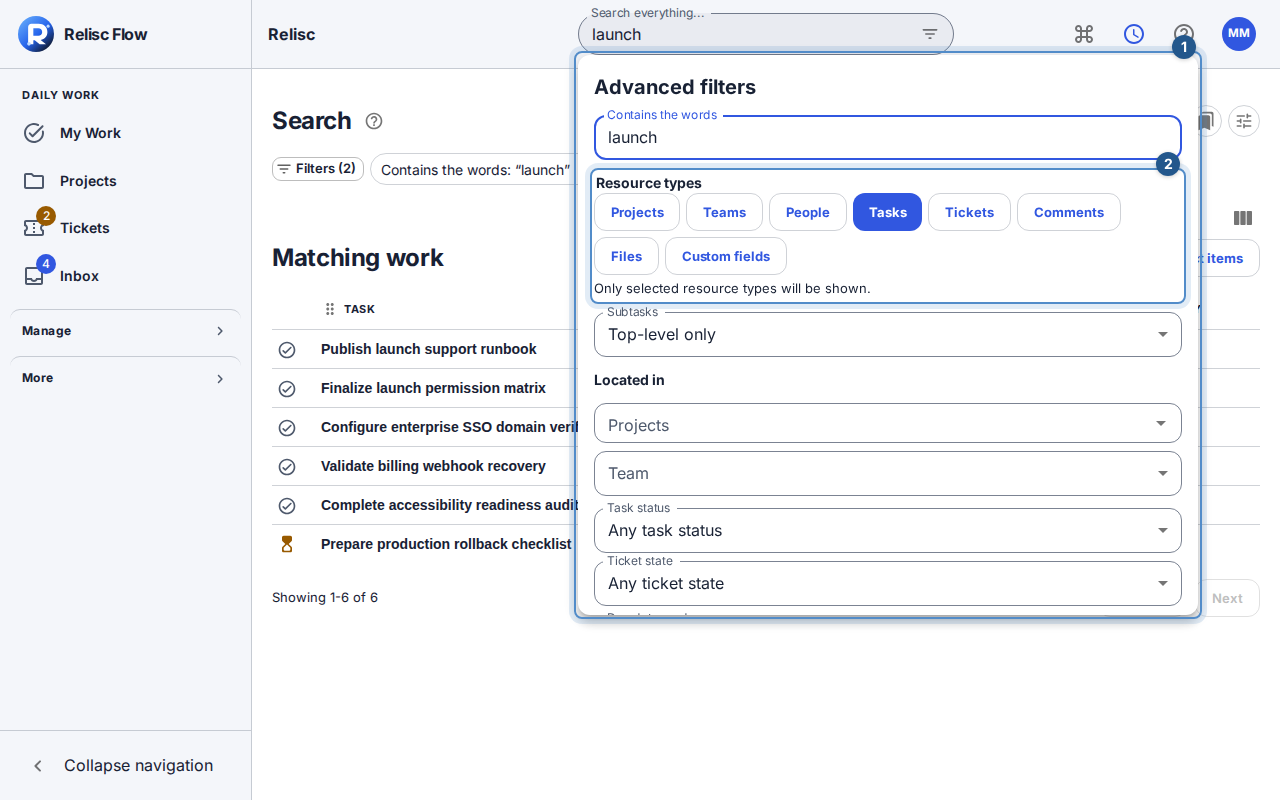
The results-page filter count reopens the advanced panel in the same top search. On the results page, choose the filter-count chip to reopen Advanced filters; on a phone this opens the full-screen search first. Each applied word, type and condition has its own labelled chip and Remove button. Remove one to update results immediately without changing other conditions, sort, grouping or columns. Back and Forward restore the prior filter set.
Open a result and confirm its work key and context. Similar names can belong to different items. A result does not give you edit permission.
Save and return — 1 minute
Remove any condition you no longer need, then choose the star named Save this search beside the search heading. Enter a recognizable Saved search name, such as “Handover due this week.” Removing a condition from an opened saved search changes this result set, not the original saved search.
Keep Personal, or choose Workspace shared only if that scope is offered and you intend colleagues to reuse it. Choose Save search.
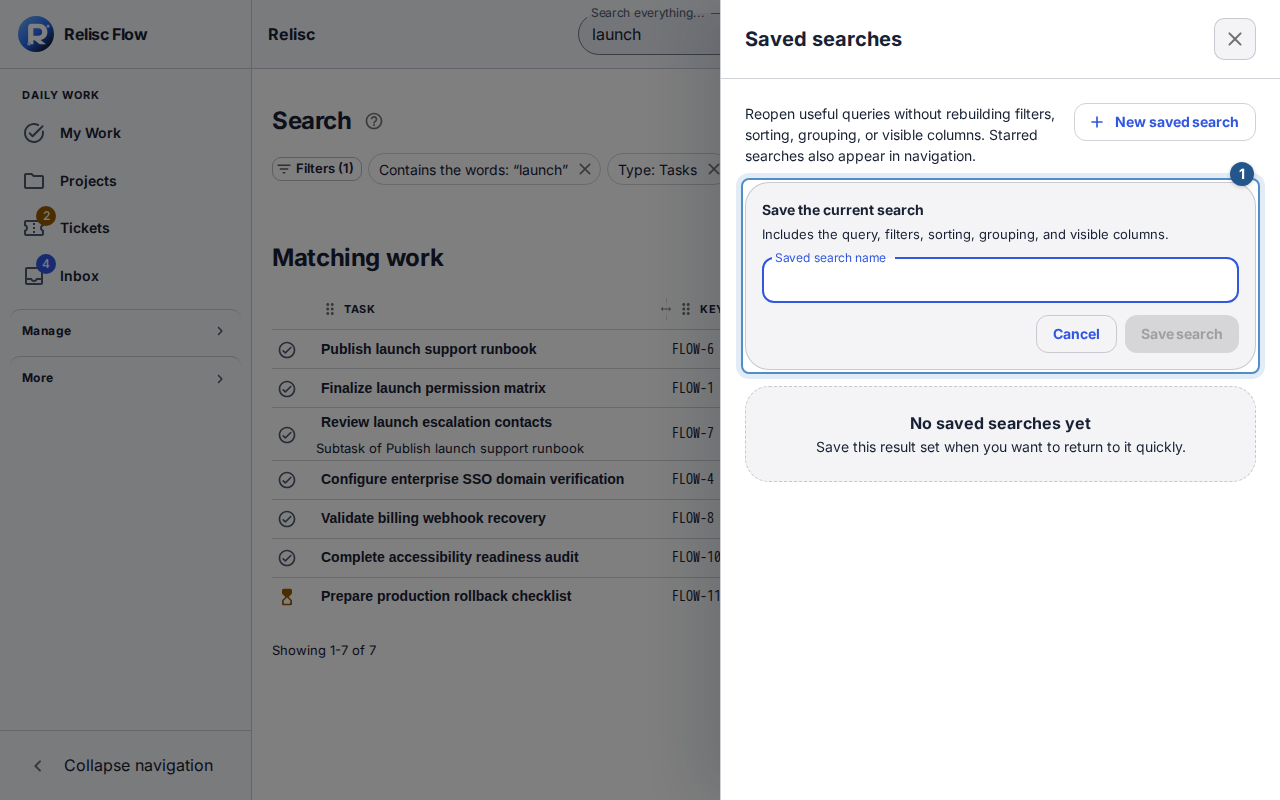
A single applied filter can be removed before saving the remaining result set. Reopen it from Saved searches under the top search's recent searches, from the results page, or from its starred navigation entry. Flow re-runs the query, filters, grouping, sort, and columns against current permitted work; it does not freeze today's results.
Expected result: you can return to the same question quickly as dates, assignments, and permissions change.
No results or a failed save?
Remove the most restrictive filter first. Check archived/completed options and date ranges, then apply again. Assignee and client-organization filters are permission-dependent, and only readable searchable custom fields are offered. If a saved search refers to a custom field that has since been removed or made unavailable, Flow removes that condition from the current results and tells you; the saved original is unchanged. A query cannot reveal hidden internal notes or files.
Choose a unique name if saving reports a naming conflict. If saving succeeded but starring failed, reopen Saved searches and retry the favorite action rather than creating another search. Sharing a search shares its configuration, never access to otherwise private results.