Daily work
Comment, mention someone, or leave an internal note
Choose the right audience before sending a useful update.
Keep a decision or question beside the work it concerns. A Public comment is visible to authorized readers of that item, including clients with access. An Internal note is restricted to authorized internal readers; it is never a client reply.
Send an update — 3 minutes
Before you start: open a readable task or ticket. You need permission to post to the chosen audience. If the composer is read-only, reading access alone is not enough to send.
Open the comment composer. On a ticket, choose Reply to requester (Public) for a client-facing reply. Choose Internal note for staff-only discussion when that choice is available. On a task, the public choice is Public.
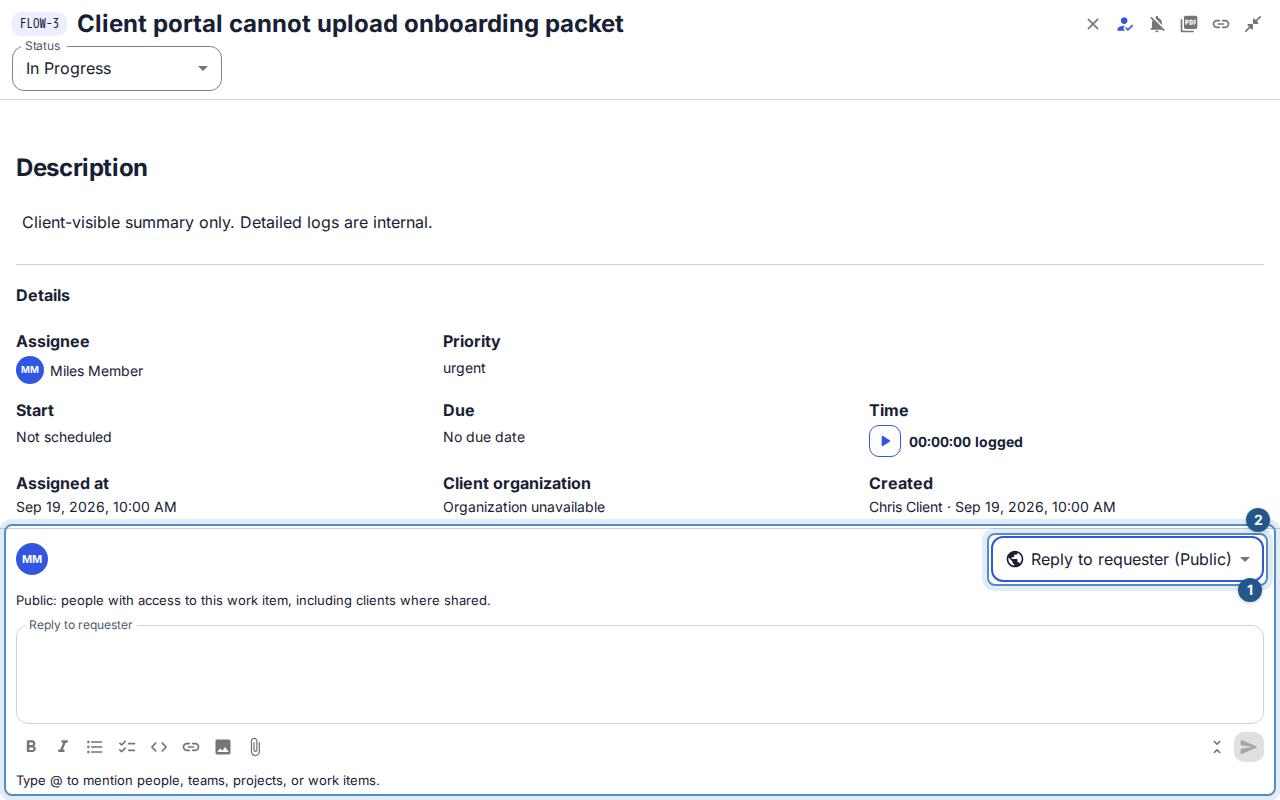
The ticket composer shows the audience above the editor, before you write or attach files. Write the decision, question, or next action. Type
@and choose an actual suggestion to insert a mention. Use the arrow keys and Enter if you prefer the keyboard; typing an email as plain text is not the same as selecting a mention.To point to a file already attached to this task or ticket, open the paperclip menu and choose Reference an attachment. Choose a filename from this item’s list; Flow inserts it at the cursor. The same menu offers Upload a file for a new file, and appears in the description editor too. Internal files are unavailable in a public reply.
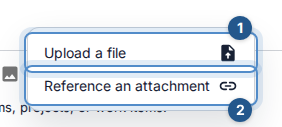
The paperclip menu offers uploading a new file or referencing an attachment of the current task or ticket. Check the audience again. Mention suggestions depend on the item and its visibility. A person or team mention can notify permitted recipients; a project or work-item mention is a navigable reference, not a message to everyone in that project.
If attaching files, wait for their upload and scan status to be ready. Review the files and choose Send reply to requester, Save internal note, or Post public comment, matching the selected audience.
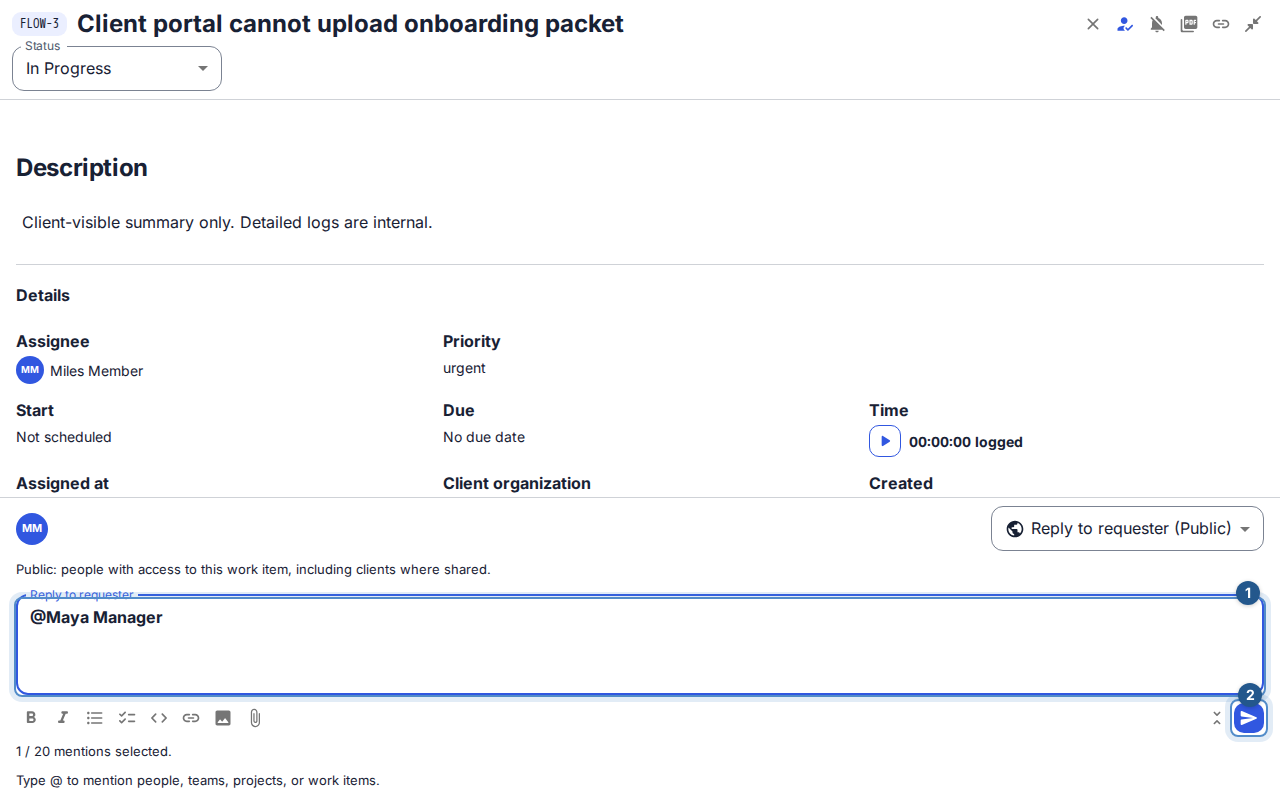
A ready comment contains a selected mention and an audience-specific send action.
File references appear as small filename chips. Open a chip to preview or download with your current file permissions. If the attachment was removed or access changed, its authored name remains with no longer available.
Expected result: the comment appears in the conversation with its author and audience. The people notified must still have access when the notification is delivered.
Use the swap-arrow icon beside the conversation filter to choose Oldest first or Newest first (the default); the tooltip names the order you will switch to, and your browser remembers the choice for tasks and tickets. In oldest-first order, Show earlier updates appears above the loaded conversation and keeps your reading position when older entries arrive.
When someone changes a title, Show original reveals the previous title and Hide original closes it. On a description change, Show difference compares that version with the previous version you can read: added words are underlined in green and removed words are struck through in red, with added/removed labels for screen readers. Hide difference closes the comparison; viewing a full description version and restoring it remain available. The first version has no comparison; when the previous version is unavailable or descriptions exceed 20,000 characters, view the full version instead.

Change your mind safely
Switching an unsent internal note to public clears internal text and incompatible draft uploads. Selected mentions are also cleared on an audience change. Review the new draft rather than assuming its previous content is still present.
Uploads attached to an unsent comment remain private to you until you send. You can send a files-only comment when the attachments are ready. Editing a published comment does not change its original audience or turn new draft uploads into published attachments.
Recover from an error
If sending fails, read the inline error and retry the preserved draft after resolving it. If the comment is already visible, check the conversation before sending a duplicate. A missing mention target may no longer be permitted; do not substitute a public mention to reveal an internal discussion. Clients and viewers without internal-content permission cannot see internal notes or their attachments.
A saved-draft loading error is separate from a failed send. Flow retries temporary read failures twice, then offers Retry beside the affected section. You can recover the draft, timer or notification controls without refreshing the whole task. A successful draft reload preserves text you have entered; if access is denied, unavailable draft content is cleared. These read retries do not resend comments or restart timers.