Daily work
Subscribe to your work in a calendar
Create a read-only feed and connect Google Calendar or a calendar that accepts credentials.
A calendar feed lets you consult permitted work dates in another calendar. It is a subscription: changing an event in the outside calendar does not reschedule the task in Flow.
Create a feed — 2 minutes
Before you start: you need access to Automations and its calendar-feed controls. Not every member or client has this navigation permission. For a project feed, you must be able to read the project.
Open Automations, find Calendar Feeds, and choose Create feed using the card's plus button.
Name the feed and choose its Scope: Assigned to me, Accessible work, or Project. For Project, select the project before creating the feed.
Leave Include titles off if the calendar only needs work references and dates. Turning it on includes readable titles in the external calendar.
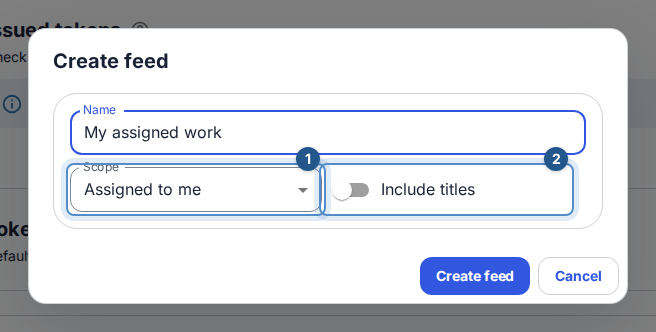
The calendar-feed form offers scope, an optional project, and the Include titles switch. Create the feed. Copy the feed URL, username, and one-time password if your calendar uses username/password authentication. Store what you need before choosing I have stored these credentials; Flow cannot show that password again.
Connect Google Calendar — 2 minutes
On the created feed, choose Create Google Calendar link.
Choose Copy secret link. In Google Calendar on the web, open Other calendars → + → From URL, paste the link, and add the calendar.
Close the disclosure in Flow after storing the link where needed. Wait for Google to poll the feed; its refresh schedule is controlled by Google.
For Apple Calendar or another client that supports authenticated subscriptions, use the ordinary feed URL and the separate username/password instead. The feed password is not your Flow account password.
Expected result: the subscribed calendar displays dates for work currently readable by the feed owner, according to the selected scope.
Recover or stop access
The Google link is a credential. Rotate Google Calendar link immediately invalidates the old link, so update the subscription after rotation. Revoke Google Calendar link stops link-based polling. Rotate credentials replaces the Basic-auth credentials; update clients using those credentials separately. Revoking a Google link does not revoke the Basic password.
If events are missing, check scope, work dates, current project access, and the calendar's refresh delay. A feed does not keep access after its owner loses permission. If you cannot open Automations, use Flow's project Calendar view when available and ask your administrator about calendar integration access.