Daily work
Review your inbox and tune notifications
Act on updates, keep useful reminders, and control delivery for your workspace.
Your Inbox collects updates you are allowed to see. Reading a notification acknowledges the update; it does not complete the task or answer the requester.
Clear the important updates — 2 minutes
Before you start: sign in and select the workspace whose notifications you want to review. Clients use the same Inbox entry from their portal, with client-safe results.
Open Inbox and select Unread. Use Mentions, Work assignments, Ticket assignments, or Security to narrow the list, or All to include read updates.
Open an update to visit its permitted destination. Opening marks it read. Expanding a work-item group alone does not mark its contents read.
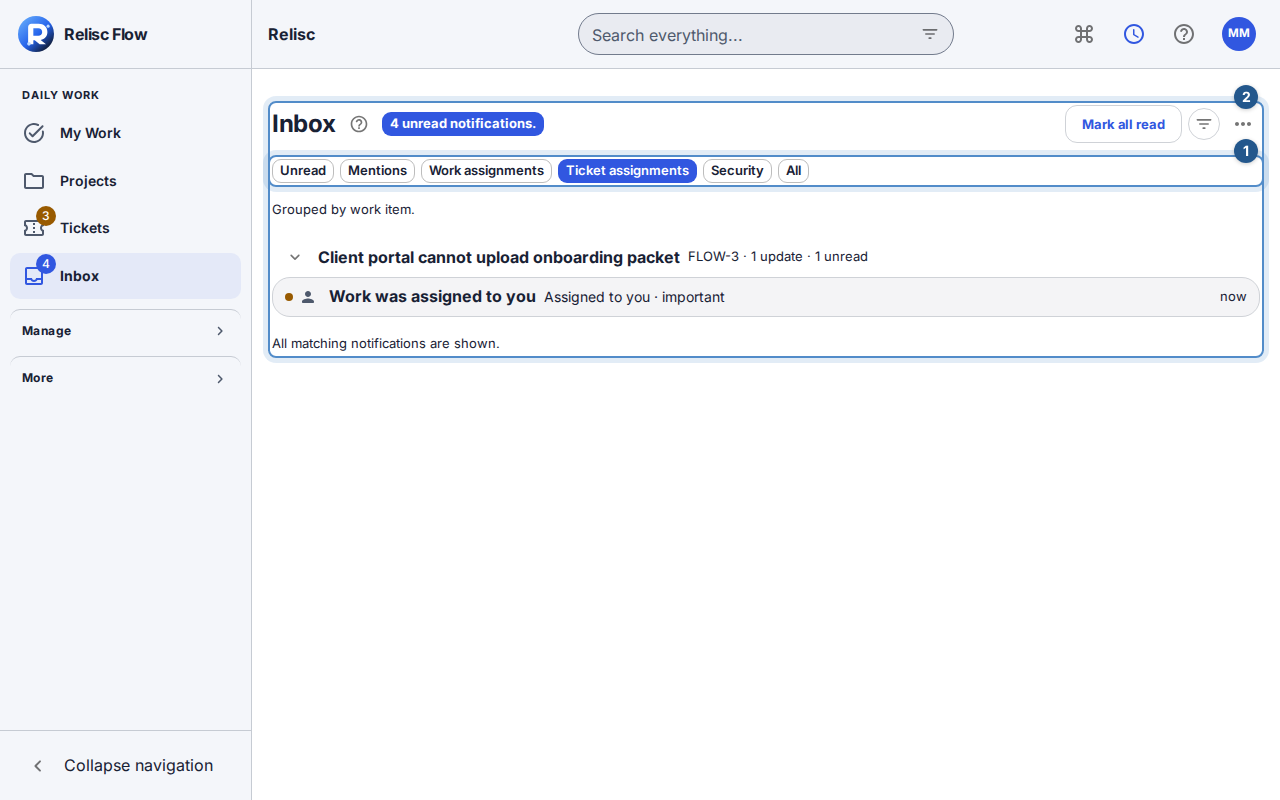
Ticket assignments narrows Inbox to matching grouped updates and their read-state controls. For updates you have already handled, use Mark notification read, or select visible updates and use the batch action. Use Mark all read only when you intend to acknowledge all matching work that the action describes.
Open a digest to inspect its linked updates. Reading the summary does not mark each underlying notification read; open the individual updates that need attention.
Expected result: the unread count decreases as you acknowledge updates, while unfinished work remains available in its normal queue.
Adjust delivery — 2 minutes
Open Profile and preferences → Notifications in the active workspace.
Choose Edit in Notification preferences. Choose the permitted channels, email mode, due reminders, and optional daily or weekly digest. Important-only email focuses on mentions, assignments, due reminders, SLA, and account/security events.
Set quiet hours if needed, then choose Save notification preferences. In-app notifications remain immediate; external delivery waits until quiet hours end, except security/account alerts.
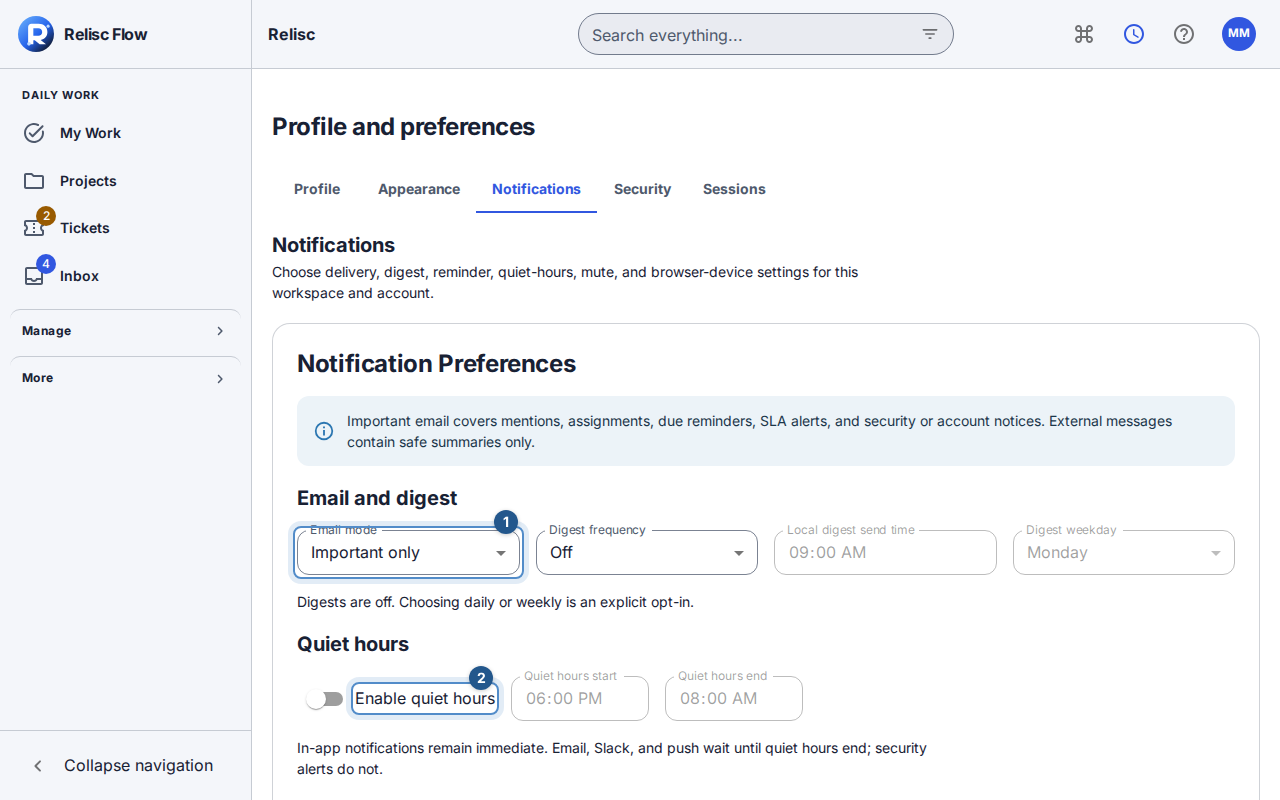
Notification preferences show delivery, digest, and quiet-hour controls for the active workspace. In the browser-device controls, choose Allow and register and approve the browser permission request. If permission is already allowed, choose Register. A workspace Push preference and a registered browser device are separate requirements. Disabling a device affects that device; changing the workspace preference affects this workspace's delivery.
When something does not arrive
Check All, active filters, quiet hours, muted projects/items, and the browser's site notification permission. Muting ordinary updates does not suppress every mention, SLA, or security alert. You cannot enable a channel that the workspace has disabled. Internal-note notifications stay in-app for authorized readers; they are not emailed or pushed.
If preferences changed elsewhere, reload the latest values before retrying your draft. If a target is no longer accessible, its notification may disappear or become unavailable; an old alert does not preserve access.