Files
Set your workspace's file policy
Choose stricter upload limits while preserving mandatory scanning.
Use file policy to control future uploads and restored versions in your workspace. You can lower the upload size limit and restrict allowed file types. Your plan and service set the upper limits, and malware scanning always stays on.
Before you start
You must be the active workspace Owner. The file-policy editor is Owner-only; being an Admin or naming a custom role “Owner” does not unlock it. Know the file sizes and exact MIME types your workflows need.
Edit the policy
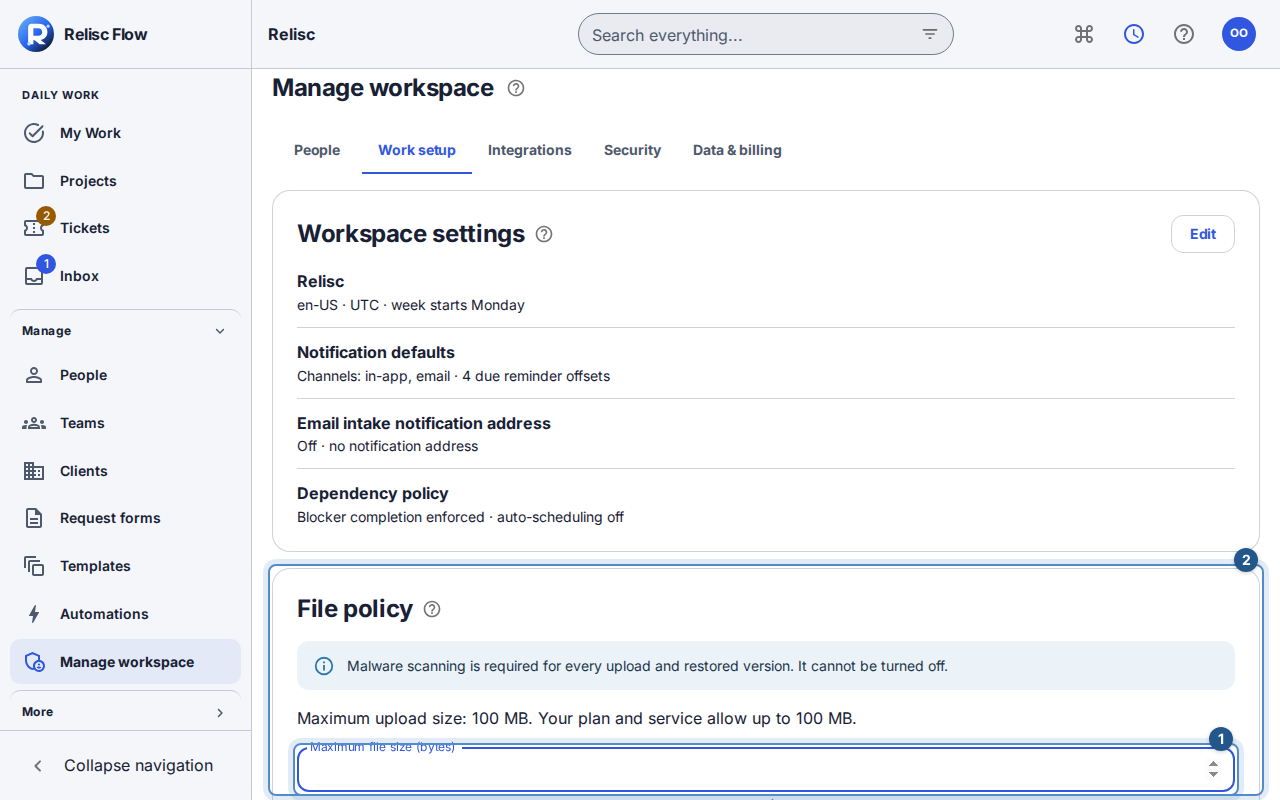
Open Manage workspace → Work setup → File policy. Read the maximum upload size and plan/service limit, displayed in readable size units, then choose the pencil icon (Edit).
Set Maximum file size (bytes); 1 MB is 1,048,576 bytes. Leave it empty to inherit the deployment/plan limit. Zero permits only empty files; it does not mean unlimited. Do not enter a value above the displayed ceiling.
Enter Allowed content types as exact MIME types, such as
application/pdf, one per line or comma-separated. Empty inherits the deployment list. A workspace list cannot widen what the deployment allows.Enter additional Blocked extensions, including the dot, such as
.zip. Deployment blocks continue to apply even when your own list is empty.Select Save changes, wait for File policy saved, and review the effective values shown outside edit mode.
What the change affects
New uploads, new versions, and restores must satisfy the current policy. Malware scanning is mandatory for every upload and restored version. Existing files remain readable according to current access and their scan state; editing the policy is not a bulk deletion action.
Retention is separate. Configure deletion/restoration periods in Manage workspace → Data & billing → Retention policy. An active legal hold still prevents covered purge.
If saving or uploading fails
A version conflict means another session changed workspace settings. Choose Reload, review the latest policy, and reapply only the changes you still intend. If the stored policy is invalid, uploads remain blocked until you correct it. For a rejected file, compare its bytes, MIME type, and extension with the effective policy; changing its name alone does not change its contents or make it safe.