Files
Download an older file version or restore it as new
Inspect clean historical versions without losing later history.
Use version history when you need an earlier copy or want to make earlier contents current again. Download saves the selected version to your device. Restore creates a new current version in Flow; it does not roll back or remove the intervening history.
Before you start
You need current download permission and readable file/attachment context. Historical access uses today's membership, classification, sharing, and permissions, not the permissions you had when that version was uploaded. Restoring or requesting verification additionally requires current mutation authority: generally the uploader or an Owner/Admin with the relevant upload permission, or an explicit file grant. Reading a file alone is not enough.
Inspect and download
Open Files, find the file, and choose Version history for …. You can also open history from its attachment on a task or ticket.
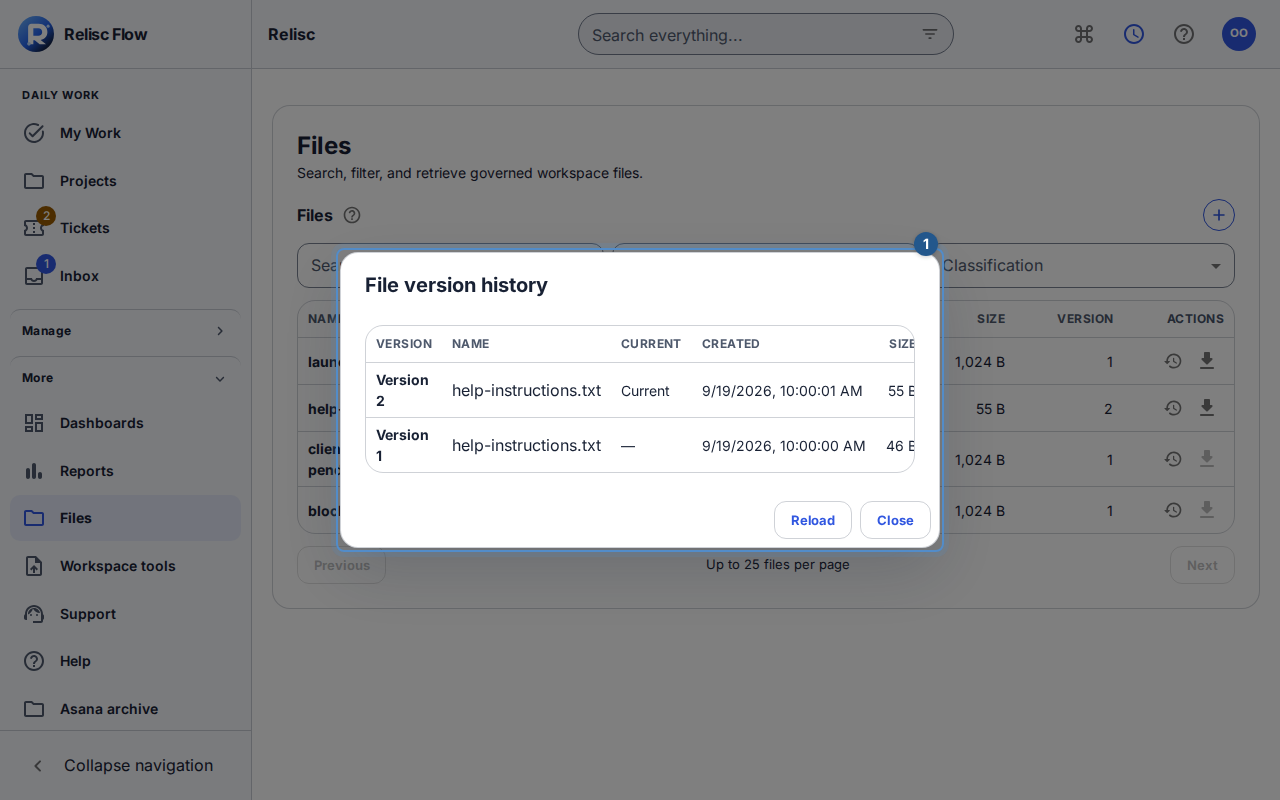
Review each version's filename, date, size, scan state, and Current marker. Select Load older versions if the needed entry is not yet listed.
Use Download version … on the clean version you need. An older clean version can be downloaded while a newer version is pending or quarantined, provided current access still permits it. Downloading never changes which version is current.
Restore earlier contents
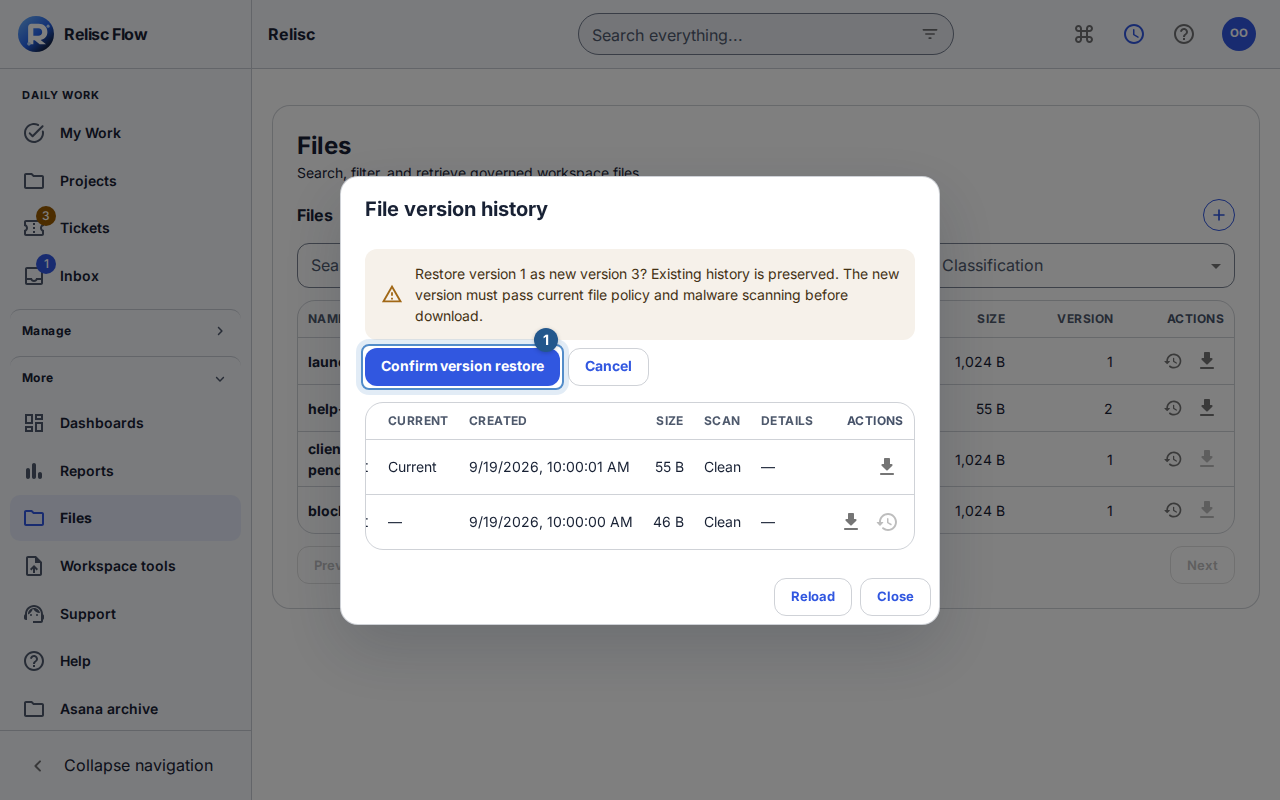
On an eligible clean older version, select Restore version …. Review the confirmation's source version and proposed new version number.
Select Confirm version restore. Flow copies the historical contents into a new version, preserves existing history, applies current file policy, and runs a fresh malware scan. Wait for that new version to become clean before downloading it.
Restoration does not restore removed attachment links, deleted work, or revoked access. A copy already downloaded to your device is independent of later restoration in Flow. To upload an edited local copy instead, open Attachments on its task or ticket and choose Upload new version of … beside the file history control, if authorized. Review the warning that replacement changes the file everywhere it is attached and its classification cannot change. Choose the replacement file, then use Upload new version of ….
Recover verification or a conflict
An unverified historical version cannot be downloaded or restored. If offered, select Scan historical version … and wait. A generated-name notice means the original filename was not retained, not that someone renamed it. Use Retry verification request after an uncertain acknowledgement; infected/quarantined history requires a safe replacement. A quarantined old version does not itself quarantine a clean current version.
If the current version changed, choose Reload, inspect the new history, and deliberately choose again. Do not overwrite a newer version by repeatedly confirming a stale restore. Missing restore controls can also indicate draft files, generated exports, or insufficient authority.