Getting started
Sign in, set up MFA, and review your devices
Protect your account with an authenticator and end sessions you no longer use.
You sign in with your invited account, then complete any required multifactor authentication (MFA). Your authenticator belongs to your account, while each workspace can require additional sign-in protection.
Sign in — 1 minute
Before you start: accept your invitation. Have access to your account email and, if enrolled, your authenticator or unused recovery codes.
Open Flow, enter your email and password, and choose Sign in. If Google sign-in is offered, use the Google account associated with your existing active Flow account; Google sign-in does not create workspace membership.
If Flow requests MFA, enter a current authenticator code, an email verification code, or an unused recovery code and choose Verify MFA.
Check the workspace you enter. If your membership was suspended or removed, signing in again does not restore it; contact the workspace administrator.
Set up an authenticator — 3 minutes
Open Profile and preferences, then Security. In Multi-factor authentication, choose Set up authenticator (the plus button).
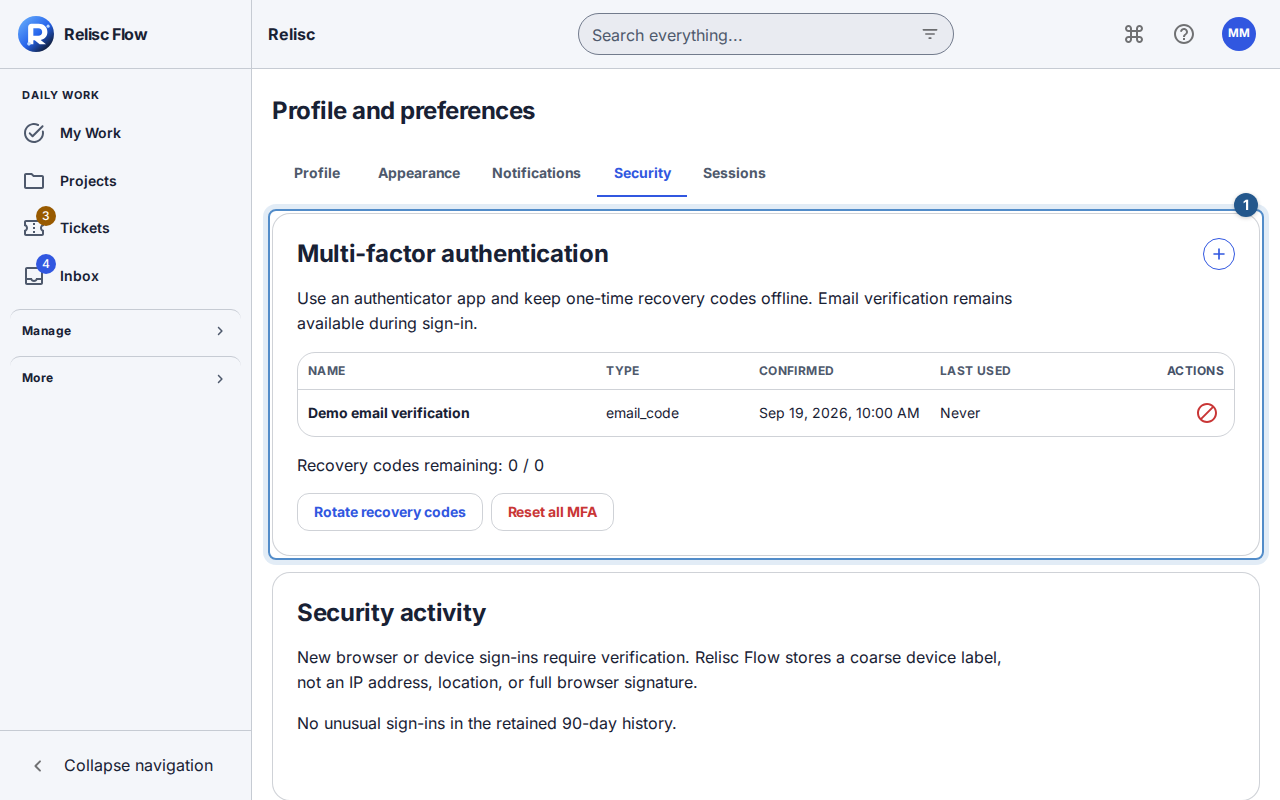
The Security tab shows the authenticator setup button and enrolled-device list. Give the authenticator a recognizable name and choose Continue. Complete the identity verification if requested; Send a new code replaces a code that has expired.
Scan the QR code with your authenticator app. If scanning is unavailable, use the manual-key option. Enter the app's six-digit code and choose Confirm authenticator before the ten-minute setup expires.
Choose Copy recovery codes or Download recovery codes, save them somewhere you can access without Flow, then acknowledge that you saved them and choose Finish. Each code works once; closing this screen removes the only display of those codes.
Expected result: your confirmed authenticator appears in the device list, and your recovery codes are stored securely outside Flow.
Review browser sessions
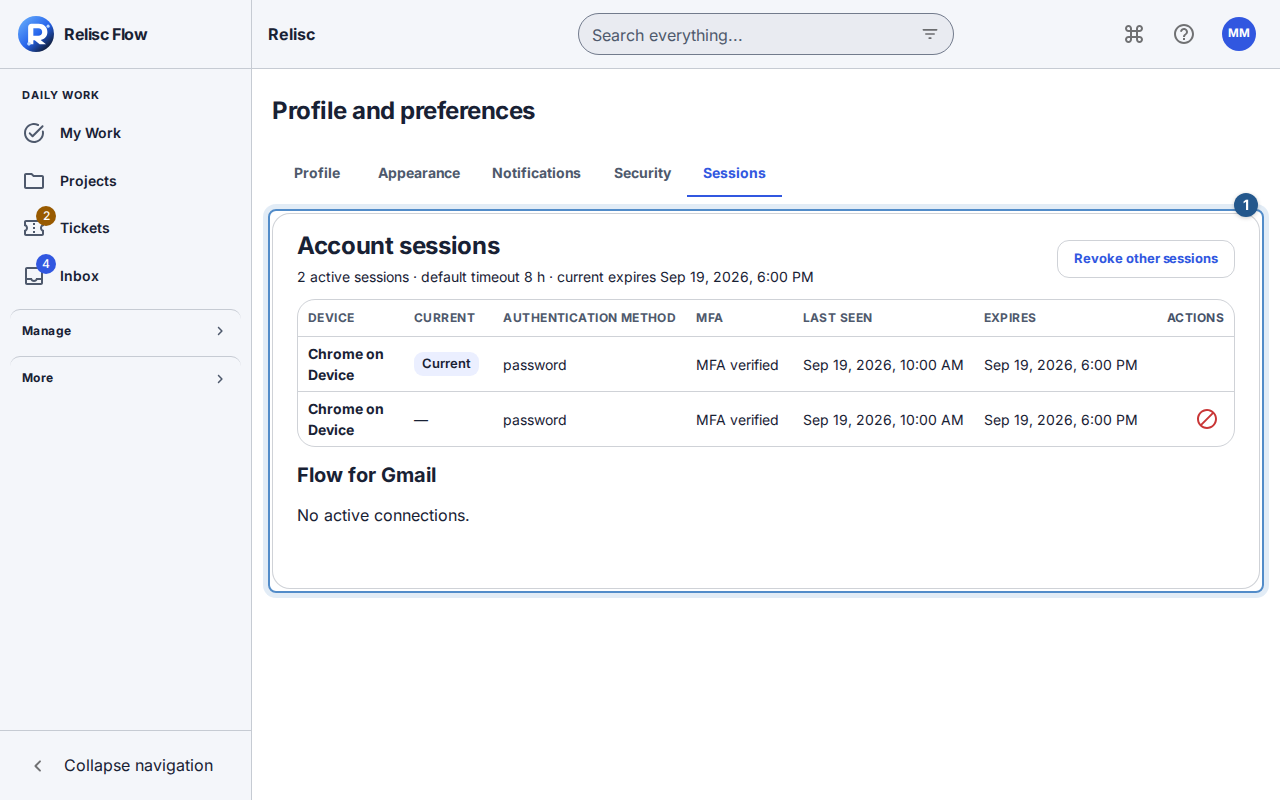
Open the Sessions tab. Review the browser/device labels and current-session marker. Choose Revoke session for an old session, or Revoke other sessions, and confirm the action. These are signed-in browser sessions, not the authenticator factors listed under Security.
To use Flow for Gmail, open an email in the add-on and choose Connect to Flow. Sign in in the browser with your normal Flow credentials and MFA if requested. Check the workspace and choose Approve Flow for Gmail, then reopen the email. Everyone follows this step, including accounts without MFA. If you signed in with another Flow account, choose Sign out of Flow, sign in with the account linked to Gmail and reopen the email. The connection ends when that browser session ends. Under Sessions, review the separate Flow for Gmail connections and choose Revoke connection to stop add-on access for that workspace. A disconnected or expired add-on prompts you to connect again.
Recover from a problem
If a sign-in code expires, choose Back to sign in and sign in again for a new challenge instead of repeatedly submitting it. Check your authenticator device's clock if current codes fail. A recovery code cannot be reused. Rotating recovery codes invalidates the previous set immediately; disabling the last authenticator also removes its recovery codes.
If you cannot use any available verification method, contact support for account recovery. A workspace administrator cannot simply reset another person's account-wide factors. Never send passwords, setup keys, or recovery codes in a ticket.