Manage workspace
Brand the client portal and workspace emails
Preview and publish a product name, accent, and scanned logo.
Branding changes the identity clients see in your workspace's portal and workspace emails. Only an active Owner using a browser session can publish it. Admins and delegated named roles cannot publish branding.
Preview and save
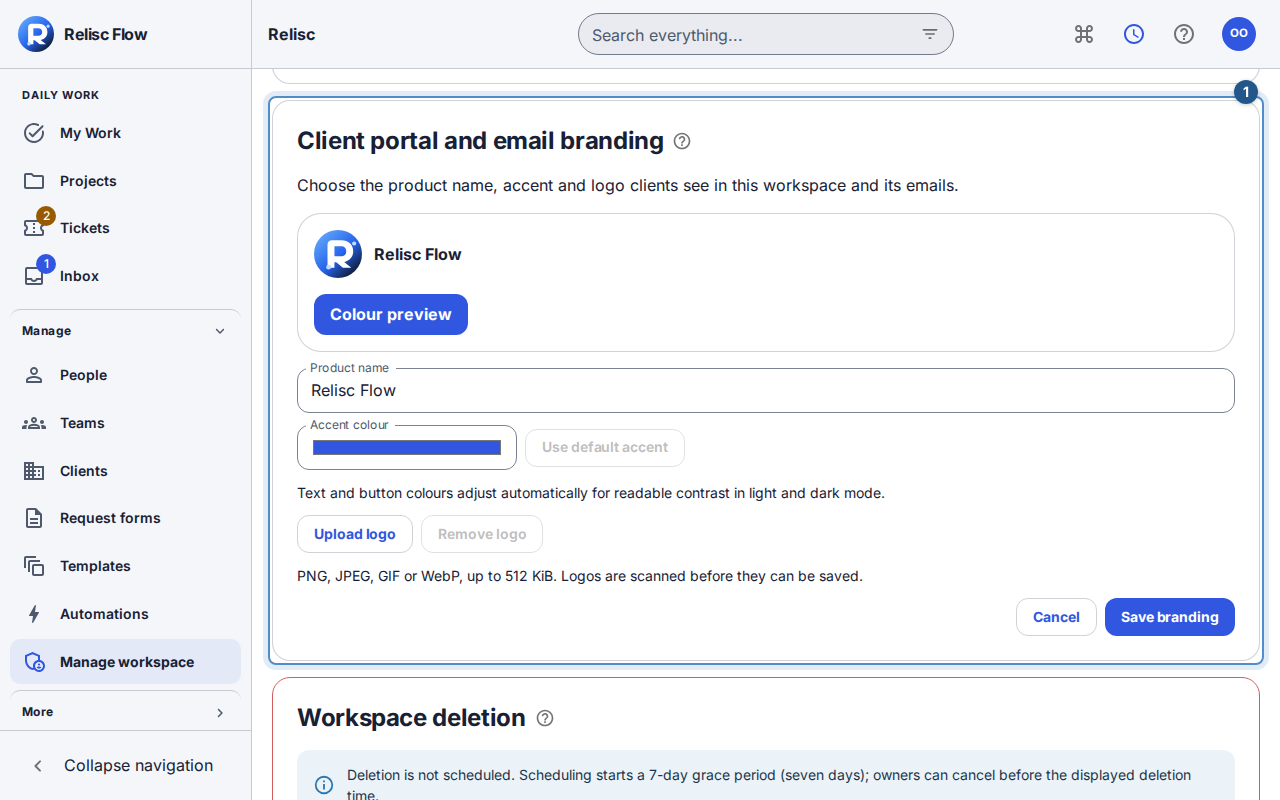
Open Manage workspace → Work setup → Client portal and email branding.
Choose the pencil button Edit workspace branding.
Enter Product name (1–80 characters). Choose Accent colour, or Use default accent. Review Colour preview; Flow adjusts text and button colours for light and dark themes.
Choose Upload logo for an optional PNG, JPEG, GIF, or WebP of at most 512 KiB. Use an image intended for clients and email recipients. Wait until Logo ready. Save to apply it. appears.
Choose Save branding. Workspace branding saved. confirms publication. Cancel leaves the saved branding in place.
What changes
The client portal uses the published product name and logo. Workspace notifications, digests, and membership-invitation emails use workspace branding while retaining the verified sender address. Account-level sign-in, password-reset, and security messages retain the platform identity because an account can belong to several workspaces. Your personal theme and density do not change.
Recover or remove a logo
While Scanning logo… is shown, wait; the logo cannot be saved yet. If scanning fails, choose another valid image. For an upload error, Retry resumes the same upload. Remove logo, followed by Save branding, publishes a logo-free identity.
If settings changed in another session, the editor reloads current branding. Review it before editing again. If a published logo later becomes unavailable or fails its integrity checks, Flow falls back to text; an Owner must explicitly publish a valid logo again. Missing controls mean you should ask the current Owner to make the change.