Manage workspace
Set workspace defaults for work
Choose the workspace name, calendar defaults, and dependency behavior.
Use workspace defaults to give your team a consistent calendar and working setup. Personal appearance and language remain personal preferences.
Settings use the full available content width. Summary cards appear side by side on wide screens and in one column on smaller screens; lists and tables use the full width.
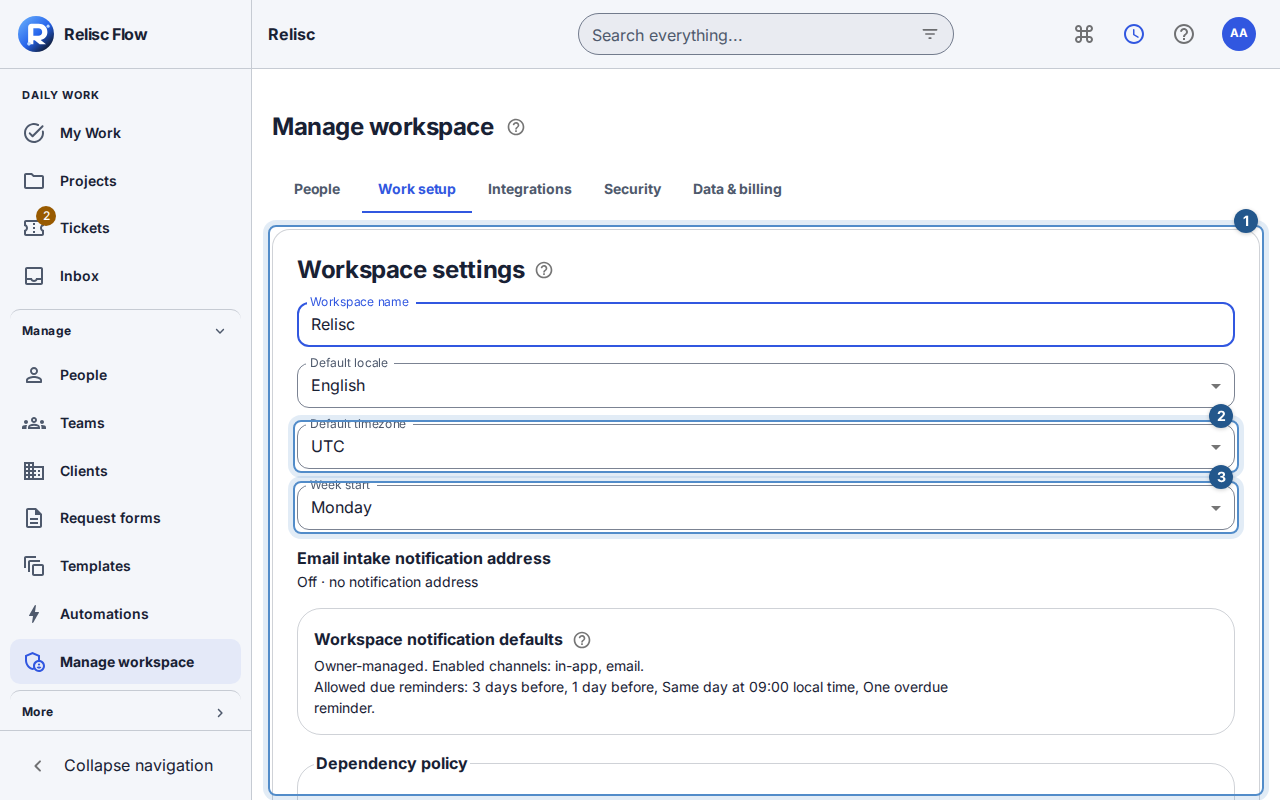
Dates and times follow your Profile timezone everywhere. The workspace zone determines team report periods, scheduled jobs and shared Chat messages; week start remains a workspace setting. Date-only deadlines are the end of the chosen day in the workspace zone, shown as the calendar date in your zone without a time.
Change general defaults
You need Owner or Admin-family access with settings-management permission. A restricted named role may not have this permission.
Open Manage workspace → Work setup. In Workspace settings, choose Edit.
Review Workspace name and choose Default locale and Default timezone from their lists. You do not need to type language or timezone codes.
Choose Week start by weekday name; the selection sets the order of weekday controls in the workspace.
In Dependency policy, decide whether to enable Prevent completion while blockers remain and Automatically move scheduled successors. Automatic scheduling starts off; enabling it can move dependent dates while preserving duration and applying dependency lag.
Choose Save workspace settings, or press Enter in a single-line field. Escape or Cancel discards your edits. Check the saved summary and Workspace settings saved. message.
Notify support when email creates work
The Owner can set Email intake notification address in Workspace settings → Edit. Enter one address, save, and check the saved summary. Leave it empty to turn this off. Admins can read the destination but cannot change it. In staging, use only an Owner-controlled test mailbox and synthetic sender/content.
A new root created through Gmail or inbound API intake sends one handled email with its key, title, Flow link, project and section, assignee, creator/time, and the original subject, sender and date. The original body stays in Flow. Replies, duplicate intake, retries and template subtasks do not send another handled message. Work created while this setting is off is not notified later; queued enabled mail uses the current address, and clearing it suppresses pending delivery. Dates follow the recipient's profile zone when it has a Flow account; otherwise the message names the workspace zone.

Find the specialized controls
Work setup also contains custom fields, SLA policies, ticket workflows, and saved views when your permissions allow them. A new ticket workflow starts as an inactive draft. Configure its states and exact transitions before activating it; an active workflow needs a path from each state to Closed. Creating a draft does not replace the active workflow.
Notification defaults, file policy, branding, and workspace deletion include Owner-only controls. Admin access to general settings does not authorize those changes. Read notification defaults and branding for those tasks.
Configure a ticket workflow
You need workflow-management permission. In Ticket Workflows, choose + to open New ticket workflow, or the edit icon beside an existing workflow. Enter the name and description, then configure the complete workflow before saving.
Enable the states you need. Select a state card to change its display label and see Where can this ticket go next?
Choose Allow another destination and select the next state. Button shown on the ticket is the action label users see; customize it for that destination. Remove a destination with its remove icon. Closed is final and has no outgoing destinations.
Optionally open Workflow map to see the connections. Selecting a state in the map selects the same state in the editor; no dragging is required. The map reflects your unsaved changes.
Save as an inactive draft while configuring. Warnings identify states without a path to Closed, including paths blocked by saved role restrictions. To activate a workflow, each state must have a valid path to Closed. Workspace default also requires Active; changing the default must remain compatible with existing tickets.
Choose Save workflow once to save the complete definition. Nothing is created until Save. Cancel before saving creates nothing; cancelling an edit leaves the saved definition unchanged. Existing role restrictions and other saved settings are retained.
If saving fails, the dialog keeps your changes. Retry save repeats an unconfirmed save safely; resolve that attempt before changing the draft. On a version conflict, Discard edits and reload latest deliberately replaces your draft with the latest saved workflow. If reloading fails, your draft remains available.
Recover a failed change
Wait for workspace settings to load before editing. If saving reports a conflict, current settings are reloaded; review them and reapply only the intended changes. Reload again fetches them again if needed. A missing specialized card means that its own permission is required. Do not treat a failed load as an empty configuration.