Manage workspace
Manage retention and scheduled workspace deletion
Review data-lifecycle windows and understand the Owner's deletion and cancellation controls.
Retention controls how long eligible history and deleted data remain before cleanup. Only an active Owner can change retention or schedule workspace deletion. An Admin's audit access is not retention authority.
Change retention periods
Open Manage workspace → Data & billing → Retention Policy. Wait for the current values, then choose Edit.
Review the restore window, audit, description-history, work-item activity, notification, export-file, and workspace-deletion grace periods. Values are whole days from 0 to 3650. Zero is the shortest window, not “keep forever.”
Change only the intended periods and choose Review retention changes.
Read the before/after values and any shortened-window warning. Enter Retention change reason and choose Confirm retention changes.
Check Retention policy saved. and the saved periods.
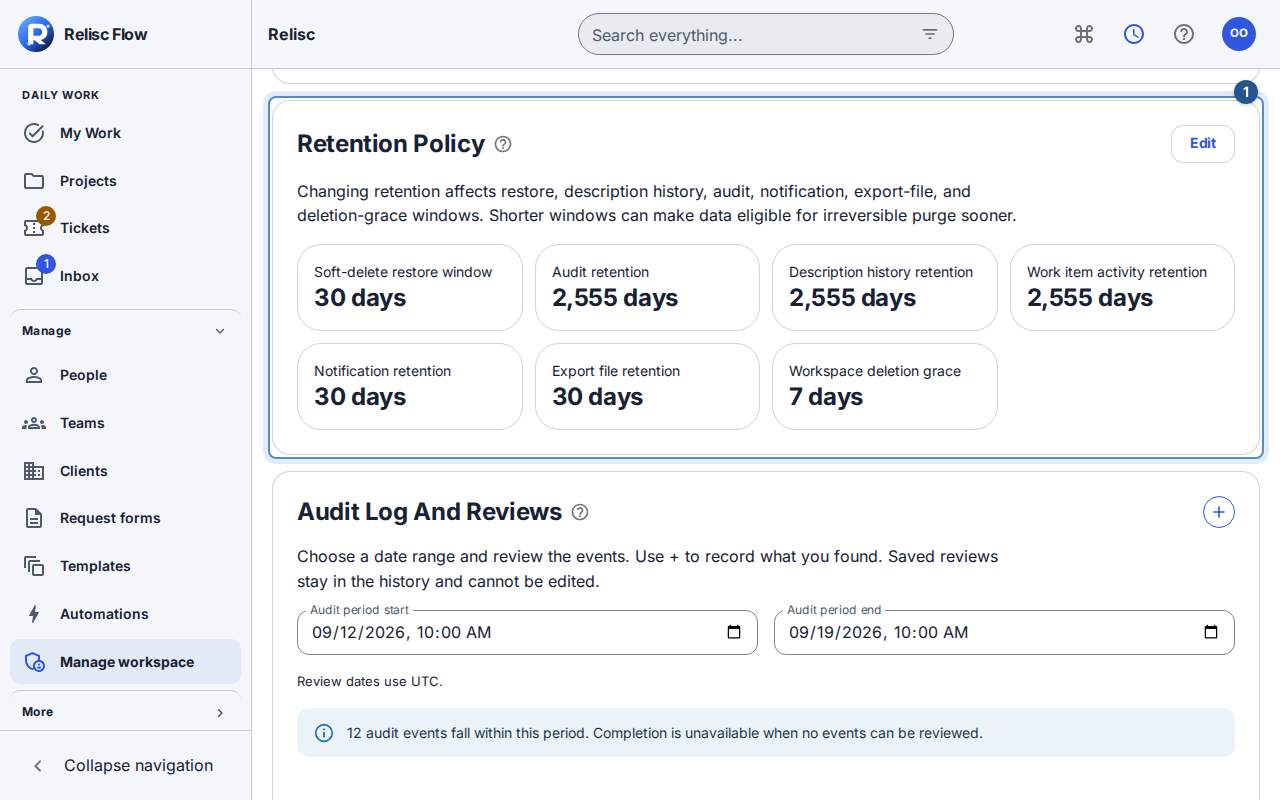
Shortening a window can make data eligible for irreversible purge sooner. A legal hold blocks destructive cleanup across the workspace while active; the displayed target does not narrow that protection. Extending retention cannot recover data already purged. Expired export links must not be treated as permanent backups.
Schedule deletion of the entire workspace
Open Work setup → Workspace deletion. Read the displayed grace period; the default is seven days, but your saved policy governs it.
Choose Schedule workspace deletion.
Review the workspace named in the dialog and enter it exactly in Workspace name confirmation.
Choose Confirm deletion schedule only when you intend to remove the entire workspace. Check the displayed scheduled time.
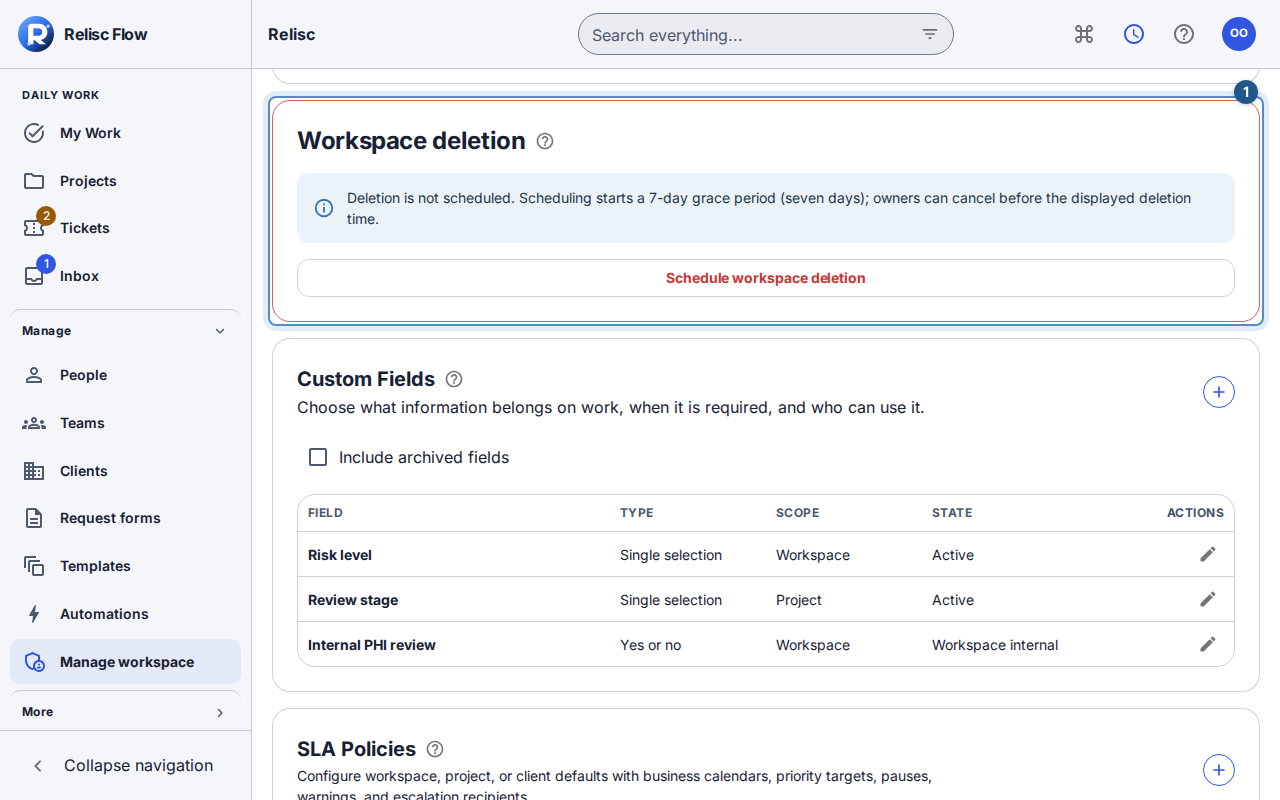
During the grace period, ordinary workspace access is unavailable. An active Owner can sign in with the required checks and choose Cancel scheduled deletion before the displayed deadline. After successful cancellation the workspace becomes active again. Legal holds prevent final purge; they are not a substitute for cancellation.
Recover before retrying
If retention changed in another session, reload the current values and review your draft again. A failed save or cancellation is not a success: read the error and recheck current state. If you no longer have Owner authority, contact the current Owner. Removing one person's access belongs in People, not workspace deletion.