Manage workspace
Set workspace sign-in security policies
Require MFA and configure password rules as the workspace Owner.
Workspace policies decide which sign-in checks people must satisfy. Your own authenticator and recovery codes are managed separately in Profile → Security.
Require multi-factor authentication
Only an active workspace Owner in a browser session can manage MFA policy. Admins, named-role delegates, clients, and API tokens cannot acquire this authority through a permission checkbox.
Open Manage workspace → Security → MFA Policy and wait for the current policy to load.
Choose Edit.
Enable Require MFA for all active users, or select the role families that must use MFA. A named role follows its starting family for MFA requirements.
Choose Save MFA policy. Check MFA policy saved. and the summary of required users or roles.
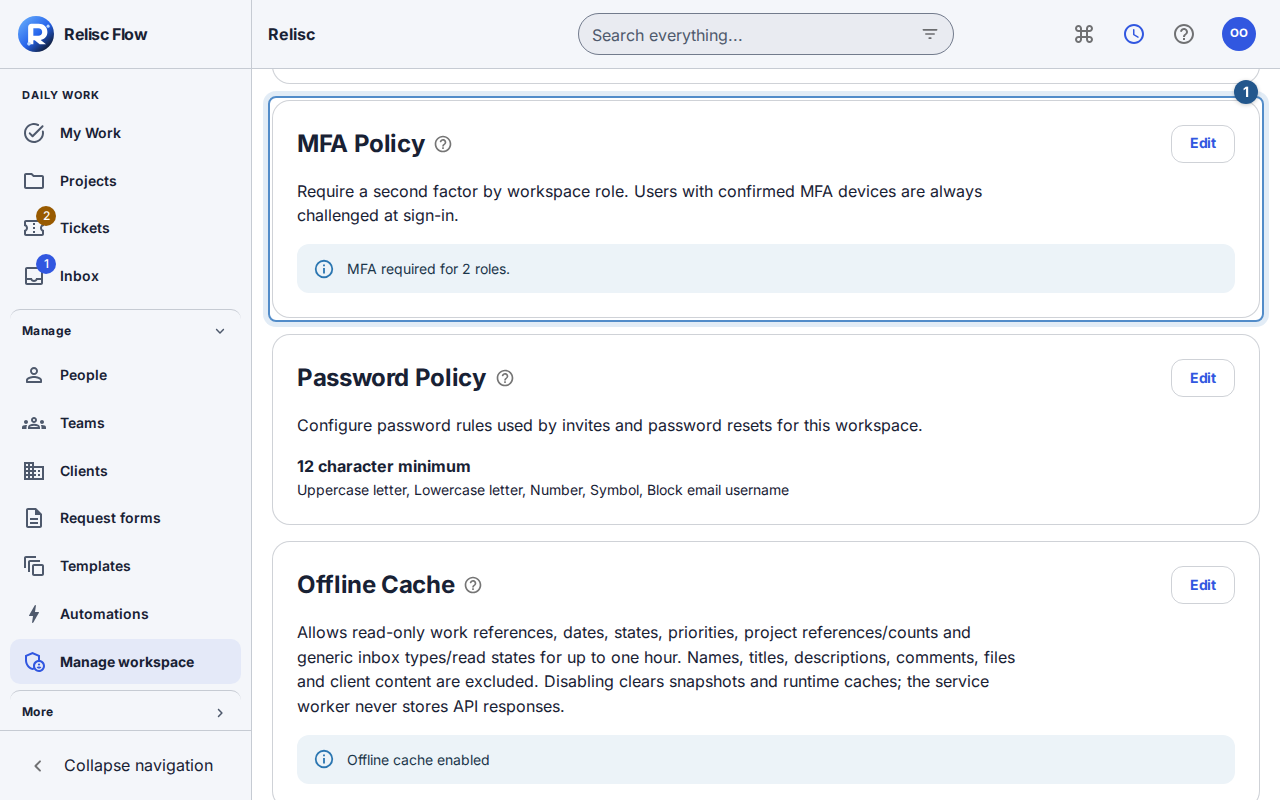
Users with a confirmed MFA device are still challenged at sign-in even if policy does not require their role. Changing this policy does not enroll or reset another person's factors. Use MFA recovery for a lost device.
Set password requirements
In Password Policy, choose Edit.
Set Minimum length within the displayed 10–128 range. Review uppercase, lowercase, number, symbol, and email-username restrictions.
Choose Save password policy. The saved summary lists the active requirements. These apply when a password is created or reset; changing the policy does not silently replace existing passwords.
Cancel abandons either policy's draft. For a stale MFA-policy message, read the reloaded policy and review your selections before trying again. If loading or saving fails, keep the error visible and retry only after the underlying issue is resolved; do not assume the policy changed.
Other security controls
Allowed email domains control eligible email domains. Outbound calls govern external destinations. The offline-cache policy governs limited reference views, not offline editing. Owner-only policy authority remains protected even where an Admin can use other security-related tools.