Manage workspace
Create a team and add its people
Group internal teammates and understand the project access a team can provide.
A team groups people inside one workspace. A person can belong to several teams, and a team can own projects. Team membership can provide inherited project access; it does not change someone's workspace role.
Create a team
You need team-creation permission. Editing a particular team and its members also requires management access to that team.
Open Teams. You can also use Open team management from Manage workspace → People.
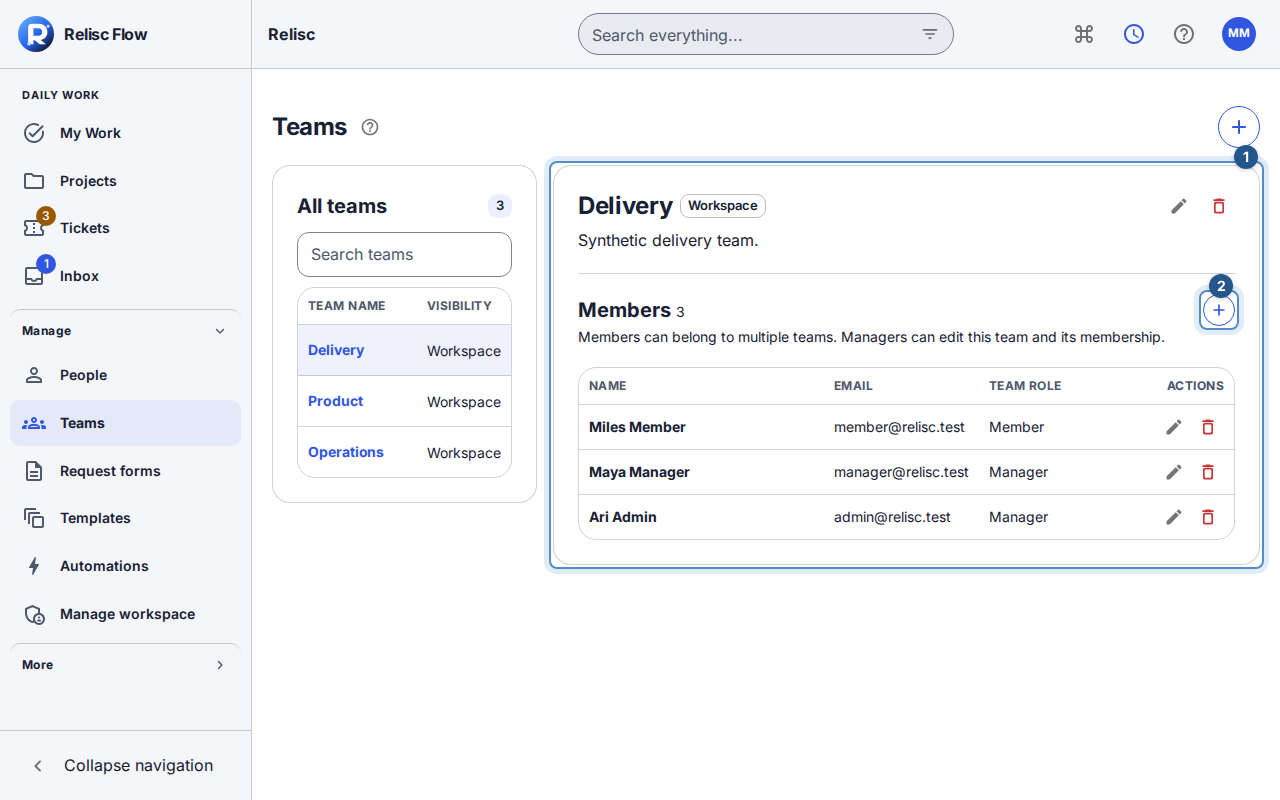
Choose + (Create team). Enter Name and an optional Description.
Choose Visibility: Workspace or Private. A private team is visible only to its authorized members.
Choose Create team in the dialog. The new team is selected and a success message confirms creation.
In Manage workspace → People, the Teams summary lists each team's name and visibility. Select its name to open that team directly. Its + opens a dialog for quick creation by name; use the Teams page for description and visibility settings.
Add or update members
Find and select the team in the compact table. Use Search teams to narrow the list. Choose + (Add member) above its members to open the dialog.
Open the member picker showing Choose a member and choose an eligible person already in the workspace. Choose Team role and then Add member.
Confirm the person appears in the Members table. Each row shows a person, email and team role; the pencil changes the role and the remove icon removes that membership. Team managers can manage this team and its membership; they do not automatically become workspace Managers.
To change the team's name, description, or visibility, choose the pencil icon (Edit team) and then Save team. Cancel keeps the saved values.
Review inherited project access before removing a member or changing visibility. Removing a team does not delete its existing work, but removes the team and its membership access. Adding client membership remains subject to client-sharing restrictions; it is not a shortcut around project sharing.
Empty, unavailable, or failed
An empty team can be filled with Add member. If the picker has no eligible people, check existing membership and invite the person if needed. Wait for loading to finish. For a failed list request, use Retry. If a requested team is unavailable, choose another visible team. Missing management controls mean you need the appropriate team access; a readable team is not necessarily editable.