Manage workspace
Invite people and manage workspace access
Invite an internal teammate, choose an assignable role, and recover an expired invitation.
Invite someone to the current workspace with the access they need. An invitation to join a workspace does not create a new workspace.
Before you start
You need permission to invite members; changing existing memberships requires separate permission. The role picker shows only roles you can assign, and a custom role's name does not add permissions. Only an Owner can assign the Admin family.
Send an invitation
Select the intended workspace, then open Manage workspace → People.
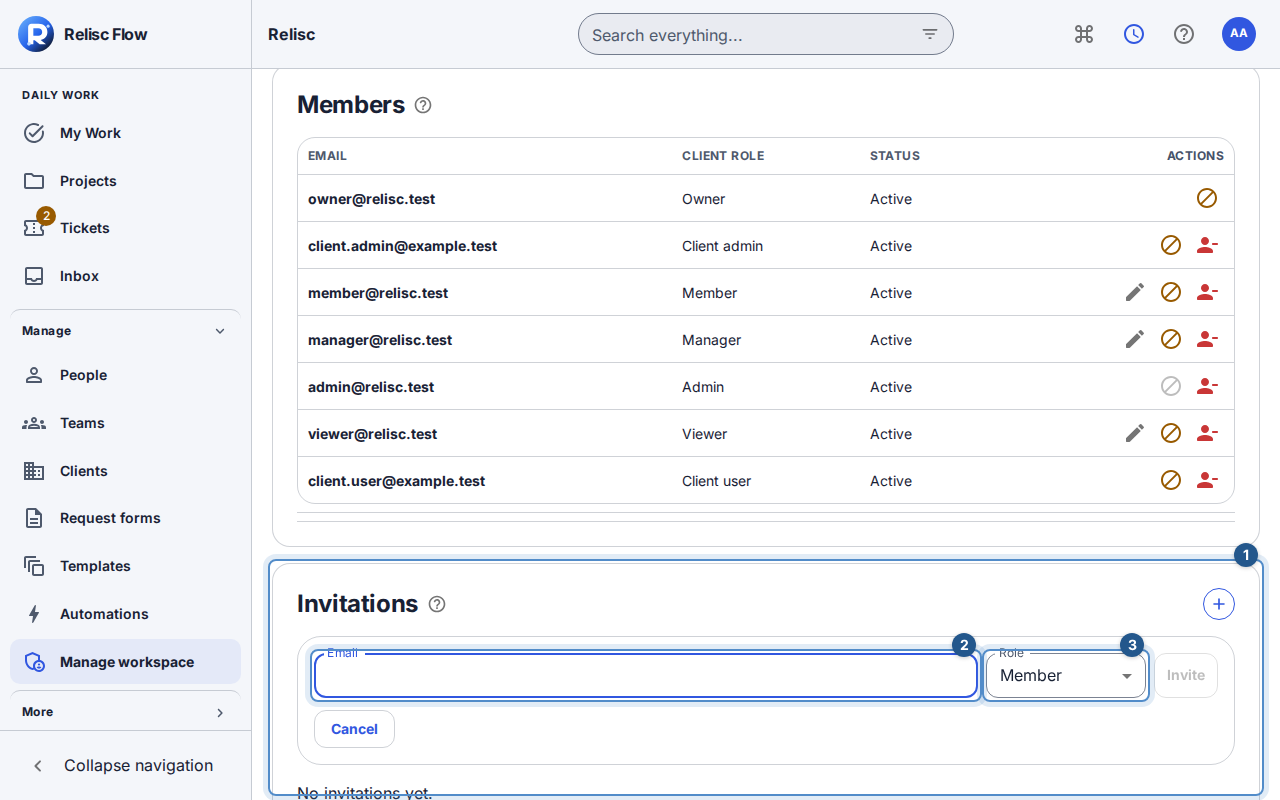
In Invitations, choose the plus button named Invite workspace member.
The cursor starts in Email. Enter the address and choose Role from the assignable choices. For client access, use the client-user controls and select the correct client organization; clients must not be invited as internal teammates merely to gain access.
Choose Invite or press Enter in the email field. Escape cancels. The form stays open and names the field on a rejected invitation; after success, check the invitation row, role, and expiry. A pending invitation is not an accepted membership or proof that its email arrived.
Recover or change access
- For an unaccepted invitation, use Resend invitation for followed by the recipient's email. Send the recipient to the newest email: resending replaces the previous link. If the bound named role has been deleted, create a fresh invitation with an available role.
- To withdraw an invitation, use Revoke invitation for followed by the recipient's email, then Confirm invitation revocation. That pending link can no longer be accepted.
- With membership-management permission, use Change role, choose an available role, then Assign role. If another session changed the membership, choose Reload current membership, review the new state, and assign again. If the result is unconfirmed, use Retry to recover the same request before changing the selection.
- Remove access opens a reasoned confirmation. It removes workspace access while retaining history. It is not account deletion, and the last active Owner cannot be removed.
If something is missing
Wait for Loading invitations to finish before treating the list as empty. No invitations yet. means there are no invitations in this list. A missing action can reflect your current permissions; ask an Owner to review them. Domain restrictions and plan capacity can also reject an invitation. For Email not delivered, follow email troubleshooting.
For client invitations and defaults, open Clients → the client → People. The client hub keeps organization access separate from internal workspace membership.