Manage workspace
Set notification defaults and understand delivery
Choose available notification channels and reminders for the workspace.
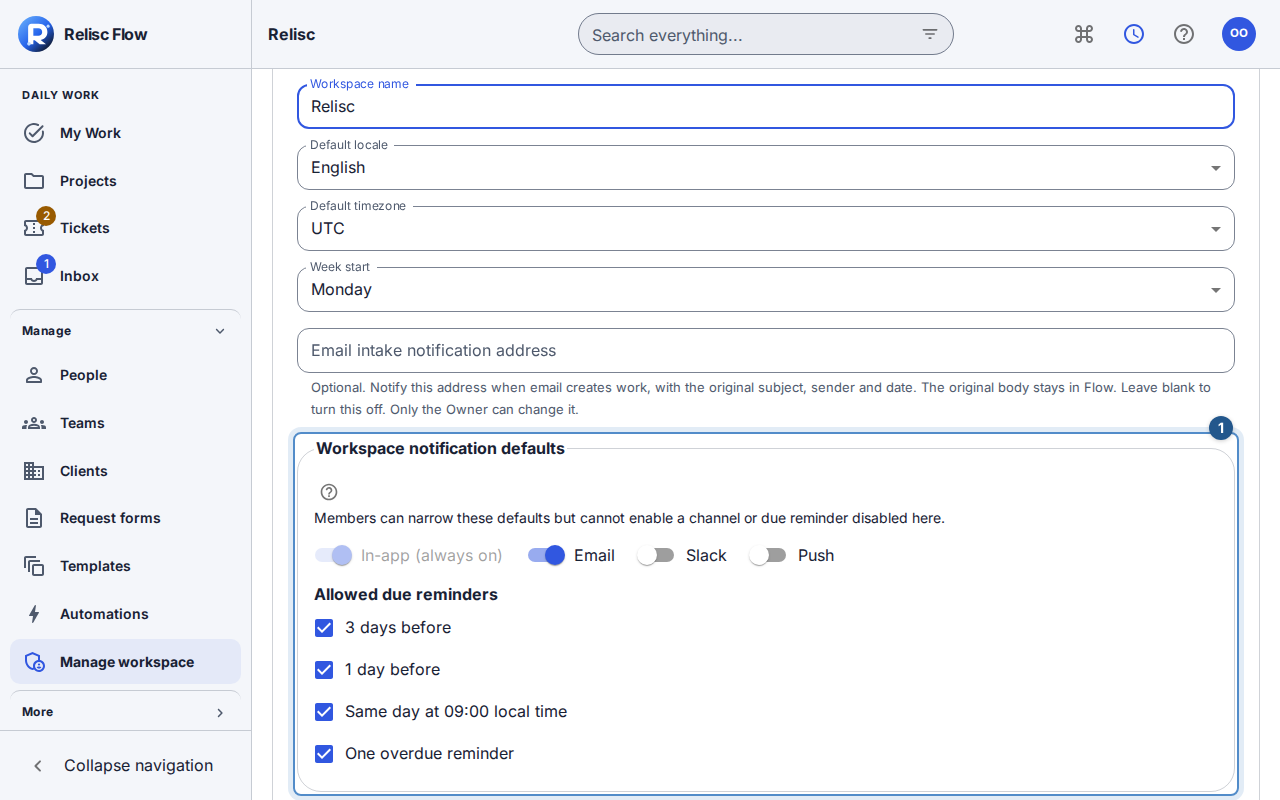
An Owner chooses the channels and due reminders available in the workspace. People can narrow those defaults in their own notification preferences, but cannot enable a channel or reminder the workspace disables. Admins can inspect the summary in general settings but cannot change these defaults.
Dates and times follow your Profile timezone everywhere. The workspace zone determines team report periods, scheduled jobs and shared Chat messages; week start remains a workspace setting. Date-only deadlines are the end of the chosen day in the workspace zone, shown as the calendar date in your zone without a time.
Change workspace defaults
Open Manage workspace → Work setup and choose Edit in Workspace settings.
Under Workspace notification defaults, review Email, Slack, and Push. In-app (always on) remains enabled.
Under Allowed due reminders, keep at least one offset enabled: three days before, one day before, same day, or one overdue reminder. Date-only same-day reminders use 09:00 in the recipient's timezone.
Choose Save workspace settings and check the saved channel/reminder summary. Enabling a channel permits eligible delivery; it does not set up the provider, a Slack destination, or a browser subscription.
How a notification reaches someone
Notification eligibility and routing
- Work event→Current recipient and resource access
- Current recipient and resource access→Internal-note update
- Internal-note update→Authorized in-app Inbox only
- Current recipient and resource access→Other eligible event
- Other eligible event→Workspace channel and reminder limits
- Workspace channel and reminder limits→Personal preferences and mute rules
- Personal preferences and mute rules→In-app Inbox
- Personal preferences and mute rules→Quiet hours and channel setup
- Quiet hours and channel setup→Eligible email, Slack or browser push
The diagram's checks all apply: an event never grants access to its source. Delivery and display recheck current access. Internal-note alerts stay in the authorized in-app Inbox and never enter email, Slack, push, or digests. External alerts use generic copy instead of work content.
In-app notifications remain immediate. Eligible email, Slack, and push wait through quiet hours; security/account alerts bypass that delay. Digests are opt-in. Mentions, SLA alerts, and security/account events have precedence over eligible ordinary mutes. Slack also requires an authorized destination; push needs an enabled browser and personal workspace preference.
If saving or delivery fails
Wait for settings to load. On a settings conflict, review the reloaded values before saving again. A disabled save may mean all due reminders were cleared. If the policy saves but an alert does not arrive, inspect personal preferences and channel troubleshooting; saving defaults is not proof of delivery.