Tickets and clients
Build a request form that creates the right ticket
Collect required information and route signed-in requests to your support workflow.
Create a request form when you need consistent information before work starts. A successful submission creates a ticket, maps configured fields and attachments, and applies the configured routing.
Before you start
You need form-management permission. Prepare a readable destination project, workflow, and SLA policy. For client submissions, the project must currently be shared with the submitting organization and allow ticket creation. Request forms require sign-in; a form link is not anonymous access.
Build and review
Open Request forms. The page lists your forms with their field count, who can use them, the linked template, and their status; on phones the same details appear as labeled cards. Select + Create request form above the list; the cursor starts in Form name. Enter a name and choose Create form, or press Enter. Escape cancels.
Select a form by name, or use its Edit icon to open it ready to edit. The form takes the whole page; Back to forms returns to the list. You can also select Edit form in the form’s header. Write a description that tells the requester what to provide. Form-authored labels, instructions, and result text remain your content; Flow does not automatically translate them when a reader changes language.
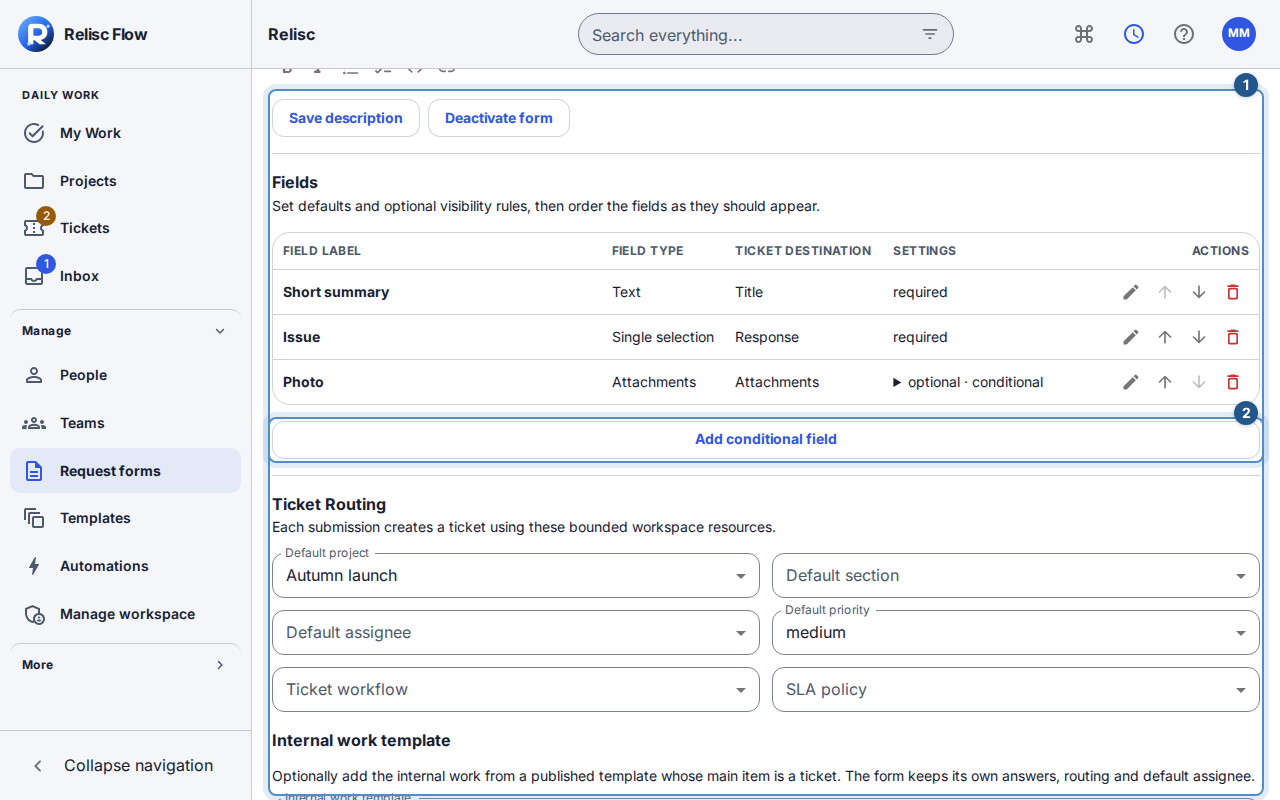
Use Add conditional field to name the field; a stable key is suggested from its label and can still be edited. Choose the type, required/default behavior, and condition. Select one named value for an equality condition or several for in; exists asks for Yes or No even when the source has named options. Choose a ticket destination only when it matches the field type. Keep server-owned internal information out of client-visible fields. The field list shows each label, type, ticket destination, and required/default/visibility summary in both review and edit mode. Expand a summary to read its named default or condition values. While editing, use the labeled icons at the right of a row to edit, move it up or down, or remove it; on a phone each field appears as a labeled card with the same controls.
Review Default project, Default assignee, Ticket workflow, and SLA policy. Set the success message, ticket-link/redirect behavior, and Notify the submitter as needed. Wait for changes to save, then choose Done editing and check the routing summary.
A rich-text field mapped to the ticket description keeps its formatting on the created ticket. A text field keeps plain text. When no description answer is supplied, the form description and the other answers become a plain-text summary.
Publish a request type
For clients, this form is a Request type in the New request catalog. Choose its audience: All clients, Selected organizations, or Selected departments. Those are the three audience choices. For a department audience, choose departments from the intended organizations; their current members receive the type. People without a department still receive whole-organization types. Write a short description that helps clients pick the right type.
Activate the form when its fields, audience and route are ready. An inactive form can be edited as a draft. Activating publishes its current revision; saving changes to an active form publishes them, and deactivating removes it from the catalog immediately. An audience does not grant project access: the destination project must still be shared with the exact submitting organization and allow tickets. If a department or membership is removed, the affected person can no longer open or submit that type. An empty selected audience does not publish it to everyone.
Add internal follow-up work
In Internal work template, optionally choose a published work template whose main item is a ticket. Flow keeps the version you select until you explicitly save an updated link; publishing a newer template version does not silently change an existing form.
If the template uses Creator or Person chosen when used, set the form's existing Default assignee to an internal teammate. If it uses a chosen date, Due date question defaults to Use creation date. You can instead map an existing client-visible Date question without a condition; it may be optional. Flow uses the mapped answer when provided, otherwise the request's creation date. A form does not need a Date question. Then choose Save template link. An unavailable mapped question must be replaced or changed to Use creation date; repair an unavailable template or default assignee before saving or accepting submissions. Choose None and save to remove the link.
A submission still creates one request using the form's content and route. The template adds internal follow-up tasks and dependencies; clients see their request rather than your team's internal checklist. Form answers take precedence over matching template custom-field defaults. No requests are created automatically on a schedule.
Try the requester journey
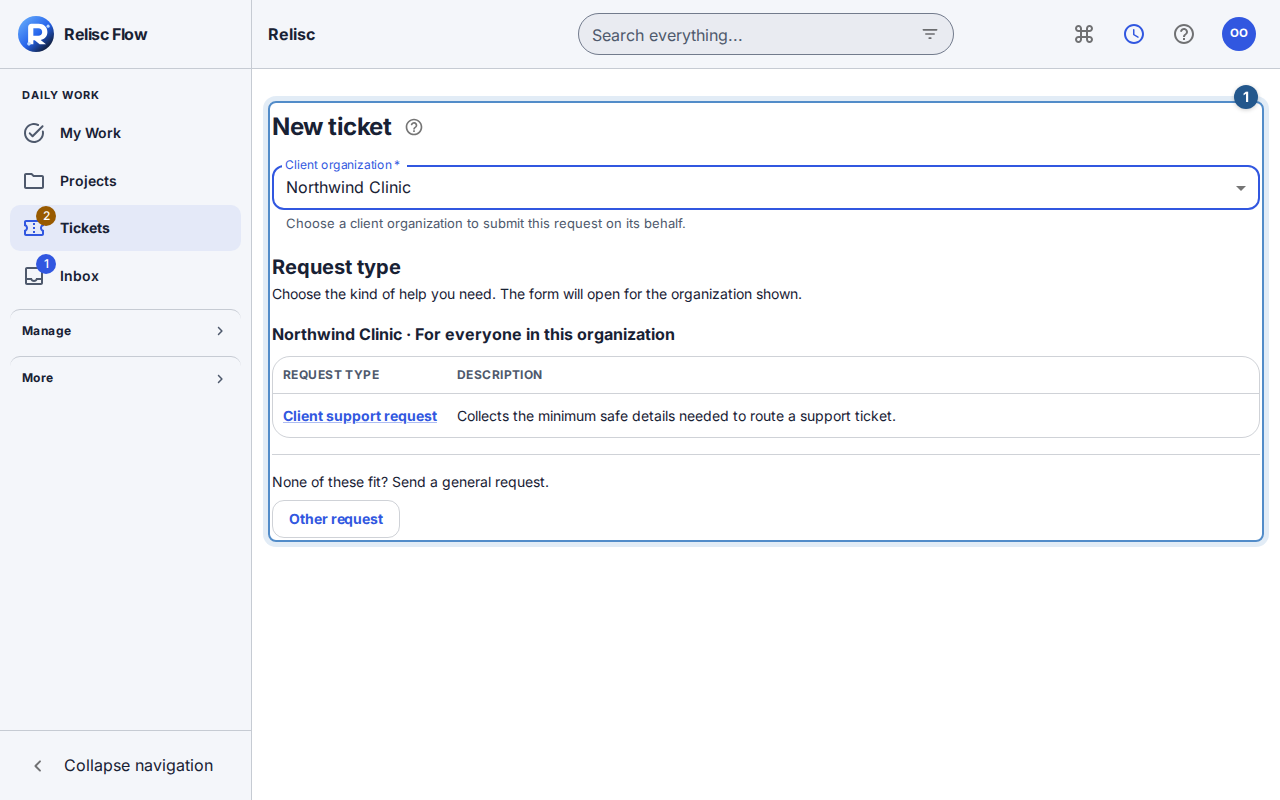
With an account allowed to submit, open Tickets, use the plus sign to open New ticket, select the Client organization, then choose the request type. You can also use New request on that client’s page. The selected organization appears above the full-width form. Complete required fields and wait for any uploads to become ready before submitting.
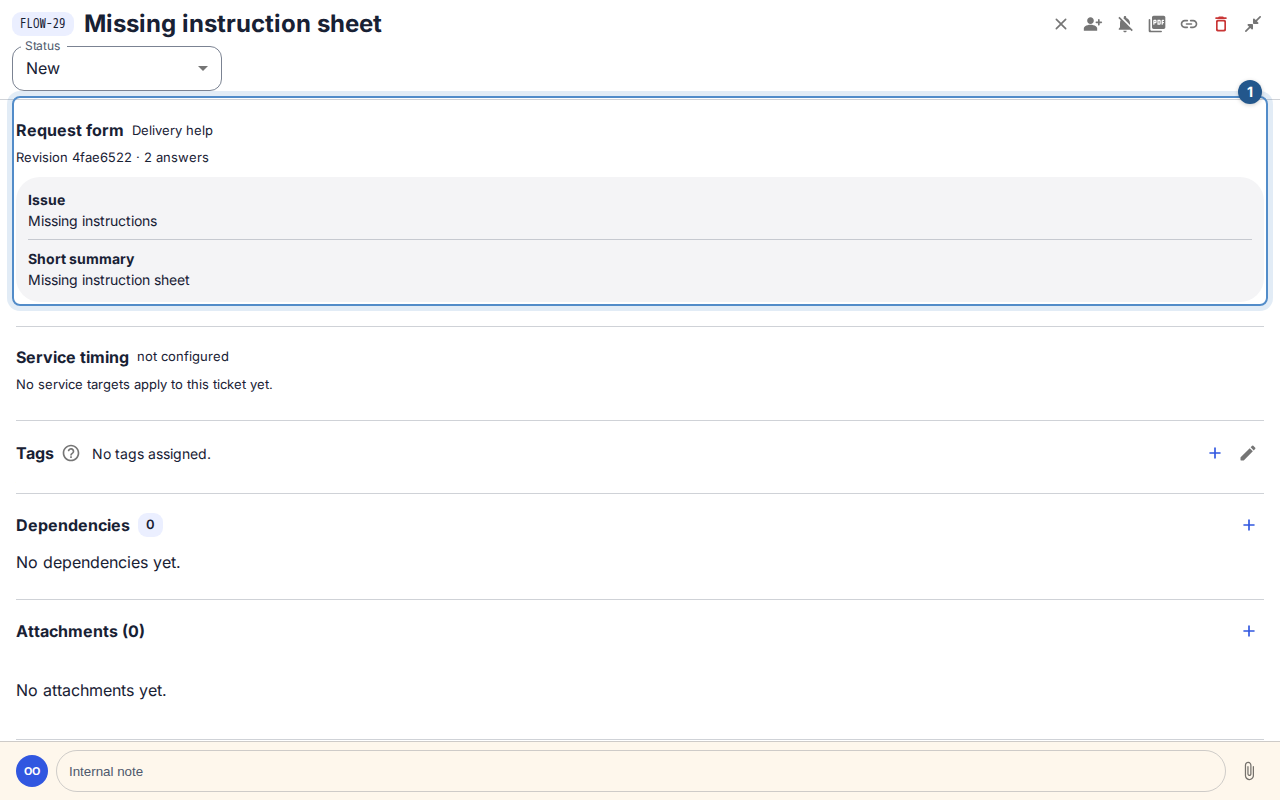
Read the configured result or open the created request. Confirm the expected project, organization, fields, and service timing. Expand Request form in the ticket details to see the form name, revision and original submitted answers, including answers that do not appear in the ticket description.
Recover without duplicating a request
If validation fails, correct the highlighted fields or ask the workspace administrator to repair an unavailable destination. Hidden or inactive forms may no longer be offered. If the result is uncertain after a connection problem, check your requests before starting another submission. Authenticated per-form drafts help you resume unfinished input; a draft is not a submitted ticket.