Tickets and clients
Move a ticket from request to resolution
Choose the next state and understand what resolved and closed mean.
Use a ticket's state to tell everyone who needs to act next. A ticket has a workflow; it does not use the open/completed switch used by tasks.
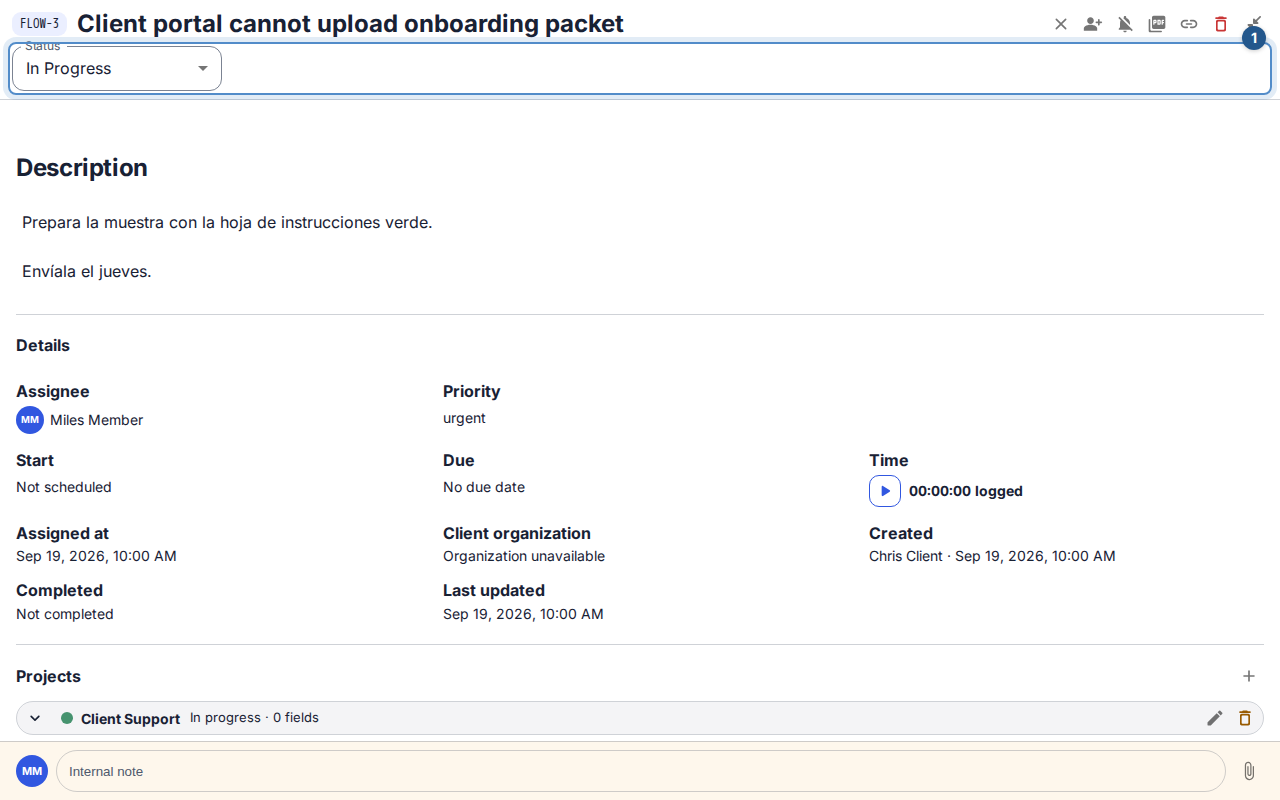
Tickets always open in a detail panel over their list, including when you paste a link or reload. A newly created ticket opens expanded, with the reply composer at the bottom of the window. Restore work item side panel returns to your previous panel width; Open work item full screen expands it again. You can also press F while focus is in the panel and outside an editor. Close returns to Tickets, the project you created it in, or your Requests list in the client portal.
Before you start
Open the correct workspace and a ticket you can read. Changing its state also requires current update authority and an allowed workflow transition. A Viewer, a client, or a named role limited to internal participation will not have the same actions as a support agent.
Understand the journey
A typical ticket journey
- New→Triaged
- New→In progress
- Triaged→In progress
- In progress→Waiting on internal team
- In progress→Waiting on client
- In progress→Waiting on vendor
- Waiting on internal team→In progress
- Waiting on client→In progress
- Waiting on vendor→In progress
- In progress→Resolved
- Resolved→In progress
- Resolved→Closed
This diagram shows the usual path, not every allowed edge. The built-in workflow also allows resolution from triage or waiting states and movement between waiting states. Your workspace may configure different labels and transitions. Closed is terminal; Resolved leaves a chance to report that the solution did not work.
Change the state
Open Tickets, then open the ticket by its title.
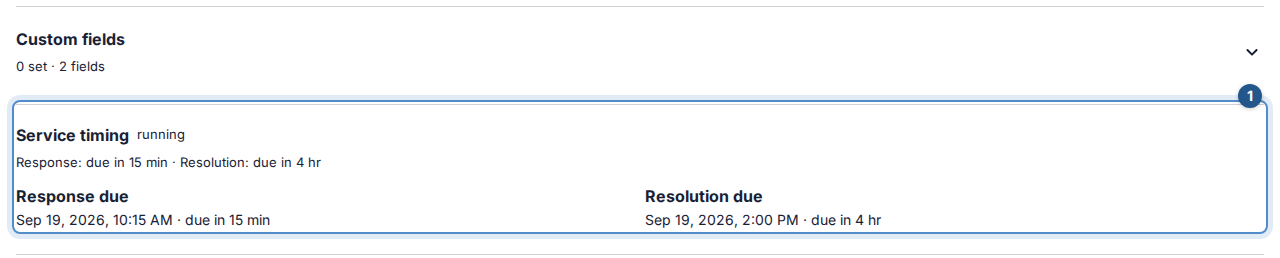
Read the latest conversation and Service timing. Choose a waiting state only when it describes the real next actor; waiting on the internal team does not pause the default SLA.
In Ticket status actions, choose an available Status. Selecting it submits the transition; wait for the displayed state to update.
If you resolve the ticket, send a separate public reply explaining the result when you have permission. A state change does not write that explanation for you.
Check the result or recover
The ticket moves to its new state, with workflow and SLA effects applied together. If required fields or incomplete dependencies block resolution, complete the missing information or ask the responsible person to finish the blocking work. If another person changed the ticket, reload and review its current state before trying again. A missing transition can reflect your permissions or the configured workflow; repeatedly opening the same link will not grant access.
Continue with triage or reopening before close.