Tickets and clients
Set SLA targets and read the two clocks
Separate first response from resolution, including business hours, pauses, and breaches.
Use an SLA policy to define when your team must first respond and when it must resolve a ticket. These are two separate targets, not a timer that restarts after every client message.
Before you start
You need SLA-management permission and access to the policy's project or client scope. Check the workspace timezone and the service hours you have agreed with that client.
Configure the policy
Open Manage workspace → Work setup → SLA Policies. The compact table shows each policy’s scope, default status, and calendar. Select + (Create SLA policy) or the Edit icon in a row to open the policy dialog.
Enter Policy name and choose the scope. New policies use the workspace's business calendar; a routed form policy or a more specific policy can override the workspace default.
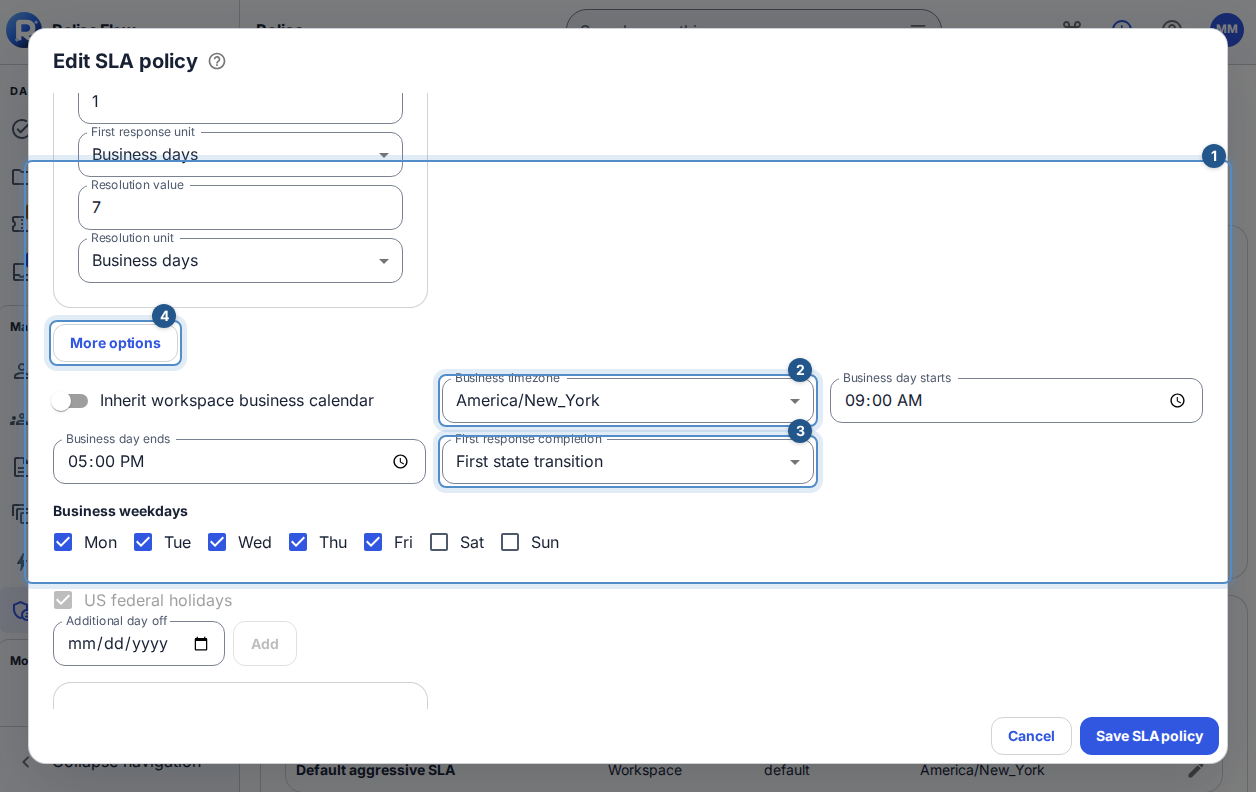
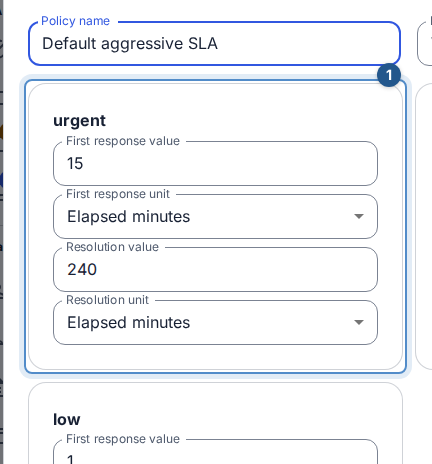
Set first-response and resolution values and units for each priority. Business days mean a working day, not 24 hours. For a different calendar, open More options, turn off Inherit workspace business calendar, and choose Business timezone from the list. Working weekdays follow the workspace's week order on screen; US federal holidays and additional dates are separate choices.
Under More options, choose First response completion if leaving New should not count as a response. The alternative counts the first public comment from an internal user, not an internal note or a client's reply.
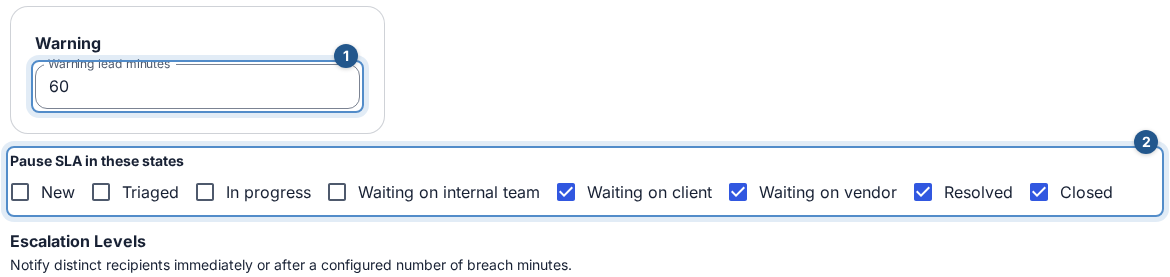
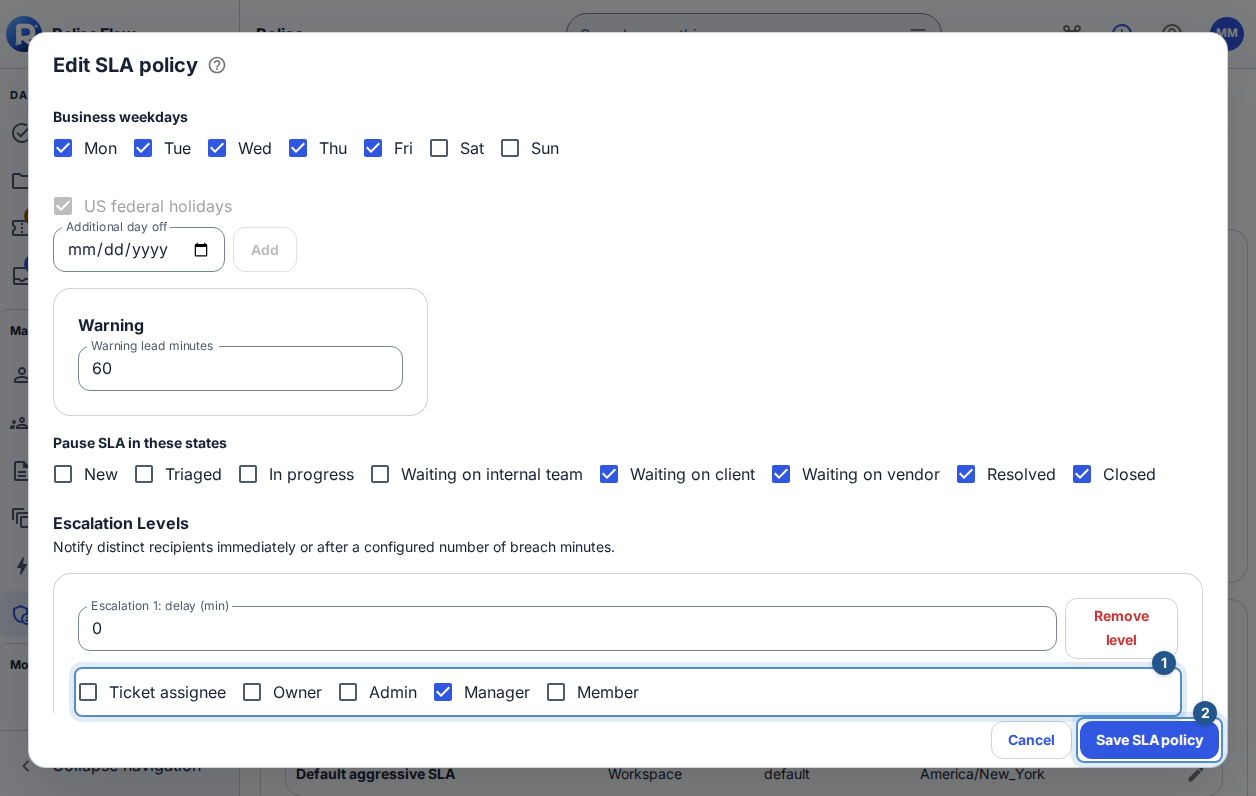
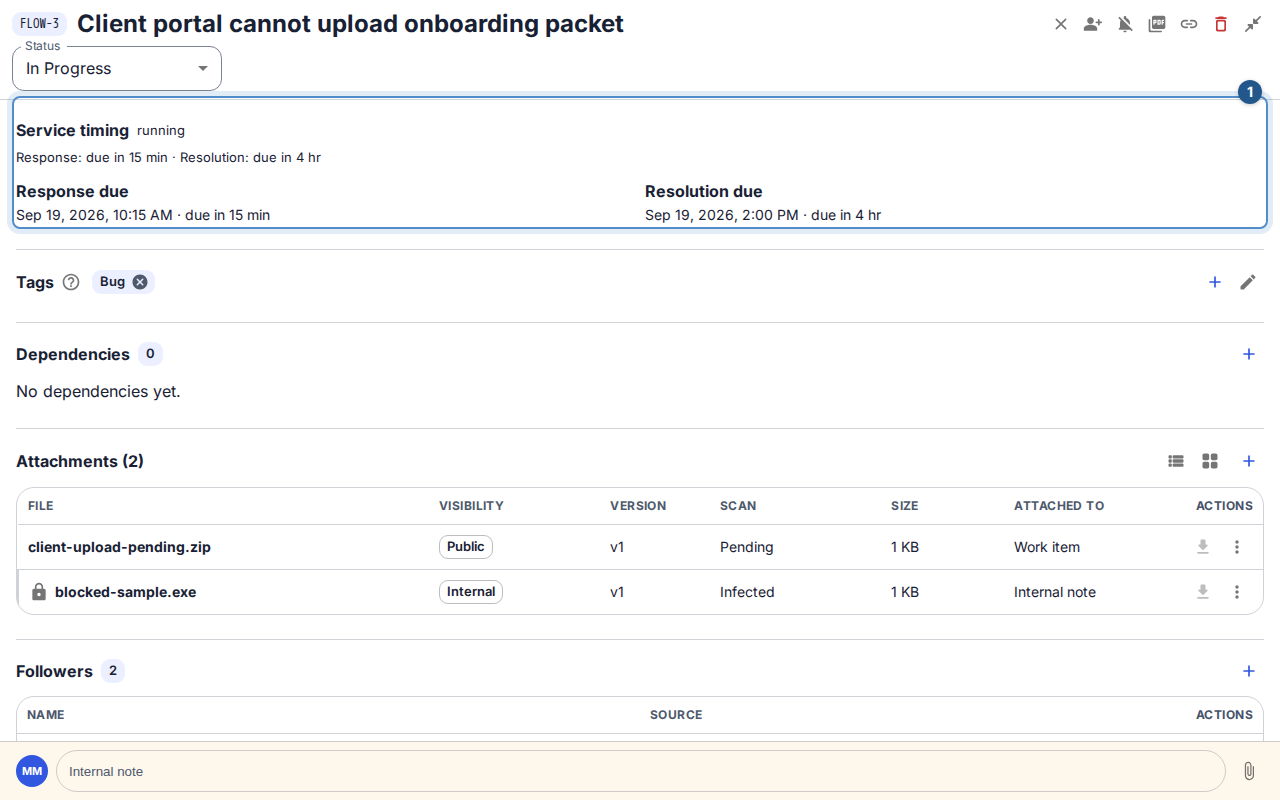
Review pause states, warning threshold, escalations and Use as the default for this scope under More options when needed. Select Save SLA policy or press Enter in a single-line field; Escape cancels. Open a ticket and check Service timing rather than assuming a policy edit rewrites an existing ticket's policy snapshot.
Read the clocks
First response and resolution are separate SLA targets
- Ticket receives an SLA→First response outstanding
- Ticket receives an SLA→Resolution outstanding
- First response outstanding→Configured response event
- Configured response event→Response met once
- Resolution outstanding→Configured pause state
- Configured pause state→Resolution outstanding
- Resolution outstanding→Resolved
- Resolved→Reopened before close
- Reopened before close→Resolution outstanding
The first target measures your initial response. Once met, later client replies and reopening do not re-arm it. Resolution measures completion; reopening clears the resolution completion and resumes eligible timing. By default, Waiting on Client, Waiting on Vendor, Resolved, and Closed pause SLA timing; Waiting on Internal Team does not. Business-hour targets count the configured working calendar. Pausing or resolving late does not erase an already recorded breach.
Recover from a mismatch
If you see no service targets, check whether a policy was applied. If deadlines look unexpected, review priority, the applied calendar, pauses, and policy scope. If an edit conflicts, load the latest policy and review your draft before saving again. A warning means an outstanding deadline is approaching; it is not a new response cycle.