Tickets and clients
Reopen a resolved ticket before it closes
Resume unresolved work and understand automatic closure and SLA effects.
Reopen a resolved ticket when the same request still needs work. Resolution records the proposed finish; closure ends the ticket's lifecycle.
Before you start
The ticket must still be Resolved, readable, and active rather than archived. Staff need transition authority. A client can only reopen an accessible resolved ticket before it closes; Client Admin status does not grant the staff workflow controls.
Resume the work
Open Tickets and remove any filters that hide resolved work. Open the original ticket and review the resolution and latest reply.
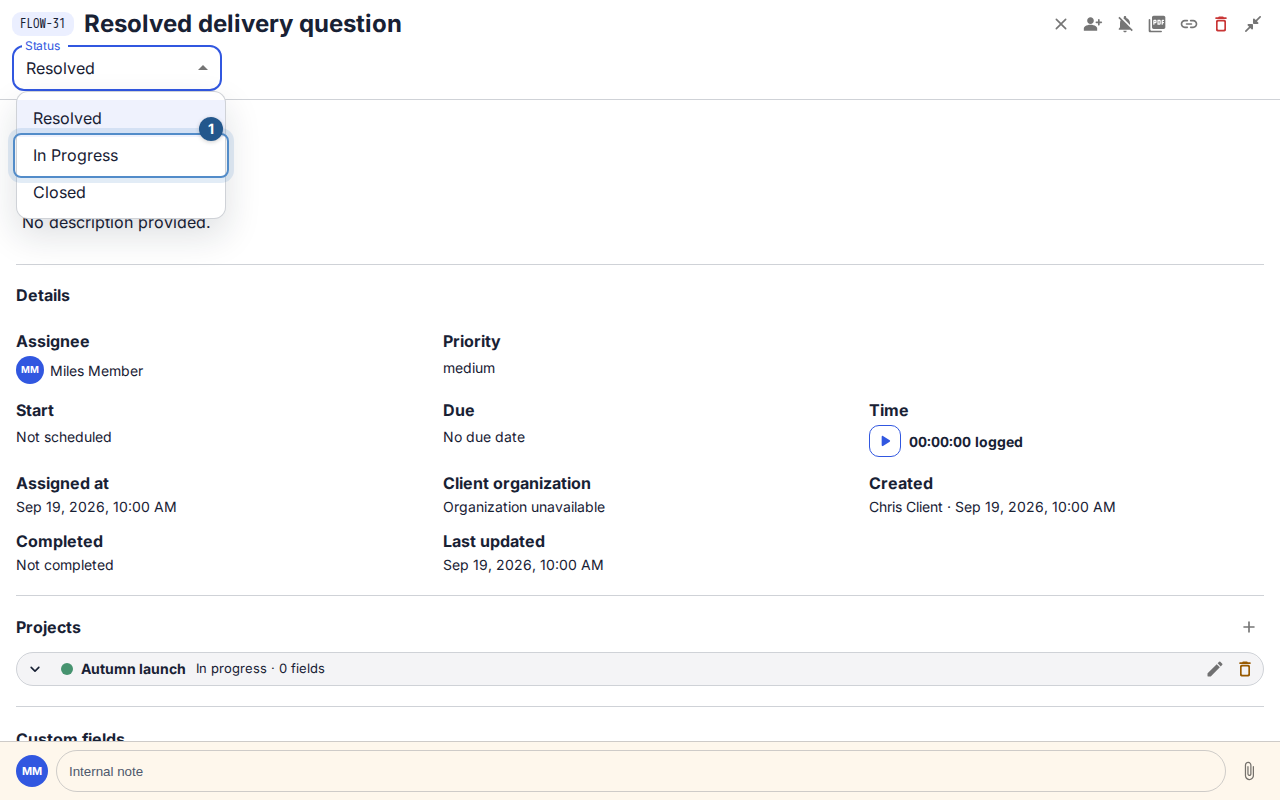
If you may change its state, select In progress in Status. If you only have read access, ask an authorized colleague to make the transition.
Check that the ticket now shows In progress. Review its assignee and add the explanation of what remains, using a public reply or an internal note as appropriate.
Expand Service timing. The resolution completion is cleared and eligible resolution timing resumes. The already-met first-response target stays met; a new client reply does not start a second first-response clock.
Understand automatic closure
Resolved tickets are closed by background processing after the workspace's configured number of days. Ask your workspace administrator for that interval; do not assume every workspace uses the same deadline. Closure is not immediate at the moment you resolve a ticket, and a background run may apply it after the interval has elapsed.
Closed is terminal. If the ticket is already closed, create a new request and refer to the previous ticket's key where appropriate. A reply by itself is not an instruction to reopen a closed ticket.
If reopening fails
Reload to check whether another person or automatic closure changed the state. A removed project share, archived work, changed role, or configured transition can also remove the action. Do not keep resubmitting a stale transition. If access is still valid but the action repeatedly fails, retain the safe error reference and ask your administrator to investigate.