Tickets and clients
Triage your ticket queue
Use filters, grouping, and the status board to choose the next request.
Use the ticket queue to find unassigned requests, work waiting on your team, or approaching service targets without opening every conversation.
If you can create tickets, use the plus sign to open New ticket. Select the Client organization to choose one of its request types, or choose Other request to open the ticket dialog. Other request also works without a client: its Client organization field stays empty and optional. Cancel returns to New ticket; creating opens the ticket. Enter in Ticket title submits when the required fields are complete; Escape cancels. A rejected title or organization stays on the form with its error.
Before you start
You need access to the tickets in this workspace. Reading the queue does not grant permission to assign or transition a ticket. Named-role participation restrictions apply to list and board actions too.
Narrow the queue
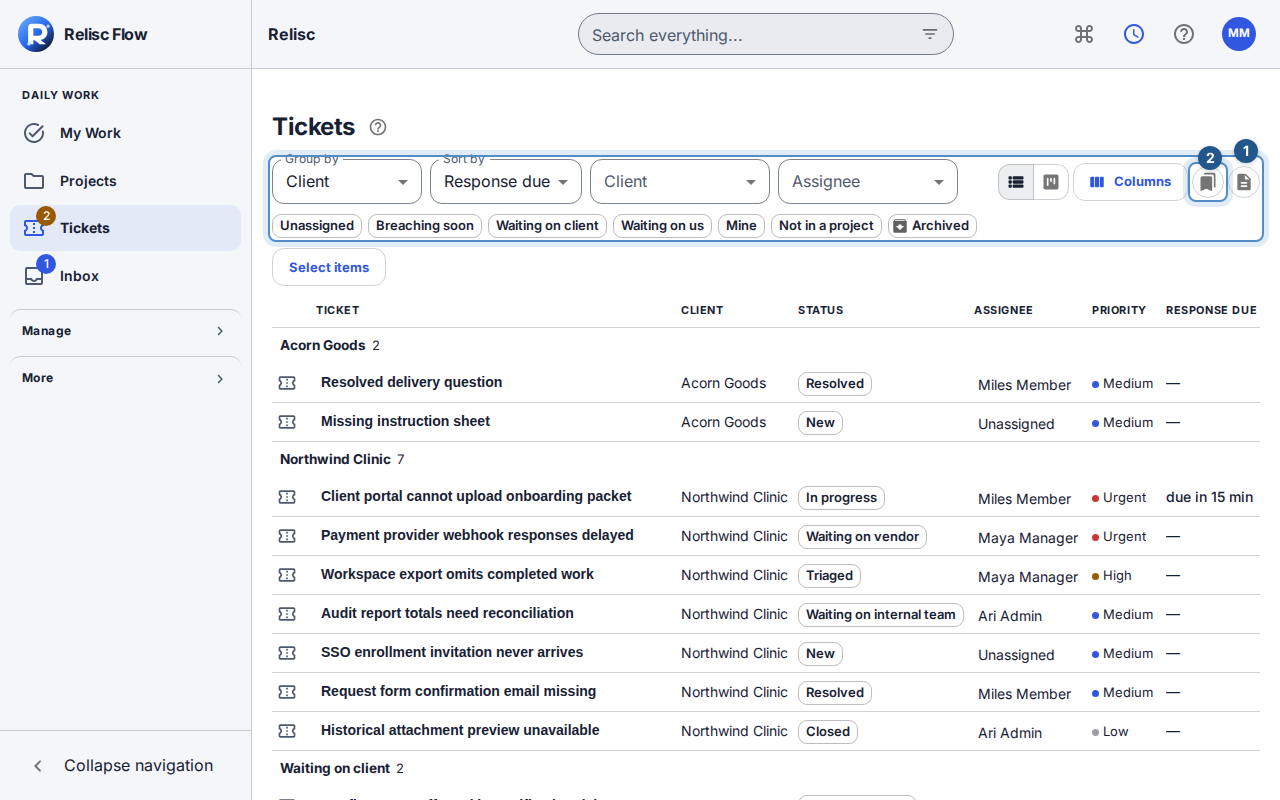
Open Tickets. Wait for loading to finish before interpreting an empty list.
Set Client and Assignee. Choose Unassigned to find requests without an owner. Clear a selection with All clients or Anyone.
Use the quick-filter chips for the question you want to answer. Select a chip again to remove it; several selected filters can make the result much smaller.
Choose Group by and Sort by. In list layout, use the column chooser to keep the information you actually triage on visible. The bookmark icon (Views tooltip) opens saved ticket views; the star on a view marks a favorite, not this menu. Open a ticket to check the request, ownership, priority, and service targets before making changes.
The queue shows 50 tickets at a time in the chosen order; Continue List results or Continue Board results loads more (up to 50 per state on the board).
The ticket title uses the remaining row width on desktop. There is one page heading above the filters; the list starts with its columns and any grouping you selected.
Work on the board
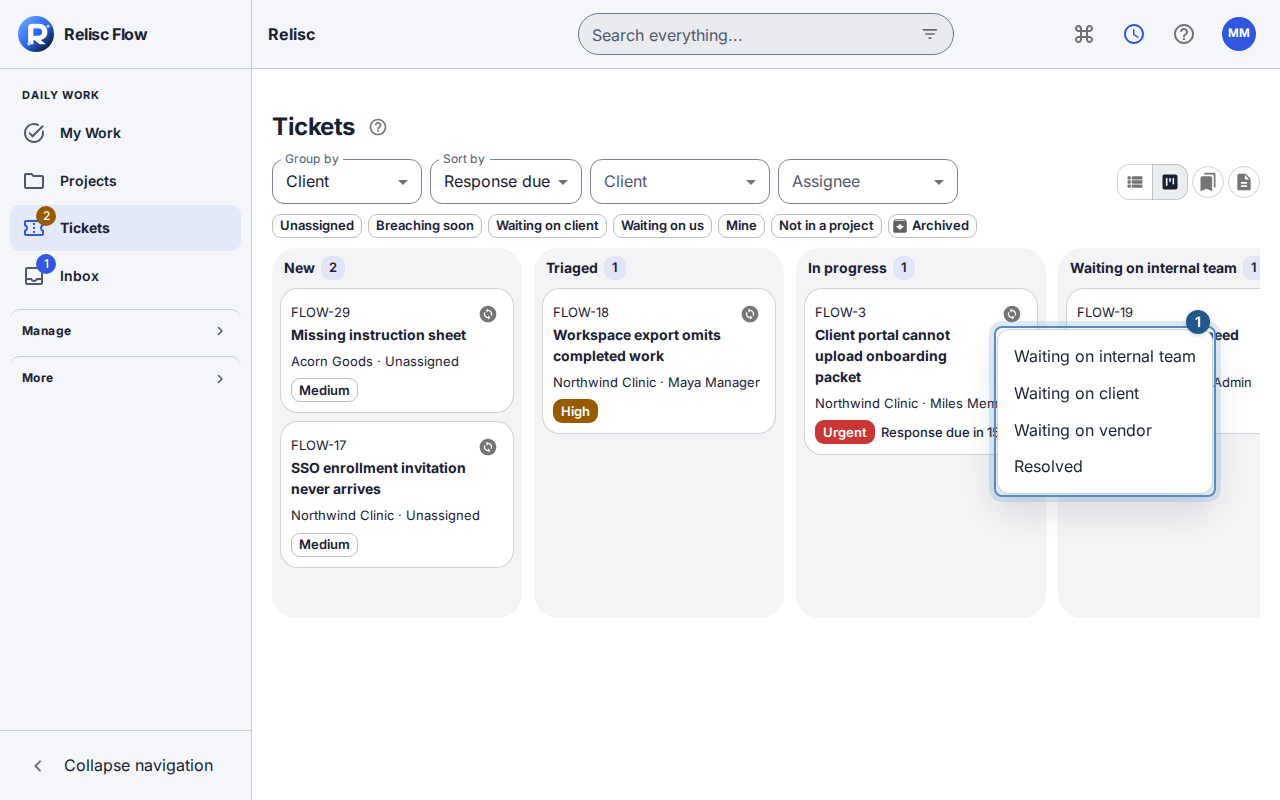
Select Board layout. Columns represent ticket states, so you can see where requests are waiting.
If you may update the ticket, select the circular status-change icon on its card (Set status of … tooltip) and choose an allowed state. This menu also works with the keyboard and is an alternative to dragging a card.
Confirm the movement message. A card can disappear because its new state no longer matches your filters; clear the filter or return to the list to find it.
If something looks missing
Clear quick filters, check Archived, and verify the workspace. A visible count covers your readable scope, not every client's tickets. If loading fails, use the offered retry before treating the queue as empty. If a move is refused, open the ticket for required fields, dependency blockers, or a more recent state. Ask an administrator about access if the ticket is no longer readable.
Use the lifecycle guide to choose a meaningful next state, and public replies to explain it to the requester.