Troubleshooting
Recover access when you lose an MFA device
Use an available factor or recovery code, then secure your account again.
Your MFA factors belong to your account. Workspace MFA policy decides who must verify; it is not a way for an Admin to reset someone else's factors.
Complete sign-in
Sign in with your usual email/password or Google account. On Multi-factor verification, use an available confirmed authenticator, the current emailed code, or one unused recovery code.
Enter it in MFA code and choose Verify MFA. Each recovery code works once. Email codes expire after ten minutes.
If a code is rejected, check that it belongs to this account and is current. Check your authenticator device's clock. For an expired challenge, choose Back to sign in and start again; do not keep submitting an expired or used code.
After successful verification, confirm you are in the intended account and workspace.
Restore a usable factor
Open Profile → Security → Multi-factor authentication. Wait for your confirmed-device list to load.
Choose Set up authenticator to enroll a replacement. Follow the identity check if requested, scan the code privately, and choose Confirm authenticator after entering its current code.
Save the recovery codes using Download recovery codes or your secure storage. Confirm I saved these recovery codes in a secure place before closing the recovery dialog. Codes are shown only once.
Review the old device and disable it if it is no longer trusted. Rotate recovery codes replaces the old set immediately; save the replacements before leaving.
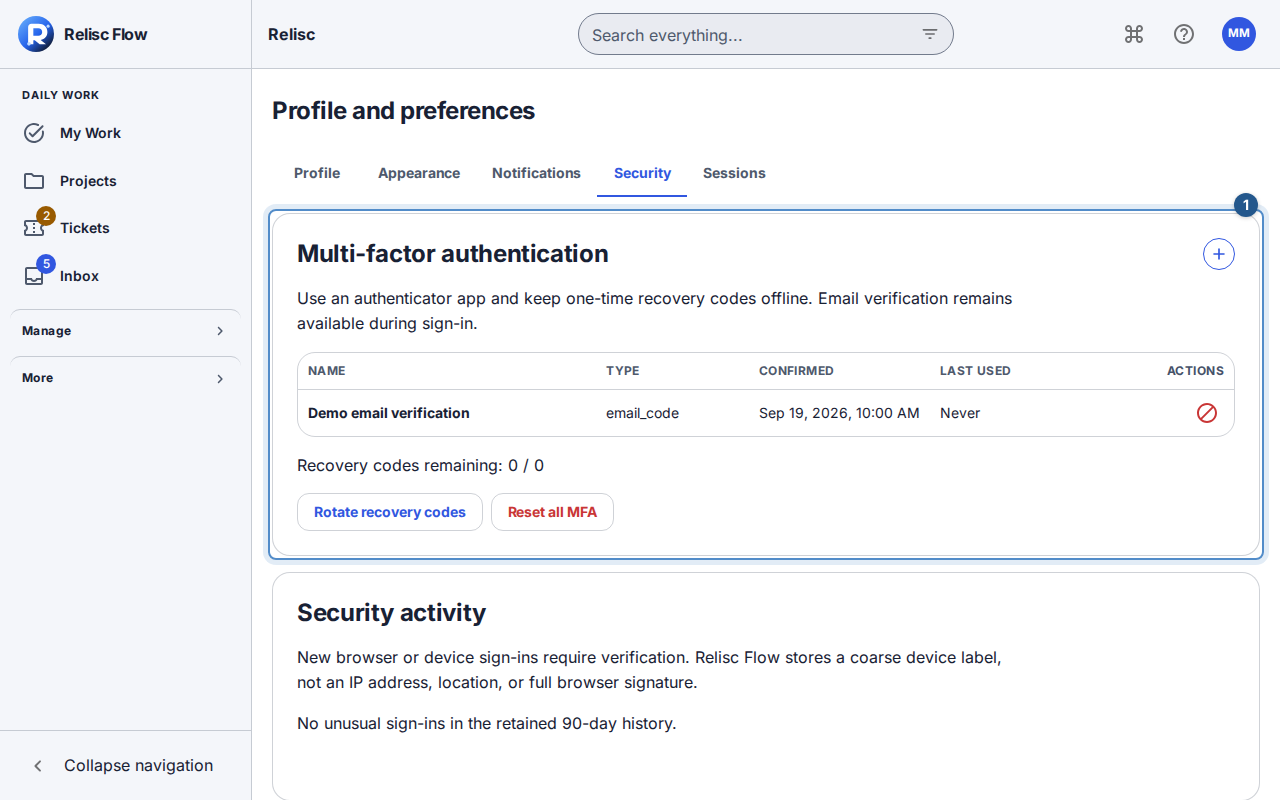
Do not remove your last usable factor before confirming a replacement. Sensitive changes can require fresh verification. If that verification expires, request a new code using the displayed flow and review the intended action again. A success message and refreshed device list confirm the result; a failed request does not.
No usable factor or mailbox?
Contact support and your workspace Owner about account recovery. Do not send codes, QR images, passwords, or authenticator setup keys. This guide does not promise an automatic bypass or recovery approval. Only an Owner can manage workspace MFA policy, and weakening it is not the recovery procedure for a lost account factor.