Automation and integrations
Subscribe to a private work calendar
Create a read-only feed and choose Basic credentials or a Google Calendar secret link.
Subscribe to a private calendar when you want Flow work dates alongside your other appointments. Feeds are read-only: changing an event in your calendar application does not update Flow, and this is not two-way synchronization.
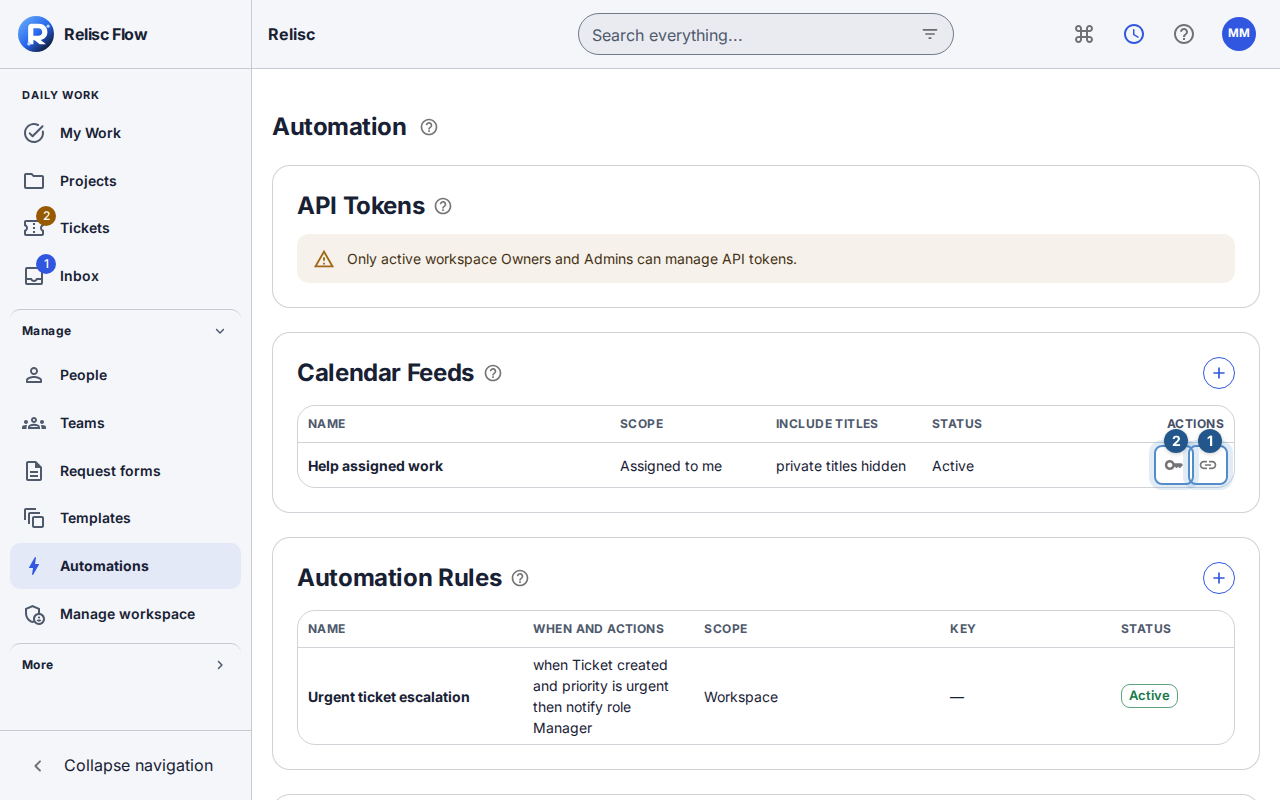
Calendar subscriptions appear in compact rows, with their scope, title visibility and status. Choose the + to create one in a dialog. The key and link icons rotate credentials, create or rotate a Google Calendar link, or revoke that link; tooltips name each action. Phones show the same fields as labeled cards.
Before you start
You need access to Automations, a readable feed scope, and a calendar application that supports the chosen authentication method. A subscription reads with the feed owner's current permissions on every poll. You do not gain access to another person's private work by choosing a broad scope.
Create your feed
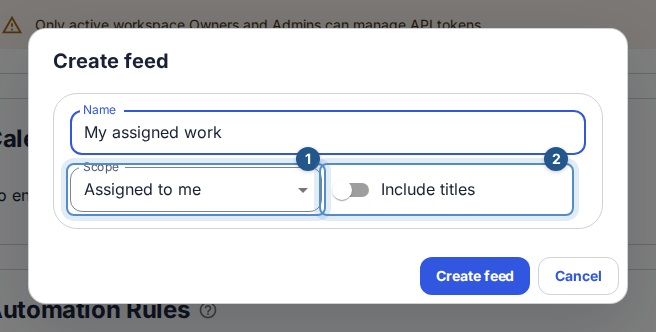
Open Automations → Calendar feeds and select Create feed. Enter a name.
Choose Scope: assigned to you, accessible work, or a particular project. For project scope, select a readable project.
Review Include titles. Titles are hidden by default; enable them only when you want your calendar application to receive those titles. Create the feed.
Store the one-time Feed URL, Username, and Password if using a Basic-auth calendar client, then choose I have stored these credentials. Apple Calendar and compatible clients use the ordinary URL with the separate username/password. Do not put Basic credentials in query parameters.
Use Google Calendar
On your feed's row, select Create Google Calendar link. Copy the one-time secret link.
In Google Calendar on the web, choose Other calendars → + → From URL and paste that link. Finish in Flow with Done editing. Keep the link private: possession authenticates the subscription.
Wait for your calendar provider to poll. Google controls its refresh frequency, so a Flow change may not appear immediately.
Rotate or recover
Rotate Google Calendar link immediately invalidates the old link; update the subscription with the newly disclosed one. Revoke Google Calendar link disables link access. These actions do not revoke the independent Basic password. Use Rotate credentials to replace Basic credentials and update the calendar client using them.
If you missed a disclosure, rotate the relevant credential; the list cannot reveal it later. Check feed activity, owner membership, project sharing, and current workspace access if polling is denied. Account changes and usage limits can also stop a poll. Confirm that work actually has relevant dates before treating an empty calendar as a connection failure.