Projects
Share a project with a client organization
Prepare an eligible project, establish the organization's share, and distinguish reading from ticket creation.
Client sharing has two parts: staff make a project eligible, and a share connects it to a specific client organization. Neither a copied link nor the words “Client shared” grant every client access.
With Can create tickets enabled, the project is also offered in the client portal’s optional project picker and has a Submit a request shortcut.
Prepare the project as staff — 2 minutes
Before you start: you need an active project and authority to edit its visibility/manage its membership. Coordinate with an administrator of the intended client organization; that person needs active administrator membership in that exact organization.
Open Projects, select the project, and choose Project settings.
Review the description and work that should be shared. Set Visibility to Client shared, then choose Save project. This makes the project eligible for the sharing workflow; it does not choose an organization.
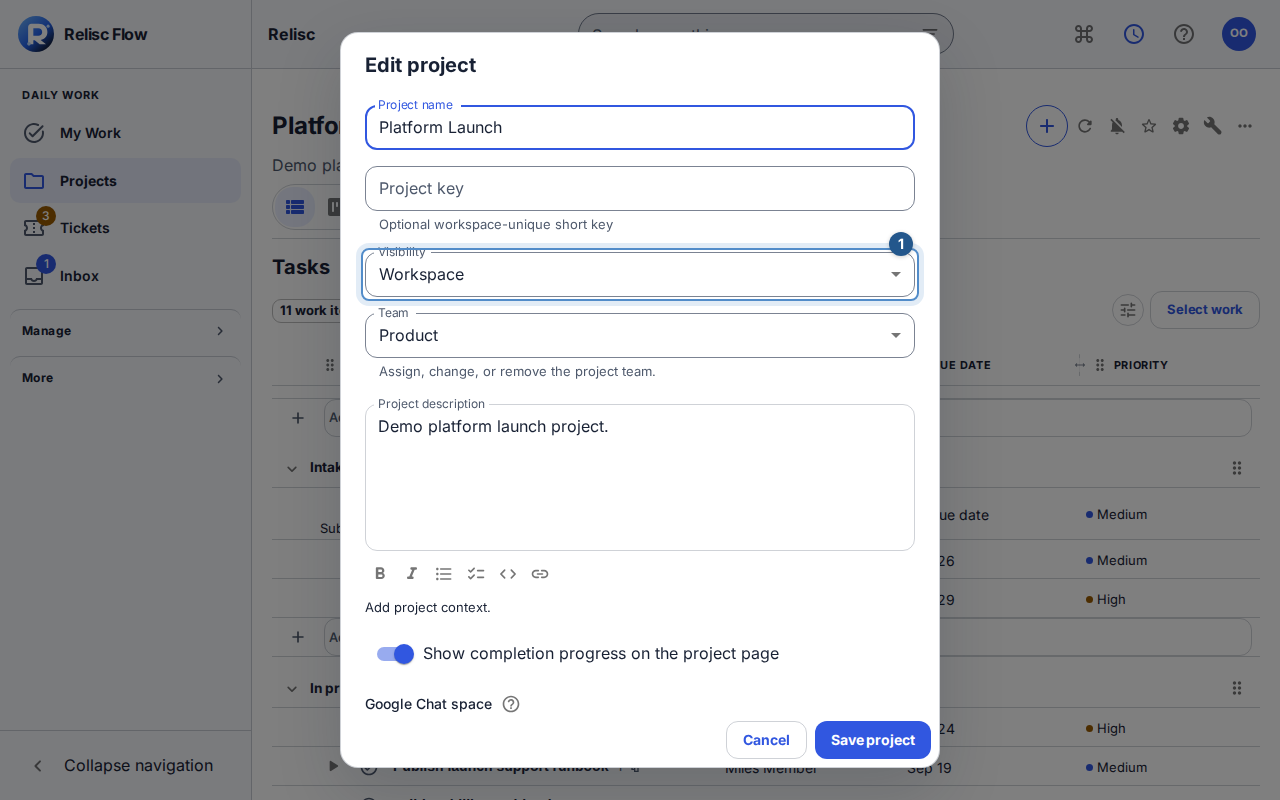
Project settings marks an active project as Client shared before an organization is connected. With client-management and sharing permission, open Clients → the client → Projects. Use Share project (+), select the project and confirm. The row lets you change Can create tickets or remove the share with confirmation. Project tools link back to the client. Client administrators retain their organization-scoped controls in the portal’s People page.
Establish the share as a client administrator — 2 minutes
In your client portal, open People. In Shared project access, choose the correct Project access organization. Being an administrator in one organization does not let you administer another where you are only a client user.
Choose Add shared project, select an eligible project, then choose Add shared project to confirm. The choices exclude private/internal projects; if the intended project is absent, ask staff to check eligibility rather than trying another organization's share.
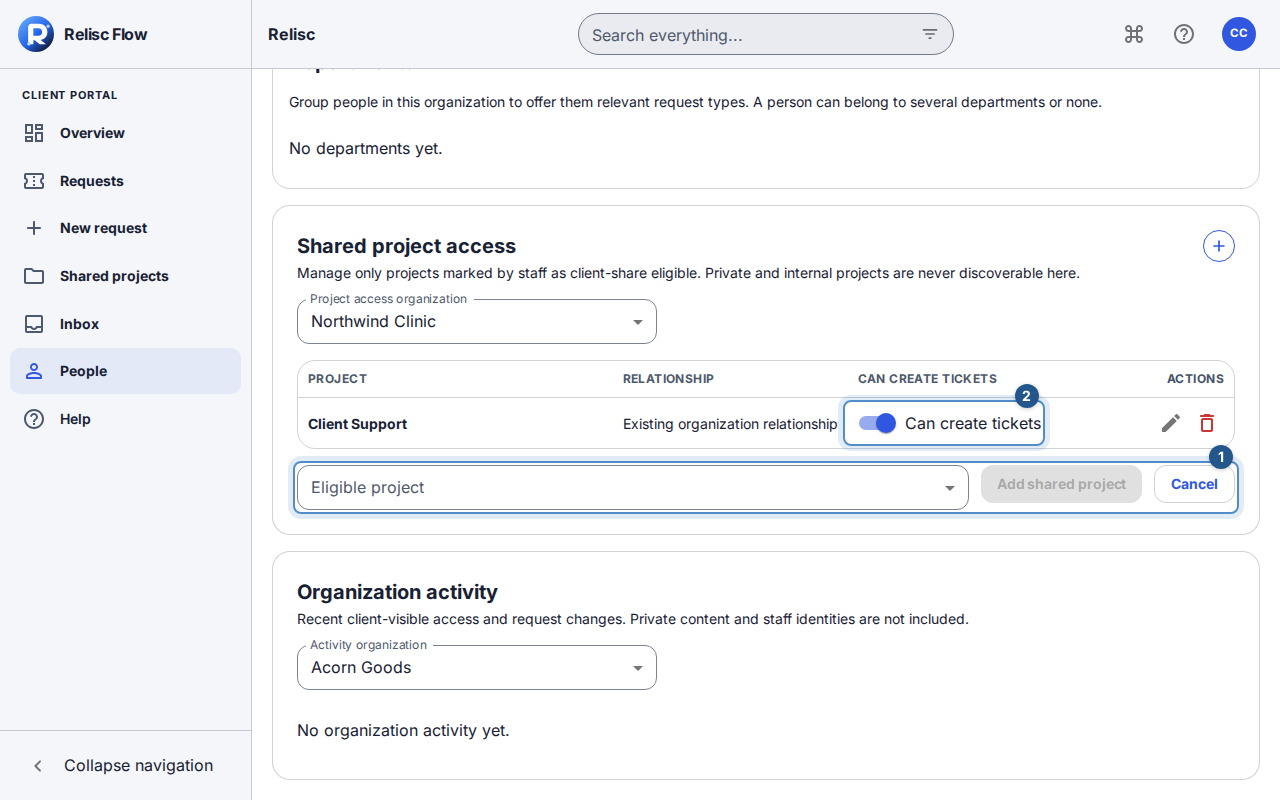
The client administrator selects an organization and a staff-approved project in Shared project access. Review the resulting relationship. Use Edit permissions to change Can create tickets when appropriate. Reading a shared project and allowing new tickets in it are distinct permissions; confirm the saved setting rather than assuming one implies the other.
Open Shared projects and select the project to review its permitted content. Ask the intended client reader to check from their own account if you need to confirm their access.
Expected result: the organization has an explicit relationship to the project, with the intended ticket-creation setting. Client planning views remain read-only for staff scheduling actions.
What stays private
Internal notes, internal attachments, and fields without client visibility remain hidden. Public comments mean visible to authorized readers of their item, not to the public internet. Sharing does not merge client organizations or remove the usual own-ticket restrictions. A client administrator can manage only the organizations they currently administer.
Remove or recover a share
Use Remove project on the organization's relationship and confirm Remove shared project? when sharing should end. This removes that relationship; it does not delete the project. Review any other legitimate access paths separately.
Wait for organizations and eligible projects to load before treating a list as empty. Retry a loading failure. If administration is denied or revoked, stop and have the workspace contact review your exact organization membership. For uncertain updates, reload the relationship and inspect its current setting before repeating the action.