Projects
Organize project sections and ordering
Create a readable structure and move work with keyboard or drag controls.
Sections divide a project into meaningful groups, such as “Prepare,” “Review,” and “Deliver.” Their order helps people read the plan. A section is not a task status, and moving work into “Done” does not automatically complete it.
Build a three-section plan — 3 minutes
Before you start: open an active project you can update. You need project editing authority for section changes, and the work item's own movement permission to move its placement. A Member role alone does not guarantee those permissions.
Choose the wrench (Project tools) in the project header. In Sections, choose Add section, enter Section name, and choose Add section again to save. The sliders icon customizes the current view instead.
Create the groups your team actually needs. For a handover, try “Prepare,” “Review,” and “Deliver.” Use each section's edit-name control and Save if a heading is unclear.
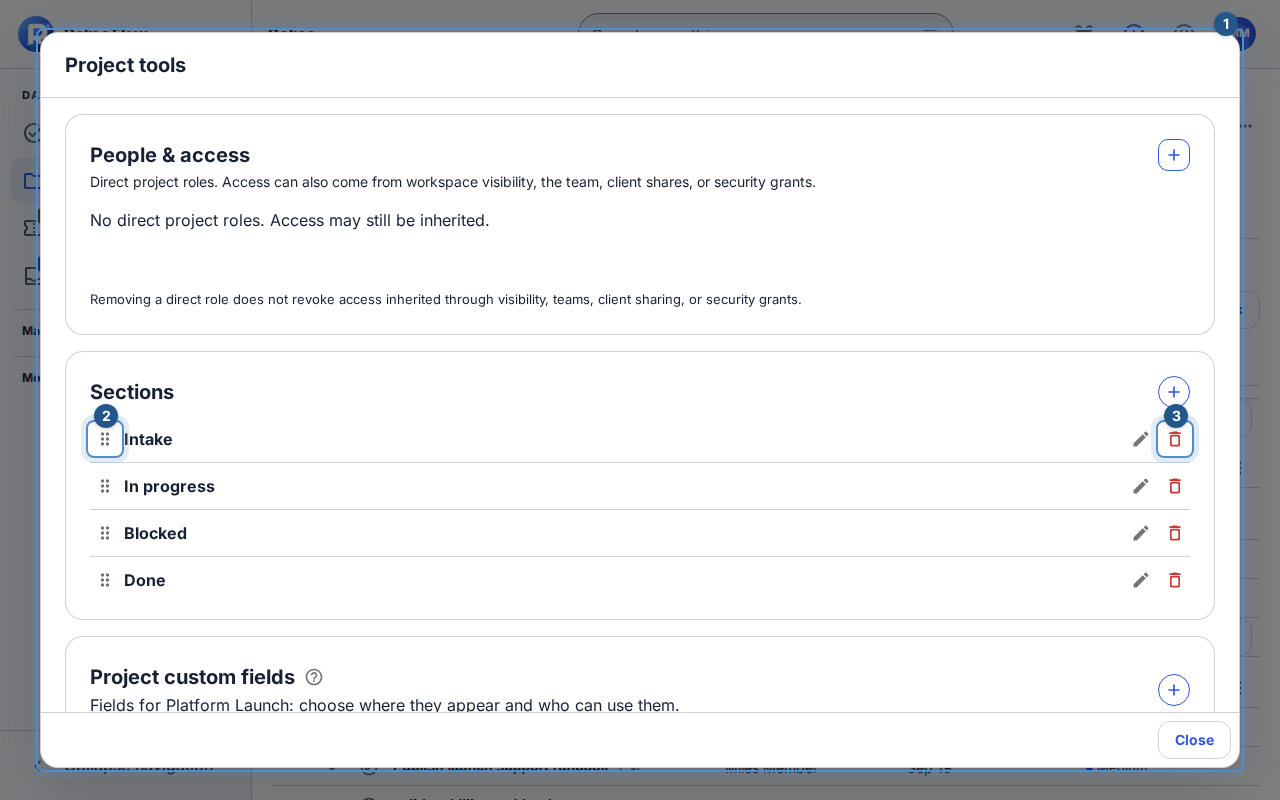
Project tools shows section names with add, rename, movement, and delete controls. Reorder the sections with their movement controls. Choose Move section up or Move section down, or focus the drag handle and use Up/Down. Dragging a section to another position is another option; wait for the order to save before moving the next one.
Close Project tools, choose List, and use section grouping. Open a work row's Change section control or its movement menu, choose the destination, and apply the available move action. You can also place a new task directly into a section using its add control.
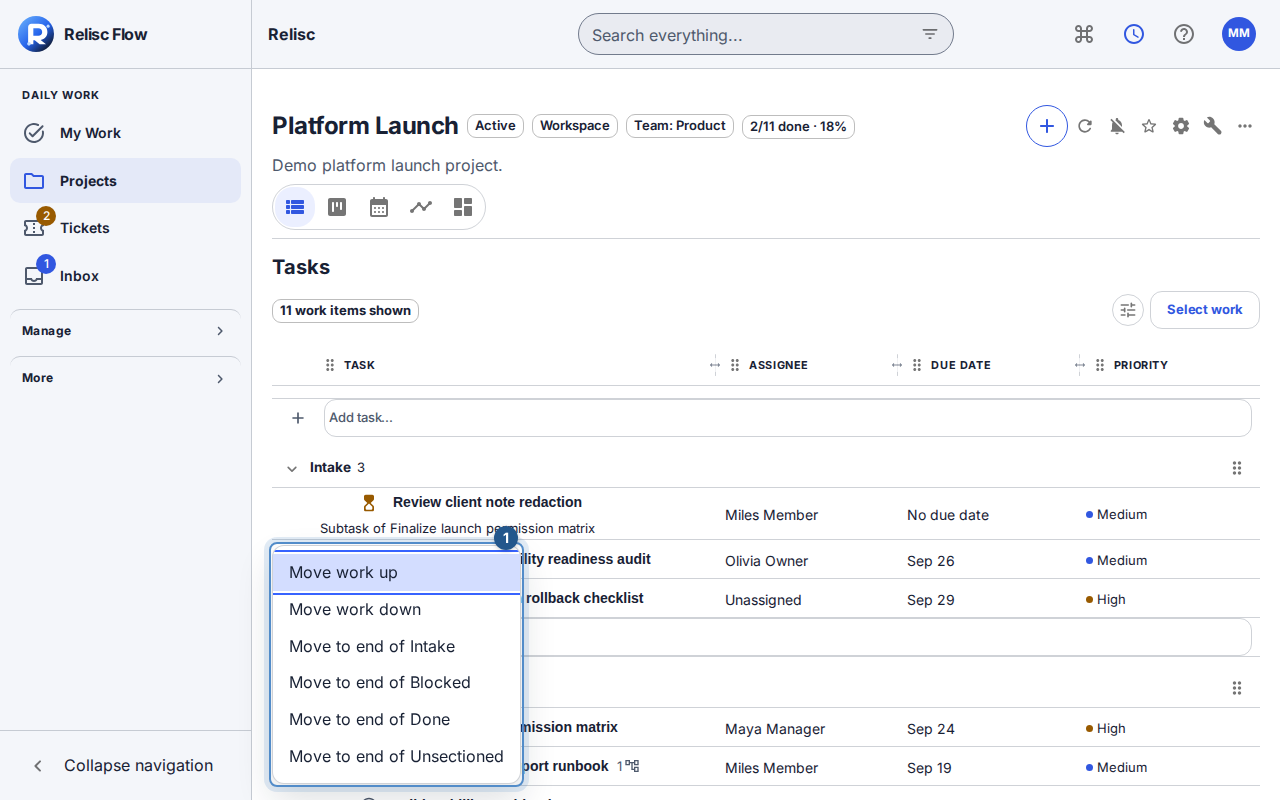
Section-grouped List places the work row beside its section and movement controls.
Expected result: everyone reading the project sees a consistent section structure and the work's placement in that project.
Remove a section
In Project tools → Sections, choose the trash icon (Delete section) beside the pencil. Review the section name and the number of loaded tasks in the confirmation. An empty section says It has no tasks. Choose Delete section to confirm or Cancel to keep it.
The tasks move to No section, after its existing items, and keep their relative manual placement order. Their dates, completion state and placements in other projects stay the same. The section is retained as a deleted record for audit; there is no undo control. Archived projects show the controls disabled with the read-only reason. If the section list changes elsewhere, close the conflict confirmation, review the refreshed sections and try again.
Understand which order you are changing
Manual placement order belongs to the project. Sorting the list by due date or priority changes the displayed order, so return to section/position ordering when checking a manual reorder. A task placed in several projects can occupy a different section in each; its title, dates, and completion status still belong to the same task.
Your private My Work sections are separate. Use those when you want a personal “This afternoon” group rather than a team-wide planning change.
If a move is unavailable
Read the reason beside the disabled action. Archived projects are read-only; inaccessible placements or insufficient project/item authority can also block movement. If sections fail to load, refresh the project before trying to reorder. If the order changes elsewhere while you work, load the current arrangement, review it, and repeat only the intended move. Do not create duplicate sections to bypass a stale-order error.