Projects
Make a task repeat
Create future instances on a schedule and control what happens to the series.
Use Repeat for work such as a weekly checklist. Each scheduled task is separate; completing one does not erase its history.
Set a weekly repeat — 3 minutes
Before you start: open an active task you can edit, set a due date, and check its assignee. Clients cannot change repeat schedules.
Open the task's due-date editor. In Repeat, choose Create recurrence, the plus icon. It appears when there is no active series; use Edit this and future to change an active one.
Choose Every week in Repeat schedule. The summary describes the schedule in words, such as “Every 2 weeks on Monday and Thursday.”
Choose Repeat mode: after each completion creates the next task after you finish this one; on the due date uses its due date; on schedule follows the repeat schedule.
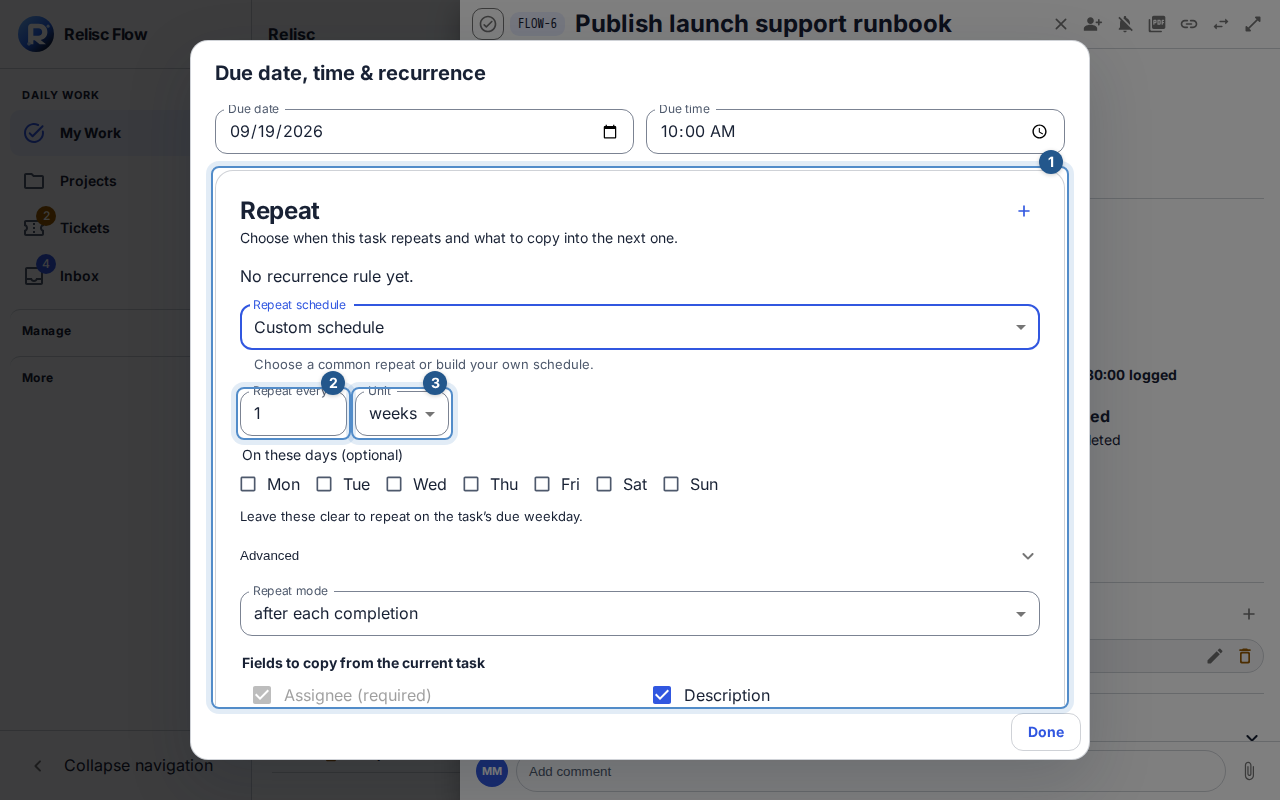
Custom schedule offers a repeat interval and a unit; repeat mode and copied fields follow below. Review the fields to copy. The assignee is preserved; you can choose description, priority, tags, custom fields, and Subtasks and their dependencies. That last choice is proposed when the task has subtasks; existing rules keep it off until you choose it. Under End mode, select After a count and enter the Number of repeats to limit the series, or choose an End date. An end date includes the whole day in the workspace timezone.
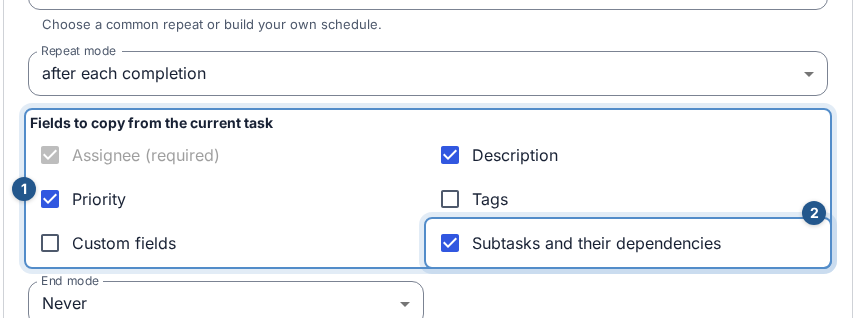
Choose Subtasks and their dependencies alongside the other fields copied into the next task. Choose Create recurrence rule. Read the summary and next date; the next task may not appear immediately.
Expected result: Repeat shows the active schedule's sentence, Next, its trigger in words, Created so far and its ending condition. When its trigger is satisfied, generated work appears as a separate task; skipped dates do not increase Created so far.
With Subtasks and their dependencies selected, the summary adds “with subtasks.” The new task opens with its non-archived subtasks, including nested levels, in their original order. Every copied subtask starts open, even if its source was completed. The other copied-field choices also apply to the subtasks. Their project placements follow the new parent. Start and due dates move with the parent's due date: timed values move by the same elapsed time, while date-only values move by the same number of workspace calendar days and keep their start-of-day or end-of-day boundary. A subtask without dates stays undated.
Dependencies between the parent and copied subtasks, or between copied subtasks, keep their type and lag. Links to work outside this set are left out. History shows how many subtasks and dependencies were copied and how many external dependencies were skipped. The tree is captured when that occurrence is scheduled; for after each completion, this happens when you complete the task. Later edits do not change an already scheduled copy or a retry of it.
If copying fails a date or access check, your completed task stays completed and no partial copy is kept. Check the occurrence history to identify the date or access problem.
The series follows the workspace timezone, including daylight-saving changes. Its next date, instant-based ending cutoff and history display in your Profile timezone, like other dates in Flow. Calendar schedule wording and an Advanced rule's date-only UNTIL keep the workspace calendar. The workspace clock schedules the work; your profile controls how you read those dates.
A repeat starts after the task's current due date. For example, when your Profile uses the workspace timezone, a task due October 15, 2026 with no time and an every-three-months rule on the 15th shows Next: January 15, 2027 in that same display timezone. New tasks keep a date-only deadline, so Next shows no time. Timed tasks keep their clock time. With no due date, the rule starts from when it was created. after each completion skips scheduled dates that have already passed when you finish late; editing future rules also starts after any occurrence already accepted for generation. Next updates when completion queues the work, before the new task appears. Scheduled evaluation waits for the rule date, including when you move the current deadline. If you replace a stopped series from a generated task, the replacement starts after that task's deadline. For the quarterly example, replacing from the January 15 task starts April 15. The selected task's date-only or timed setting carries into the replacement. Once generation is accepted, later deadline edits do not change that queued task's setting. Next follows the active series' setting even when you open an older task with a different deadline setting. Each history occurrence retains the setting accepted for that task.
Adjust the series — 1 minute
The active series has a compact row of icons with tooltips: Generate next now, Skip next, Edit this and future, Stop series and history. Open history to see Repeat history, the anchor and Schedule versions. Use Open generated task to inspect a task. Edit this and future changes future behavior; choose Save future rules after reviewing the schedule, copied fields, including Subtasks and their dependencies, and end date. Earlier repeats keep the schedule version used when they were planned.
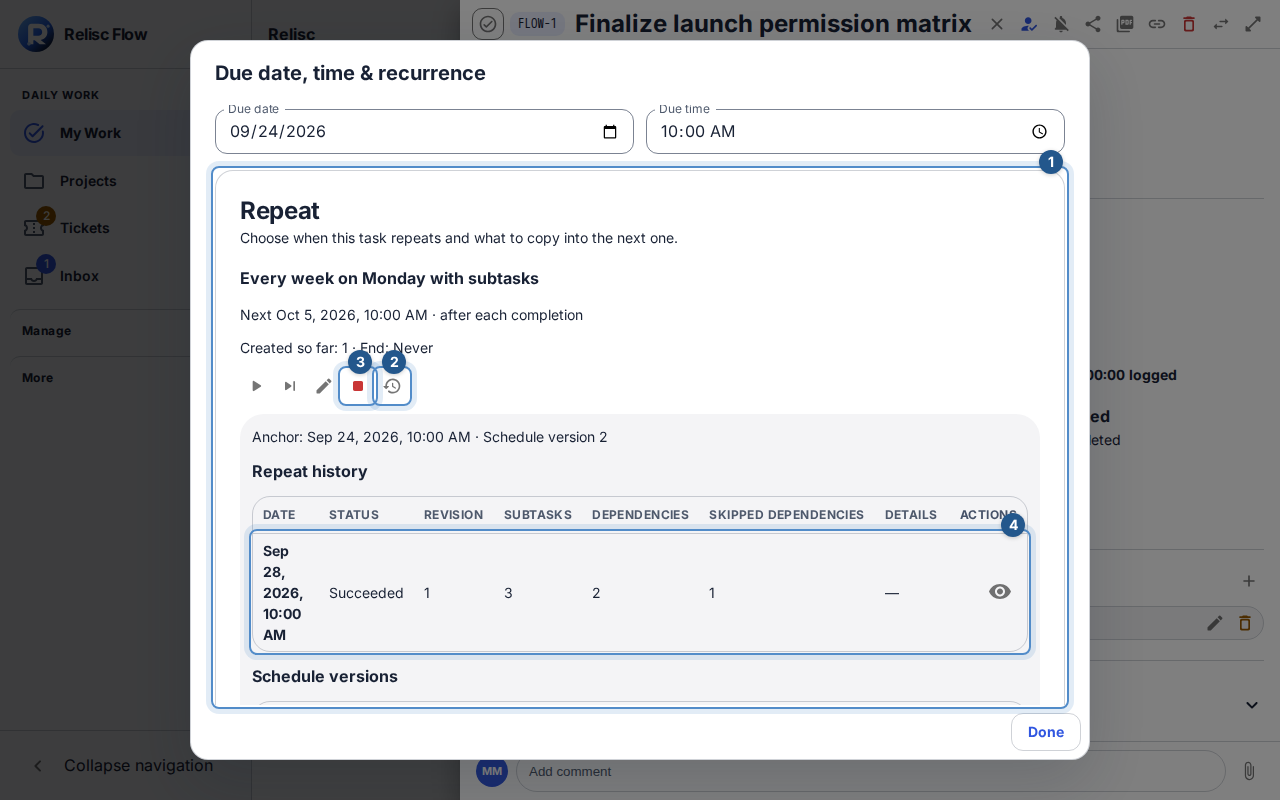
Skip next skips the next scheduled task after confirmation. Stop series asks for a reason and prevents new tasks; past history remains. Generate next now appears only when the schedule permits it—do not use it to retry a slow update.
Use Past schedules (n) to reveal stopped series, when and why each stopped, and its history. They stay hidden until you open that control.
Custom schedules and recovery
Choose Custom schedule when the common choices do not fit. Set Repeat every and Unit for a daily, weekly, monthly or yearly interval. For weeks, optionally select On these days (optional); for months, set Day of month (optional). Leave these empty to follow the task's due date. The summary describes the result, such as “Every 3 months on the 15th,” “Every weekday” or “Every year on Oct 12,” with any count or end date. Open Advanced to view or edit the raw rule for special patterns. A rule outside the guided fields also has its raw rule in the heading's tooltip. If the advanced schedule sets its own ending condition, the separate End mode is unavailable.
If nothing appears, check repeat mode, next boundary, end condition, and history before creating anything manually. For conflicting edits, use Reload latest series, review the preserved intent, then retry. Resolve lost access or archived work with the project manager; stopping or recreating rules must not be used to bypass those restrictions.