Projects
Start a project from a published template
Create a project from a published template, edit its work table and manage sharing.
A project template is a reusable starting plan with sections, work, permissions and automation. Opening a template or its preview does not create anything. Create uses its published version; a newer saved draft stays separate.
Create a project from a template — 3 minutes
Before you start: select the workspace and confirm you can create projects. Each part of the template still requires its own permission.
Open Templates. Search the compact list or filter by type, then select a project template. Review its description and the table of work it creates.
Choose the highlighted Use template icon. Enter a New project name and check the preview.
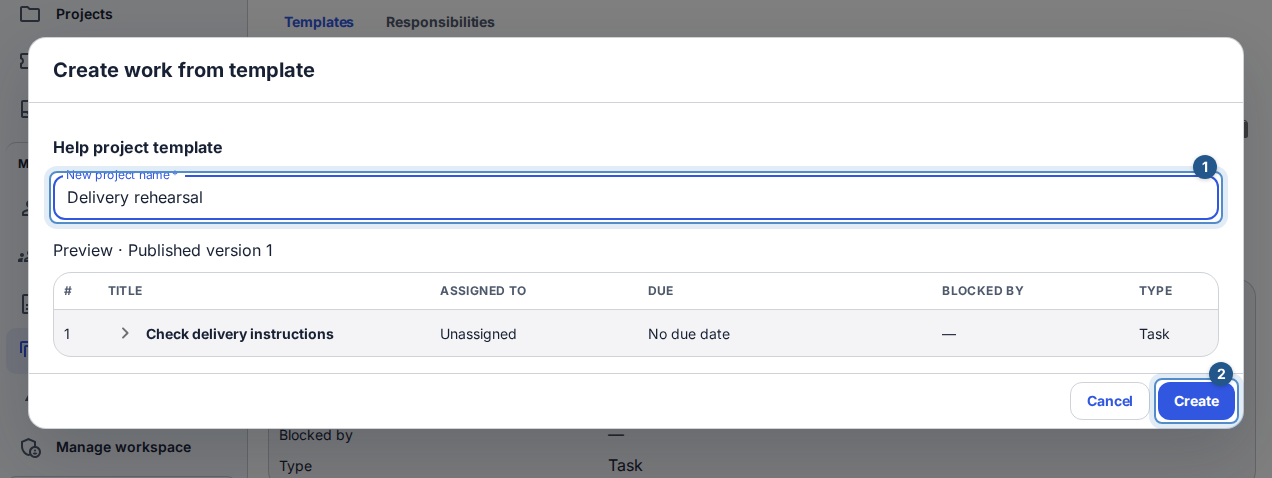
The creation dialog shows a project name and preview before anything is created. Choose Create once. Flow opens the new project; confirm its sections and work. Later template edits do not rewrite projects already created.
Prepare a reusable plan — 4 minutes
Choose + (New template) above the list, select the project type, name it and choose Create draft. A new draft is personal unless you choose project sharing for a task template.
Choose Edit. Change titles and assignments in the work table; click a due-date cell to edit its schedule. Add work adds a row. Narrow screens show labeled cards with the same fields and actions. Drag rows among their siblings or use the up/down icons. Removing a row also removes references to it from other rows.
Use the arrow beside a work title to expand descriptions, priorities, fixed times, recurrence, tags, custom fields and advanced dependencies directly beneath that row. Collapse it without losing edits. Blocked by supports title search in a wider menu with row numbers and parent context. Project sections, permissions and automation remain available in the editor.
Open Who can use it. Choose only the original template owner, everyone eligible in the workspace, specific roles/teams/people, or a specific project for task templates. A project restriction keeps its role, team and person audience. Opening or cancelling this dialog preserves existing access; Use these settings applies the choice to your draft. Sharing never grants additional authority to create the contents.
Choose Preview to review your current edits without saving. Use the arrow beside each work title to expand its Settings directly beneath that row for descriptions, dates, recurrence, tags, custom defaults and dependency details. Done or Escape returns to the editor with your changes intact. Choose Save to publish a new version immediately, or Save draft to keep the published version unchanged. The clock icon opens Version history and the creation history.
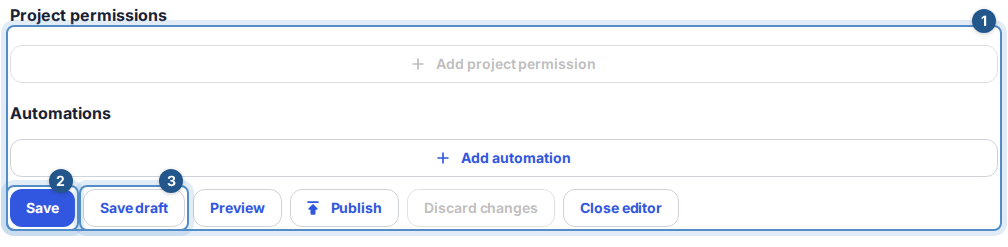
At the bottom of the editor, Save publishes the changes and Save draft keeps them unpublished.
Owners and Admins can edit shared workspace and project templates. Personal templates remain private to their creator. Duplicate creates a personal draft copy. Archive prevents reuse and keeps history; enable Show archived templates to find and restore it.
Recover from an incomplete attempt
Errors keep the creation inputs or editor values available. Correct unavailable people, references, missing dates or permissions before retrying. Closing the editor or returning Back to templates preserves this session's unsaved content and sharing edits. The directory retains your search and type filter. Discard changes asks for confirmation, reloads the latest saved template and removes only this browser's unsaved draft. Saved and published revisions remain in history; a failed reload retains your changes.
If another author changes the same content, compare the overlapping properties and choose what to keep. If access settings changed, explicitly keep their settings or your draft before saving. Successful work creation is atomic: a rejected creation does not leave half a plan behind.