Projects
Add useful custom fields to a project
Capture structured information with the right type, scope, and reader permissions.
A custom field turns information such as “Review stage” into a consistent value you can show, group, or filter. Use one when a reusable choice, number or date is more useful than another sentence in the description.
Create a Review stage field — 4 minutes
Before you start: open the project and confirm that you can manage custom-field definitions. People who can edit field values do not automatically have permission to create or redesign fields.
Open Project tools. In Project custom fields, choose Create project custom field. The Definition scope is fixed to this project; it is not a workspace-wide field by accident.
Enter “Review stage” in Field name and choose Single selection in Type. In Options, put one label on each line, for example Draft, Review, and Approved. Flow generates stable keys; when renaming an existing choice, keep its shown key after the
|unchanged (for example,New label|existing-key).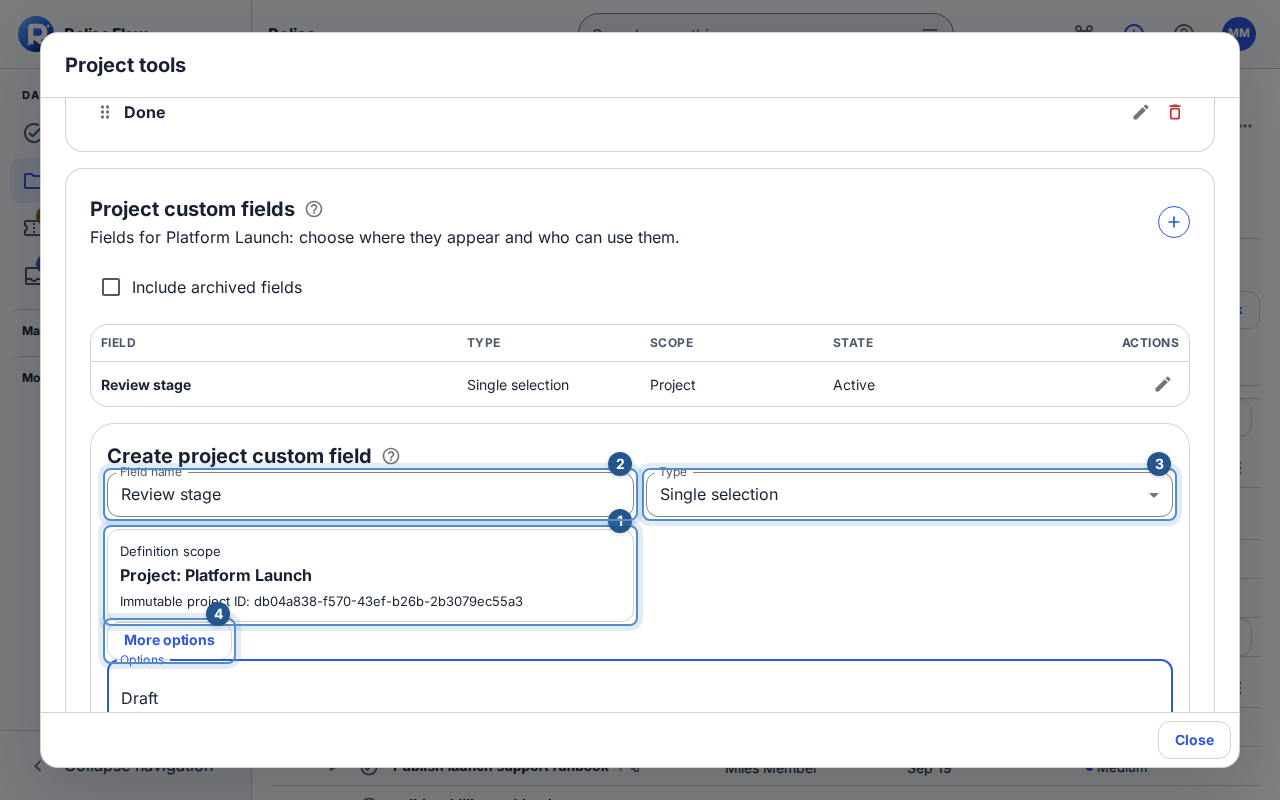
The project field editor identifies the fixed project scope, field name, and selected type. 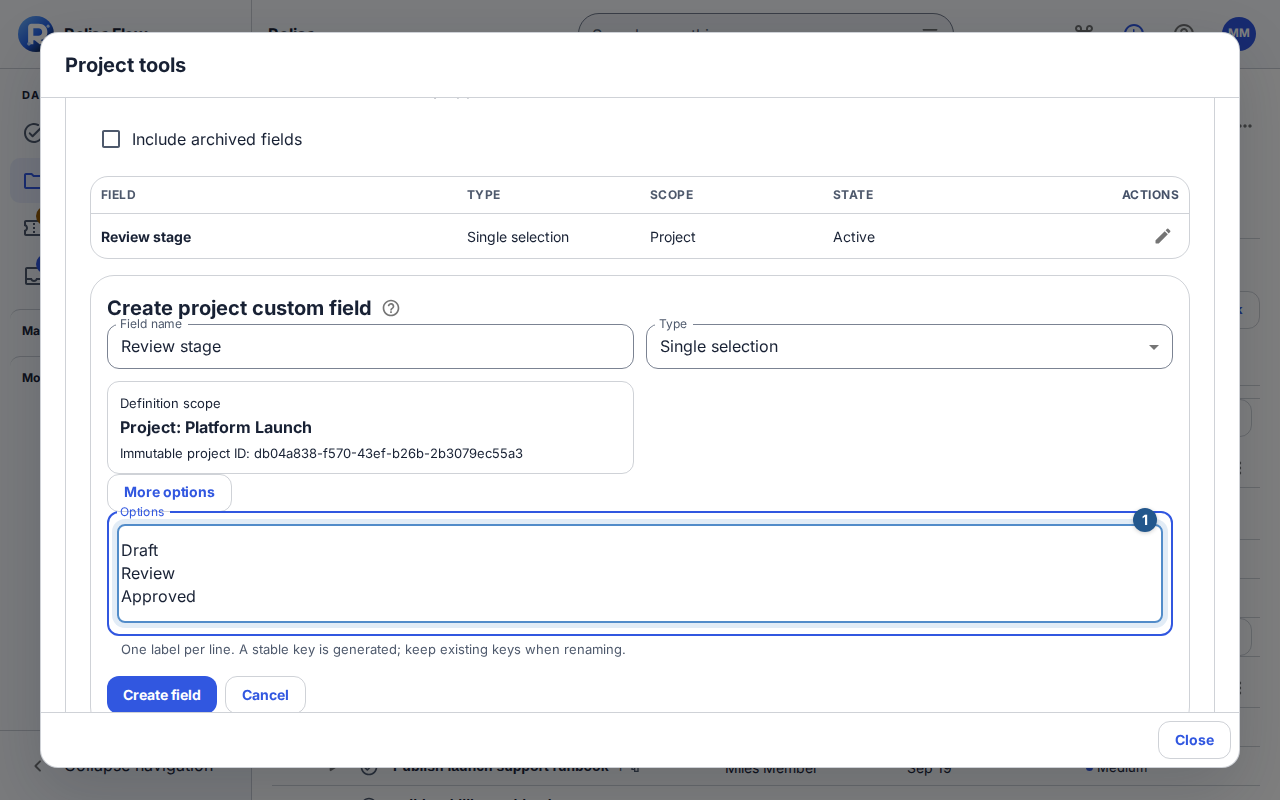
Enter the option labels for the selected type in the next part of the same field editor. For a simple field, keep the default applicability. Open More options to refine Applicability rules by action, work type, and named form or template target. These choices come from resources you can access; an unavailable target must be resolved before saving.
Under More options, decide whether it must be filled in and who may see or edit it. Required rules let you require it in a particular context. Workspace internal excludes client visibility. Access policies can narrow readers and editors, but cannot grant access to an otherwise hidden work item. Enable Searchable if people should filter by it.
Choose Create field. Open a task in this project, find its custom fields, and edit the new value if you have value-edit permission. Select a stage and save with the field's save control.
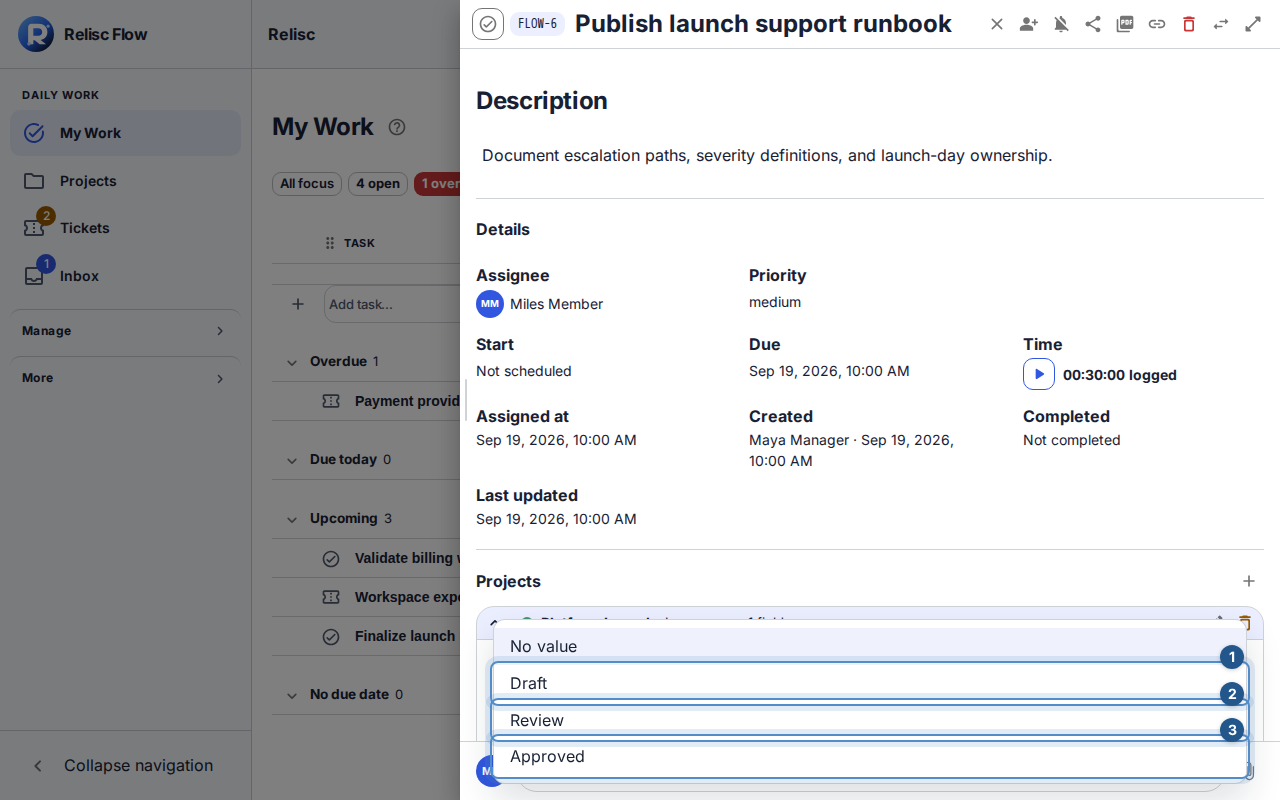
A task's custom-field value editor offers the approved Review stage choices.
Expected result: matching project work has a field with a consistent format. Only permitted people see its values and controls. You can add it to an appropriate project view or search filter.
Choose a type you can maintain
Text, number, date, yes/no, and single/multiple selection answer different questions. A formula is calculated rather than entered on each task: use the formula editor's numeric-field insertion control and supported arithmetic. A formula derived from internal fields cannot expose them as a public value.
Keep option keys stable when changing labels; historical values must continue to mean the same thing. Archiving a field preserves history while removing it from active use and stopping new values.
Missing fields and concurrent changes
Check project scope, applicability, archive state, and field access before assuming a missing field is broken. A required-field error needs a valid value in the relevant context. If a definition changes elsewhere, choose Review latest, compare the preserved draft with the current definition, and resolve each overlapping property before merging. Do not overwrite another person's choices just to dismiss the conflict.