Projects
Create a project with a clear purpose
Give a piece of work a home, choose its visibility, and add the first task.
Create a project when several tasks need a shared purpose, team, and plan. For example, “September client handover” gives people a place to collect preparation, review, and delivery work.
Create the project — 3 minutes
Before you start: select the correct workspace and make sure you have project-creation permission. Decide who should read the project. If a reusable plan already exists, apply a project template instead.
Open Projects and choose Create project, the plus button beside the heading.
The cursor starts in Project name. Choose a Team if that team should own the project context, or No team. The project key and description are under More options; an omitted key is generated for you.
Set Visibility deliberately: Workspace for workspace access, Team for the team's access, Private for restricted project access, or Client shared to make it eligible for client sharing. Client shared alone does not select a client organization or grant every client access.
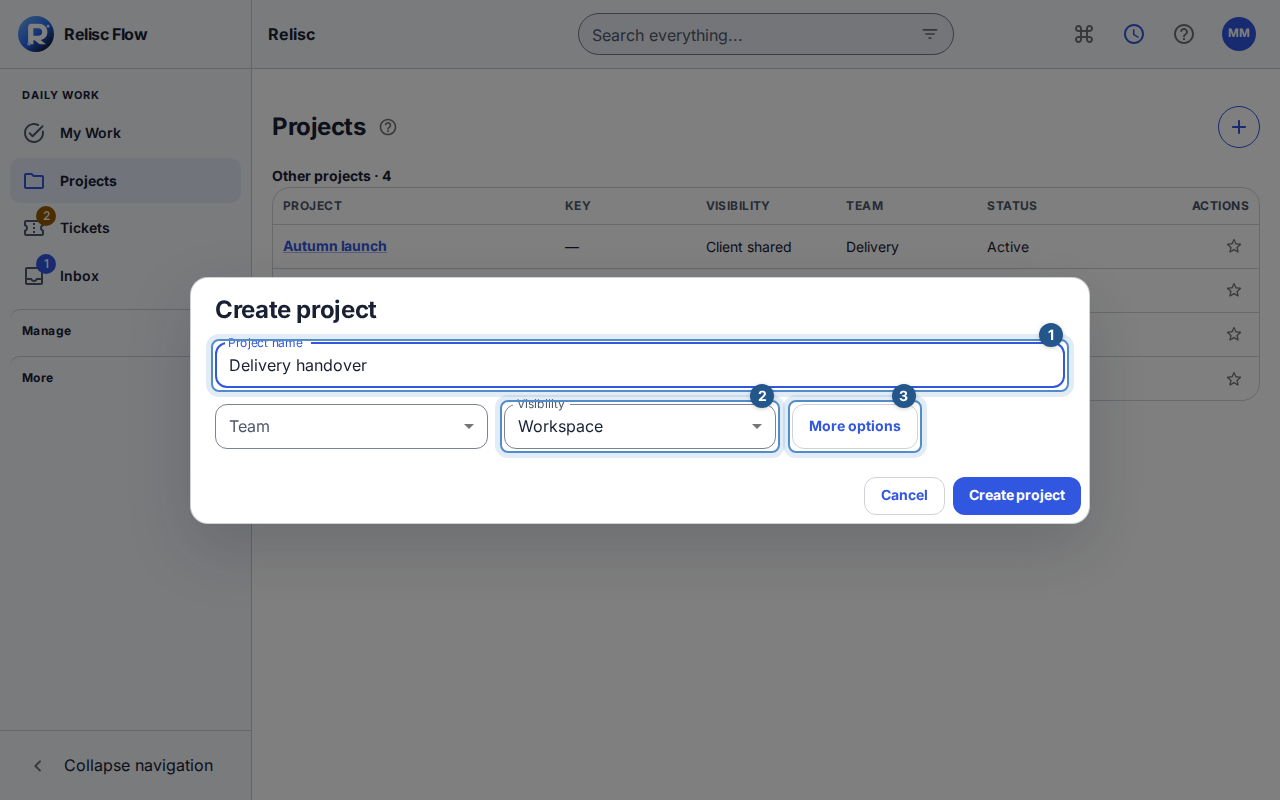
Create project shows the name, team, and visibility; More options holds the key and description. If needed, open More options and use Project description to explain the outcome. Choose Create project or press Enter in a single-line field; Escape cancels. Wait for the new project to open.
Choose Add task in the project header if your permissions allow it. Give the first task an actionable title, such as “Review the handover checklist,” and submit the creation form. Add ownership and dates when known rather than inventing them to fill fields.
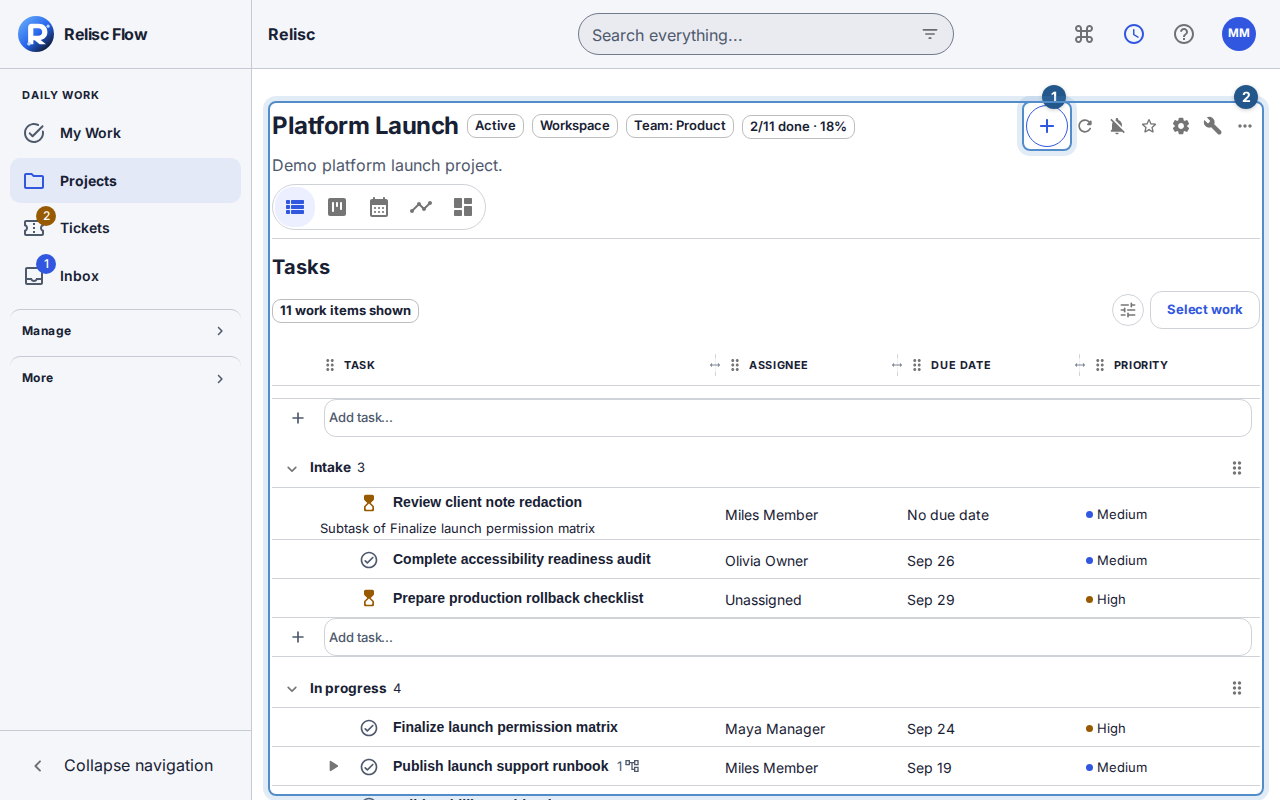
The new project header offers Add task and the five project views.
Expected result: your project opens with its name and visibility, and the first created task appears in its work. An empty project is valid; progress becomes useful as you add work.
Set up access and structure
Use Project tools for direct project people, sections, and available custom-field controls. A direct role supplements other access: removing one direct role does not remove access inherited through a team. Use Project settings when you need to edit the project description, name, or permitted visibility settings, then choose Save project.
For external collaboration, follow Share a project with a client before relying on a client to see it.
If creation or editing fails
Keep the form open and correct the field named by the error, such as a duplicate key or unavailable team. If you are unsure whether creation succeeded, check Projects before creating another project. If a task was created but is absent, clear the view filters. Archived projects are read-only; ask someone with project-management authority to unarchive before editing. On a conflicting edit, reload the latest version and review your preserved changes before retrying.