Use cases
Plan a project with dependencies
Connect a small launch plan, inspect its critical path, and make a deliberate scheduling decision.
Harbor Studio is preparing an autumn launch. Artwork must be approved before the sample pack is assembled; the pack must be ready before dispatch. Booking a photographer can happen alongside the artwork. A flat list makes all four tasks look equally urgent. Dependencies show which handoff actually holds up the launch.
Before you start
Use an existing workspace and a project you can edit, or ask someone with project-creation permission to create it. You need permission to edit the work and its dependencies, and access to both ends of each relationship. Pick real start and due dates in the workspace timezone.
The example uses three sequential tasks and one parallel task:
| Task | Example dates | Handoff |
|---|---|---|
| Approve artwork | October 5–6 | Before assembling the pack |
| Assemble sample pack | October 7–8 | Before dispatch |
| Dispatch samples | October 9 | After the pack is ready |
| Book photographer | October 5 | Independent of this chain |
Build a plan you can explain
1. Give each handoff a task
Create Autumn launch, add the four tasks, and assign an accountable person to each. Set start and due dates instead of using the task title as a calendar. Follow Create a project if you are starting from scratch.
2. Connect predecessor to dependent task
Open Approve artwork, find Dependencies, and choose Add dependency. In Dependent task or subtask, find Assemble sample pack. Choose Finish to start, leave lag at zero for this example, and add the dependency. Repeat from Assemble sample pack to Dispatch samples.
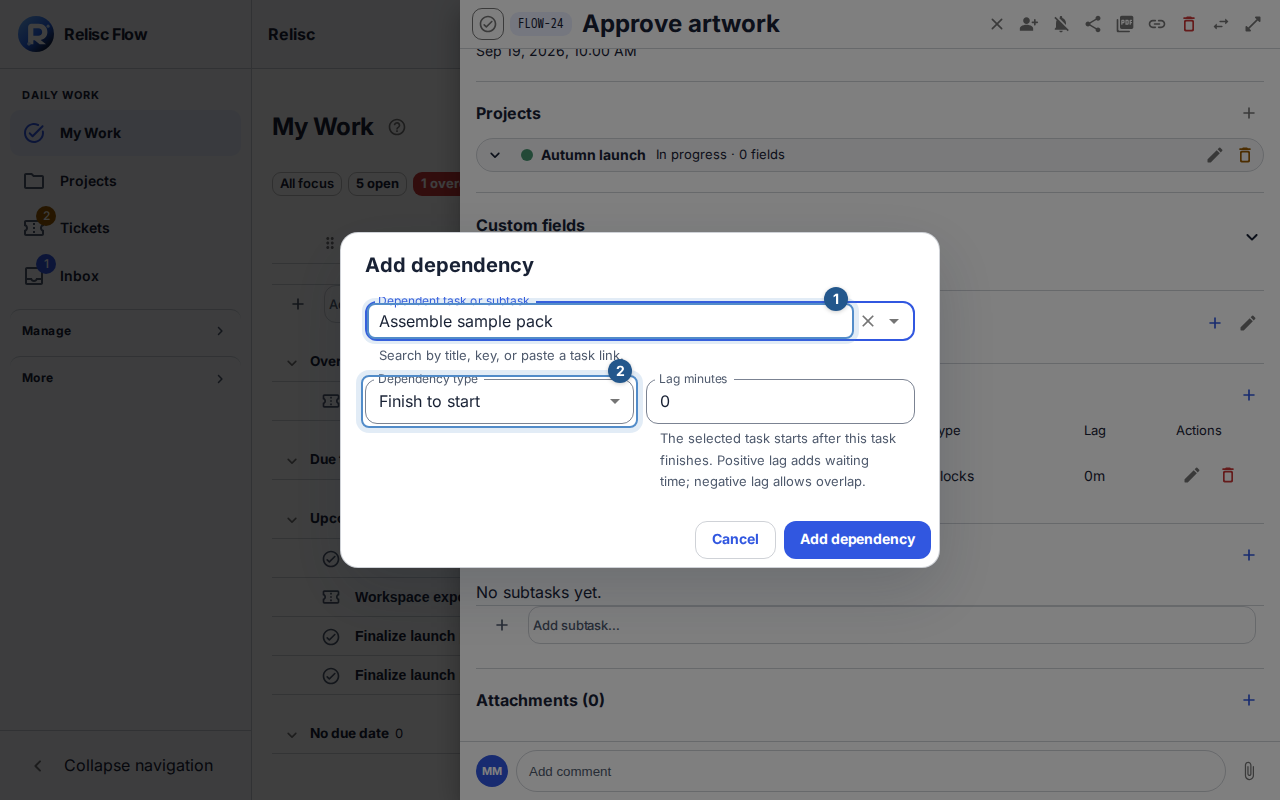
Read Dependencies and critical path for relationship types and lead/lag. Leave the photographer task independent unless there is a genuine scheduling relationship; adding a dependency is a planning decision, not a way to decorate the list.
3. Read the timeline before promising a date
Open the project's Timeline, choose a range containing the launch, and inspect Critical path and the Dependency and conflict list. Review any missing dates or conflicts before treating the analysis as a complete schedule.
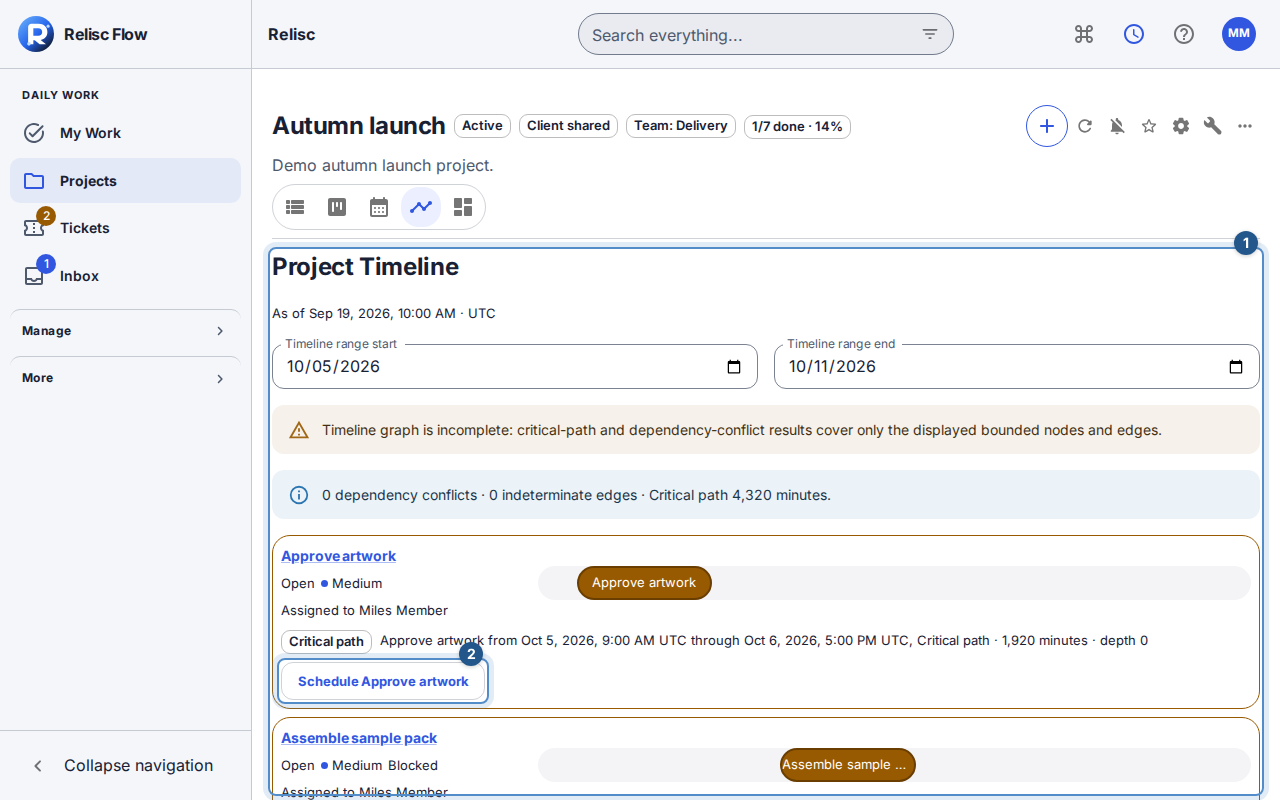
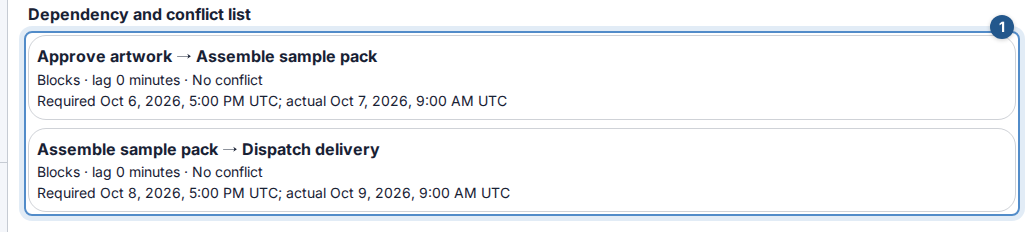
The critical path describes the displayed dependency graph. If Flow says that graph is incomplete, the result covers only the visible portion. Load more results when offered and do not infer that hidden or unscheduled work is harmless. See Project views.
4. Respond to a delay deliberately
Artwork approval moves one day later. Review the dependent pack and dispatch dates with their owners, then use the available scheduling controls to enter the agreed dates. Do not assume adding a dependency automatically moves every date: automatic dependency scheduling is off by default.
After the actual approval, complete the artwork task and continue the chain. If completion is blocked by an unfinished dependency, check the predecessor rather than removing a valid relationship just to finish the task.
The useful finish: you can explain what must happen before dispatch, which person owns each handoff, and why the promised date is still credible.
When the plan does not match the screen
Wait for the view to load; retry a failed projection. An empty timeline may have the wrong date range or work without dates. A missing dependency target may be inaccessible or in another workspace. Ask the project manager to check access. Cycles are not allowed: if the last task points back to the first, rethink the sequence. Reload conflicting edits and review the current dates before saving again.