Use cases
Run a client support desk
Turn a client's question into an owned request, a useful reply, and a checked resolution.
It is Monday at Harbor Studio. Acorn Goods has received a sample pack without its instruction sheet. One person spots the request, another knows which sheet to send, and the client wants a clear answer. Flow gives that small handoff a home: one ticket, one responsible person, and one conversation the client can return to.
Set up the desk before the first request
Use an existing workspace with a ticket workflow, an active client organization, and invited client users. The person setting up access needs client-management permissions; the person running the queue needs access to the tickets and permission for the actions they take. A named role uses its current permissions, not the authority suggested by its name.
Start with Client organizations and users. If you use service targets, agree the working calendar and targets with the person who can configure SLA policies and clocks. The workflow and service policy determine the available states and timing.
A request from arrival to resolution
1. Give the client a reliable starting point
Invite Acorn's contact to the portal. They send the missing-sheet request there, or use an available signed-in request form. The request belongs to Acorn's organization; inviting a client does not create another workspace.
Give the client the portal overview. This walkthrough uses portal intake. Receiving requests by email is not active in this release.
2. Find the request and take responsibility
Open Tickets, select Unassigned, and check the client filter. Open the new request, read it, and assign a teammate who can answer. Choose the next allowed Status in your workflow rather than leaving ownership implied in a comment.
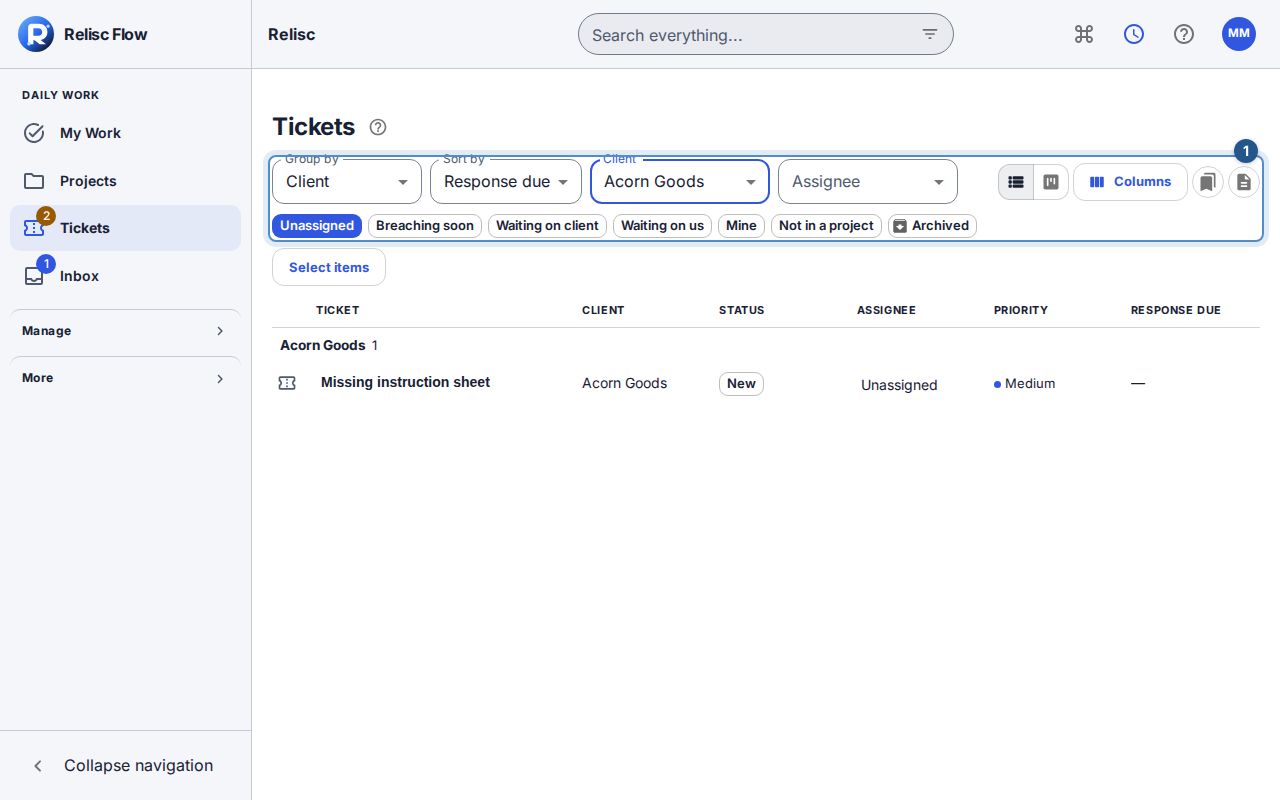
Follow Triage the ticket queue for the filters and board controls. If service targets are configured, check both the response and resolution timing: a first answer and a finished request are different outcomes.
3. Separate the answer from the investigation
Ask the warehouse teammate which sheet belongs to the pack in an Internal note, if you have that permission. Then switch to Reply to requester (Public), write a client-ready answer, and attach the clean instruction file. Review the audience before Send reply to requester.
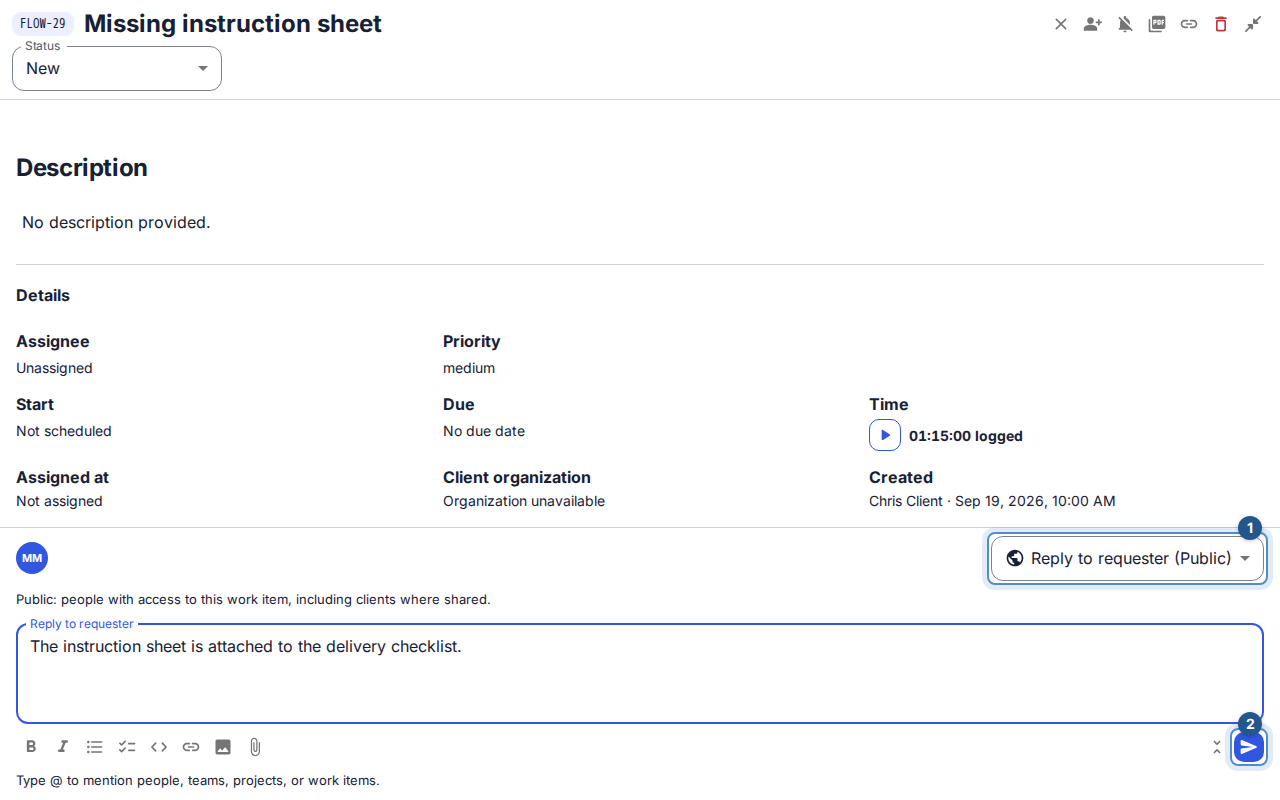
Use Reply to a client and Internal notes for the exact composer steps. A public reply is visible only to people with access to that ticket, not to the public web.
4. Check the result and finish the request
If you need the client's pack number, move to the permitted waiting-for-client state and ask one clear question. When the correct sheet has been supplied, send the resolution and use the workflow's allowed transition to Resolved. The client can test the answer before the request reaches Closed, according to the configured lifecycle. See The ticket lifecycle.
The useful finish: the client has the right sheet, the team can see who handled the request, and the answer remains attached to its history.
Keep the desk moving
A quiet Unassigned view can mean everything already has an owner; clear filters before assuming there are no requests. Wait for loading to finish and retry a failed queue read. If an assignment, state or reply action is unavailable, ask the workspace administrator to check that action's permission and the ticket's current access. Reload a conflicting change and review it before trying again.
When the same questions recur, handle requests through forms so the next request arrives with the information needed to act.