Use cases
Track and report time for a client
Record work where it happened, attribute it once, and review a client's time with a clear date range.
On Friday, Acorn Goods asks how much time went into this week's support. Harbor's team spent 45 minutes checking a sample-pack issue and 30 minutes preparing its replacement sheet. Recording those sessions on the client's ticket makes the 75-minute total explainable without reconstructing the week from memory.
Before you start
Use a ticket already linked to the correct client organization. The people recording time need current access and permission to record their own time on that work. The reviewer needs access to Reports and to the underlying work; report totals reflect that access. This is an internal-team workflow, not a client-portal timesheet.
If the work appears in several projects, decide which project should receive this session's attribution. A project name containing a client's name is not a substitute for linking the ticket to the client organization.
From work session to a useful review
1. Record the session where the work lives
Open Acorn's ticket. Start the timer when you begin and stop it when you finish, using the available timer controls. Only one timer can run for you in a workspace at once. Follow Track time for starting, stopping and recovering a timer.
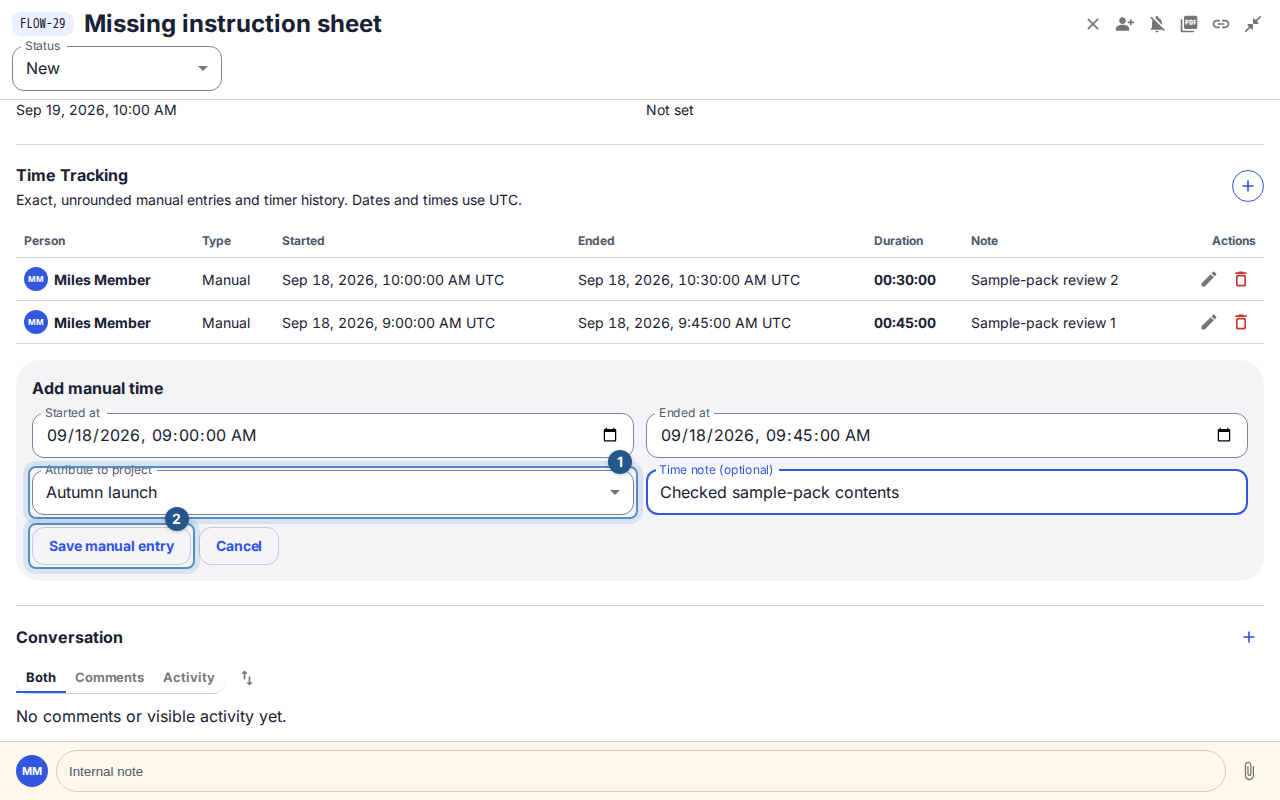
For work already done, go to Time tracking → Add manual time. Enter the actual start and end, choose Attribute to project if the ticket has multiple project placements, and add a short note such as “Checked sample-pack contents”. Select Save manual entry.
2. Check the two entries before reporting
Confirm that the 45-minute check and 30-minute document update are both present in the ticket's time history. Correct your own mistaken entry with its edit action when available. Stop an active timer before treating the report as final; do not add a manual entry for the same session just because its timer is still running.
3. Make the reporting period explicit
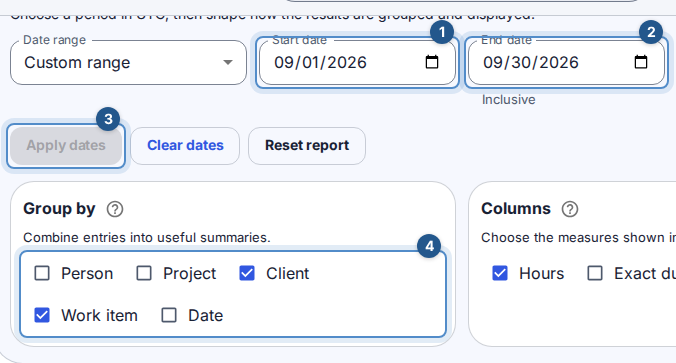
Open Reports → Time. Choose the appropriate date range, then Apply dates. Under Group by, select Client and Work item; add Project when you want to explain attribution, and remove groupings you do not need. Find Acorn's rows and compare the entries and duration with the work you recorded.
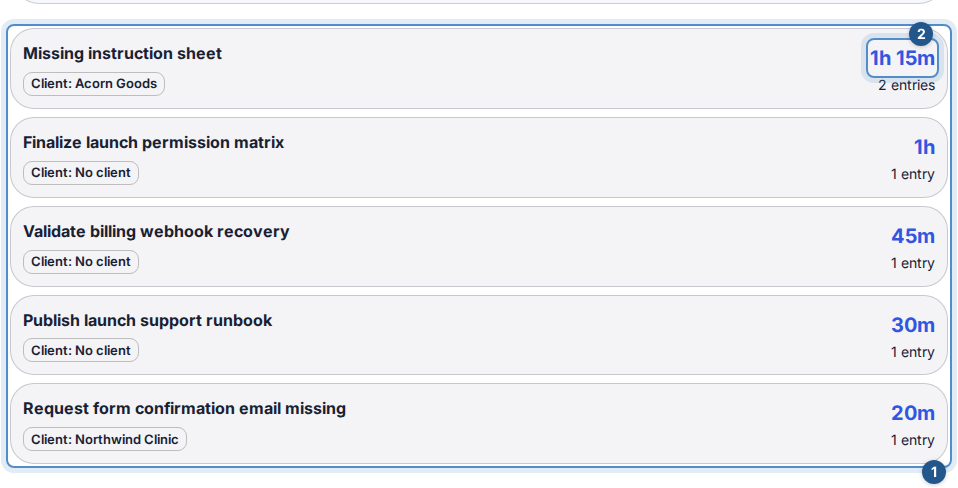
Date choices use the workspace timezone. Read Time reports before comparing periods or interpreting rounded hours. In this example, the two completed sessions total 1 hour 15 minutes, or 1.25 hours.
4. Prepare a repeatable client conversation
Save a personal report view if you will use these groupings again; review its date range each time. A saved view preserves a configuration, not a frozen invoice. See Saved report views.
If you have export permission and need a file, follow Exports, check the export's scope and contents, and share only the intended client information through your agreed channel. A workspace-wide report link does not give a client portal access to Reports. Flow's recorded time is evidence for the conversation; it does not automatically create an invoice or charge the client.
The useful finish: a reviewer can explain the period, the client, the work and the 75 minutes behind the total.
If the numbers do not add up
Wait for the report to finish updating before reading totals. Retry a failed load. Check the applied date range, stopped timers, ticket organization and project attribution. A blank report can reflect those filters or your access. If your role cannot edit an entry or see the underlying work, ask its owner or the workspace administrator to review it; do not duplicate the entry to compensate.