Use cases
Handle requests through forms
Ask the right questions once, route the resulting ticket, and give the requester a clear next step.
Harbor Studio's delivery desk keeps asking the same follow-up questions: which pack, what is missing, and is there a photo? A short Delivery help form can collect those answers before a teammate opens the ticket. The goal is fewer clarification loops, not a longer form.
Before you build
You need form-management permission and access to the destinations you configure. Decide who will handle submissions and which project, workflow and service policy apply. For a client submission routed to a project, that project must be shared with the selected client organization and allow ticket creation.
Ordinary request forms require sign-in. A link to a form does not register a user, create a workspace or grant access. Invite intended users first using Client organizations and users. Workspace requests themselves go to support@relisc.com.
From repeated questions to a handled request
1. Ask only what changes the next action
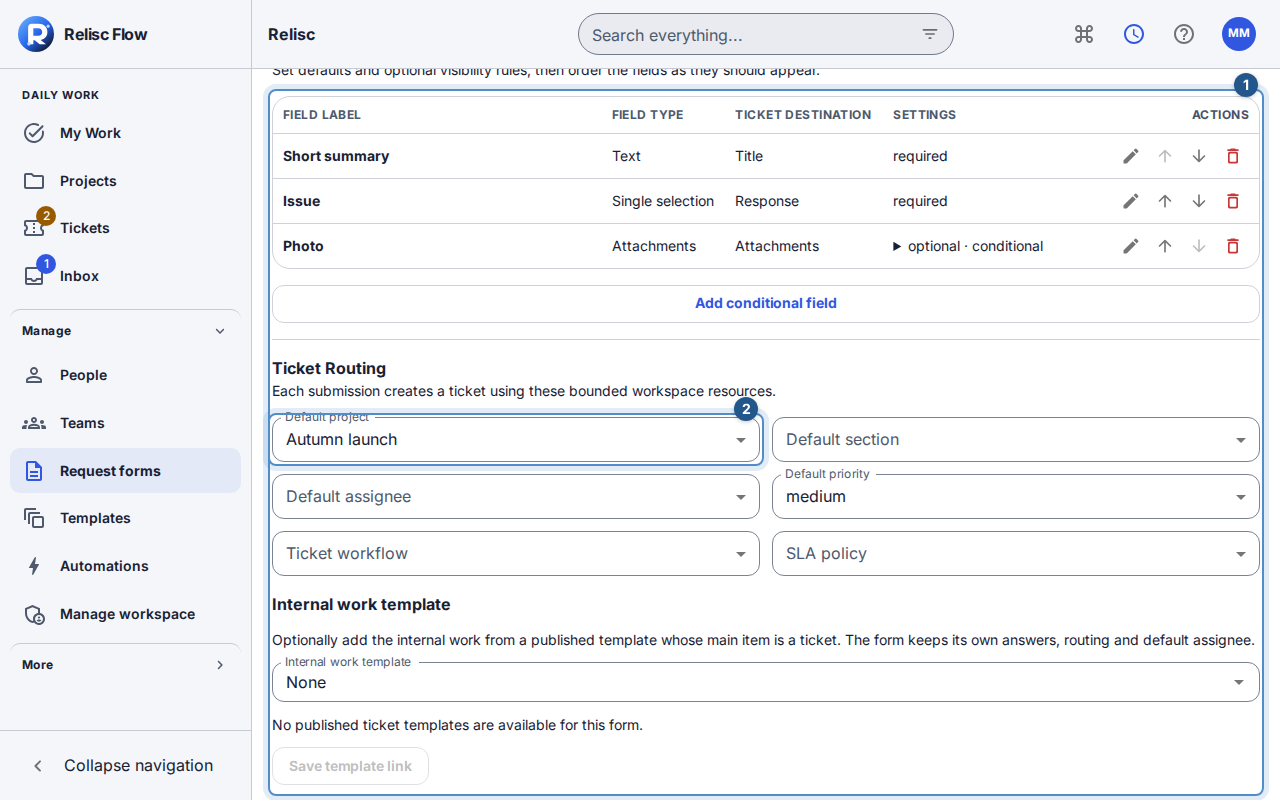
Open Request forms, choose Create request form, enter Delivery help, and create it. Select Edit form. Explain what the form is for and use the field editor to collect:
- a short request title, mapped to the ticket title;
- a description of the problem, mapped to the ticket description;
- the pack reference;
- an issue choice such as “Missing sheet” or “Damaged pack”;
- a photo field shown when the issue is “Damaged pack”, if a photo is needed.
Review which fields are required and give each a useful label. Use Request forms for supported field types, destinations and conditional rules. Form-authored text is not automatically translated: write instructions your intended requesters can understand.
2. Choose the ticket's destination and the confirmation
In Ticket routing, choose the appropriate Default project, section and Default assignee where applicable. Review the workflow and SLA policy. Wait for routing changes to save.
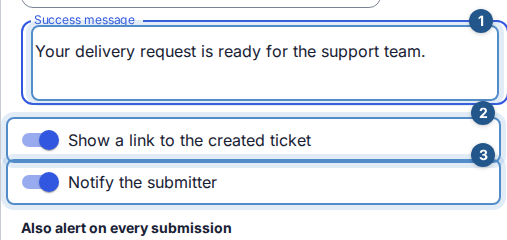
Set a success message such as “Your delivery request is with the team”, explain the next step, and enable the ticket link or redirect if appropriate. Select Save submission experience for these settings. Check that the form is active when you are ready for submissions.
3. Try the actual requester journey
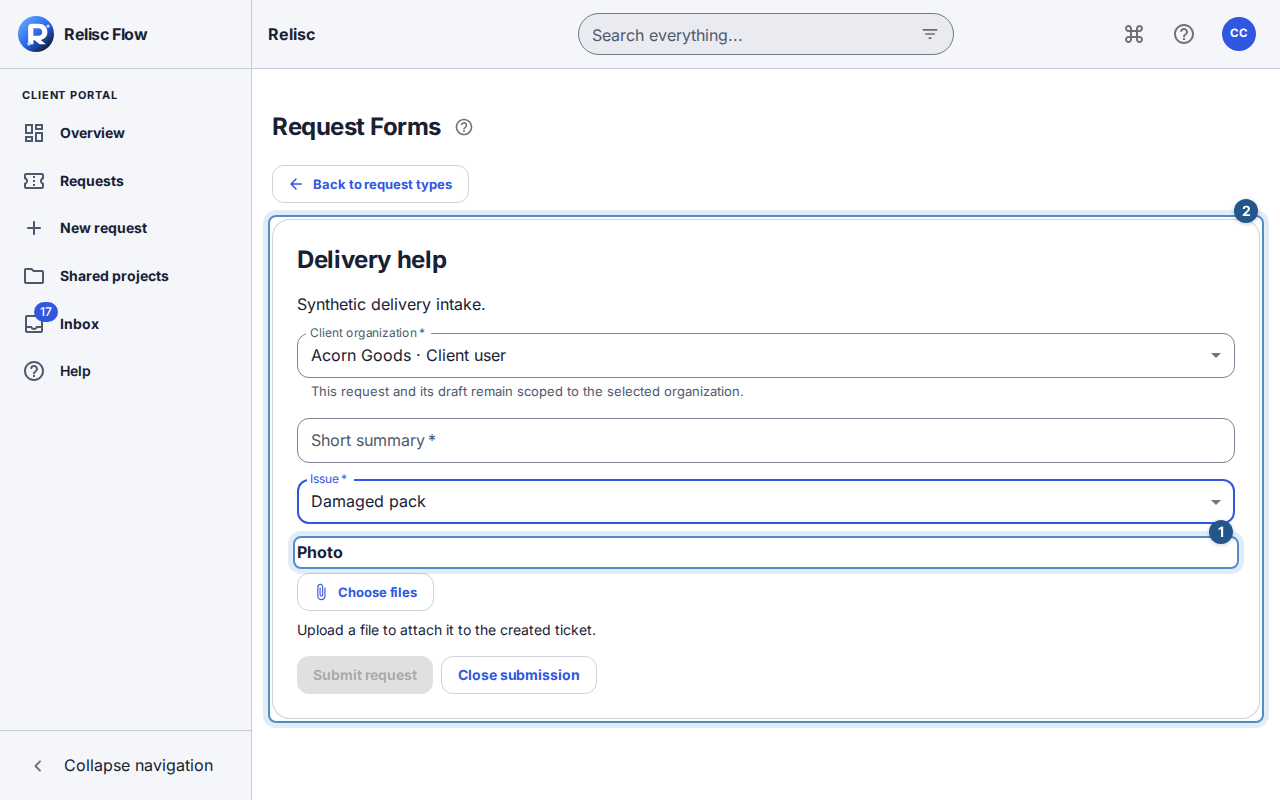
Have an invited client with the intended organization access open New request and choose the Delivery help request type for that organization. Its form opens directly; Back to request types returns to the catalog. They check the organization, answer the required questions and submit using the form's button. Try both issue choices so the conditional photo question appears only where intended. Wait for the confirmation or the created request; do not mistake a saved draft for a submission.
4. Close the loop in the resulting ticket
Return to the desk with your own account. Find the result in Tickets and check its client organization, destination and assignee. Expand Request form in its details to read the original answers. The teammate reviews the photo, sends a reply to the client, and handles the ticket through the normal triage queue.
The useful finish: the requester knows their request arrived, and the teammate has enough information to take the next action without asking the opening questions again.
If a submission cannot proceed
Wait for the form, draft and routing options to load. Complete visible required fields and resolve upload errors. If the form changed, review recovered answers before retrying. If the project share or organization became unavailable, ask the person managing that access to repair the intended route. Do not point the request at an unrelated organization to bypass the error. For an uncertain result after a connection failure, check the ticket list before submitting again.
This flow uses authenticated forms; it does not depend on email intake being active.